 LISTPOP
Your guest list, from an empty account to the morning after.
This guide follows one venue through everything ListPop does: opening an account, setting up lists, inviting the people who work your nights, filling a list, ticking people off at the door, and reading the numbers afterwards.
What ListPop does
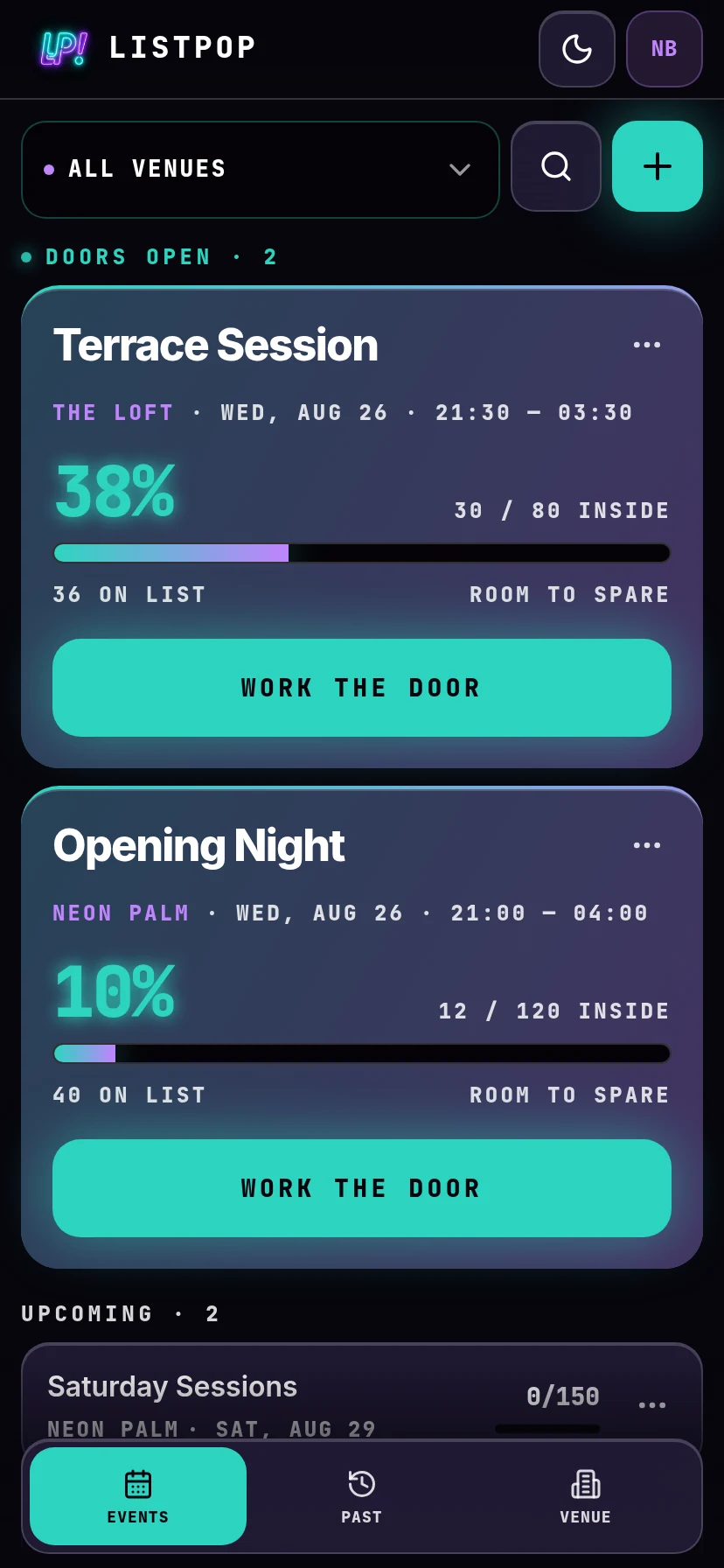
ListPop holds the guest list for a night in one place, so the person on the door is working from the same list your promoters filled in that afternoon. Names go in during the week, the door ticks them off as people arrive, and the next morning you can see who actually turned up.
It runs in a browser on any phone, tablet or laptop. There is nothing to install, though you can add it to your home screen and it will open like an app. It comes in dark and light, set per person. Every screenshot in this guide follows whichever you pick, using the toggle at the top.
Guests never log in and never get an account. They are names on a list. The only people with logins are you and your staff.
Five words worth learning first
| Word | What it means |
|---|---|
| Venue | A room you run. Everything else sits inside a venue: your events, your lists, your staff, your banned names. |
| Event | One night at a venue, with a start time, an end time and an optional capacity. |
| Guest list | A named list inside an event, such as VIP, Press, or a promoter's own list. |
| Guest | One row on a list: a person, plus however many people they are bringing. |
| Plus ones | The extra people arriving with that guest. "Ada +2" is one row and three people. |
Create your account
Open the app and choose Create one here at the bottom of the sign in screen. You need an email address and a password of at least eight characters.
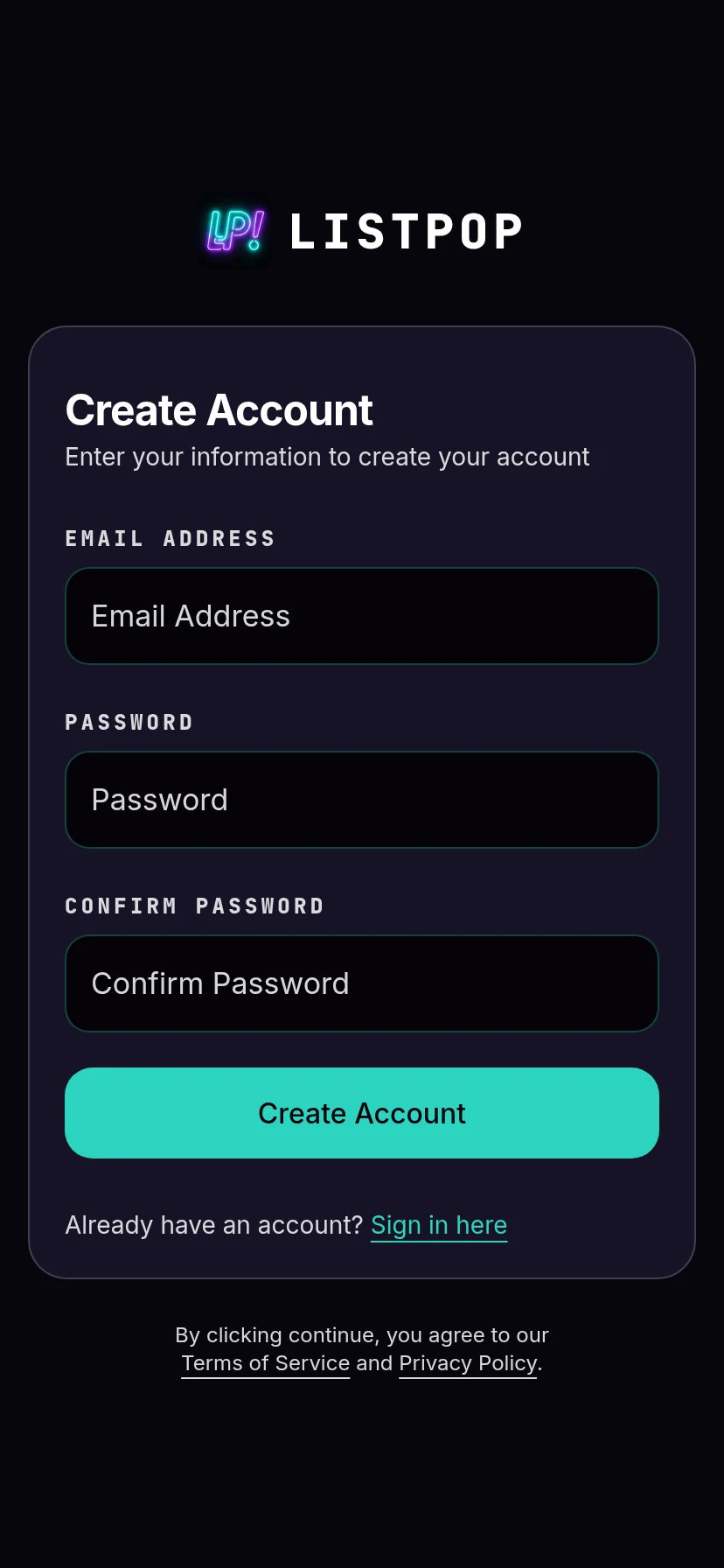
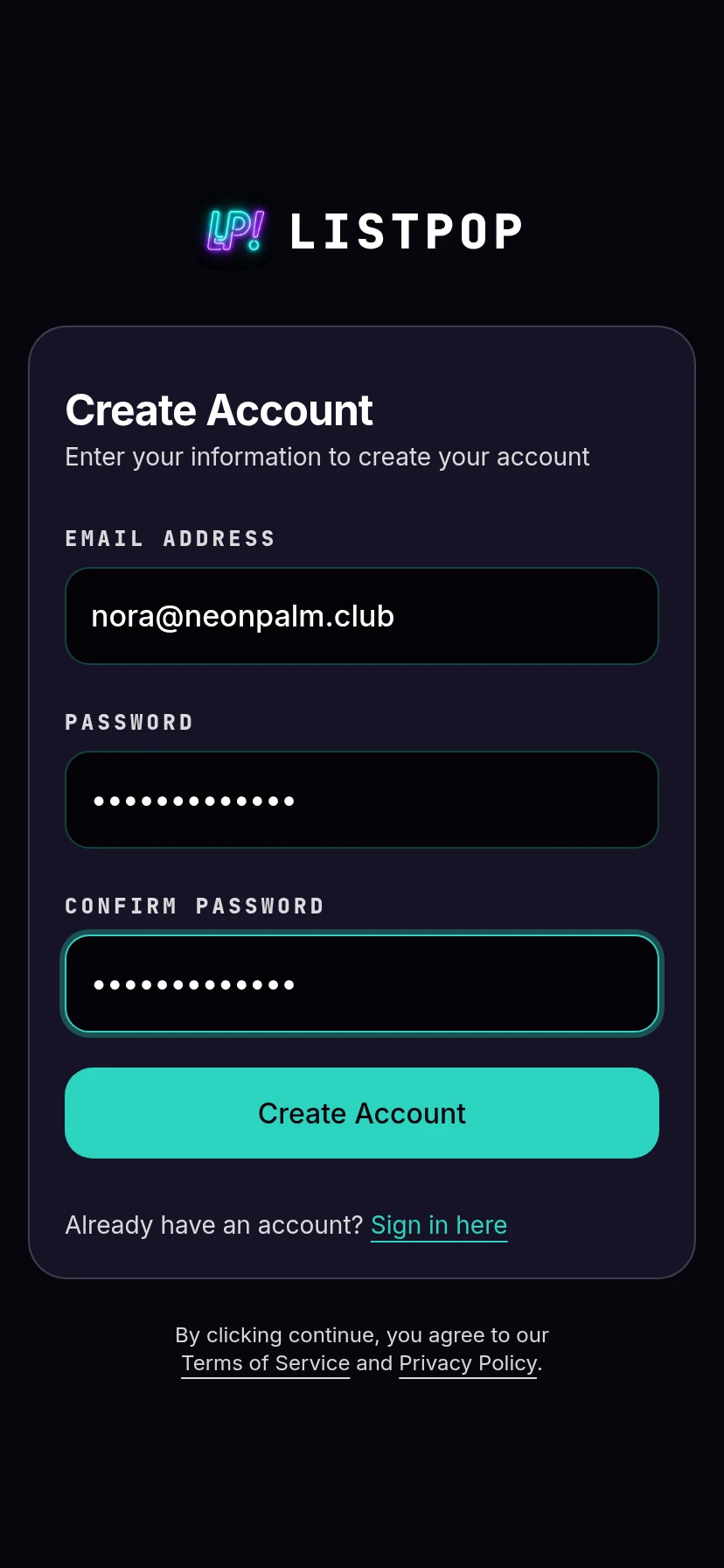
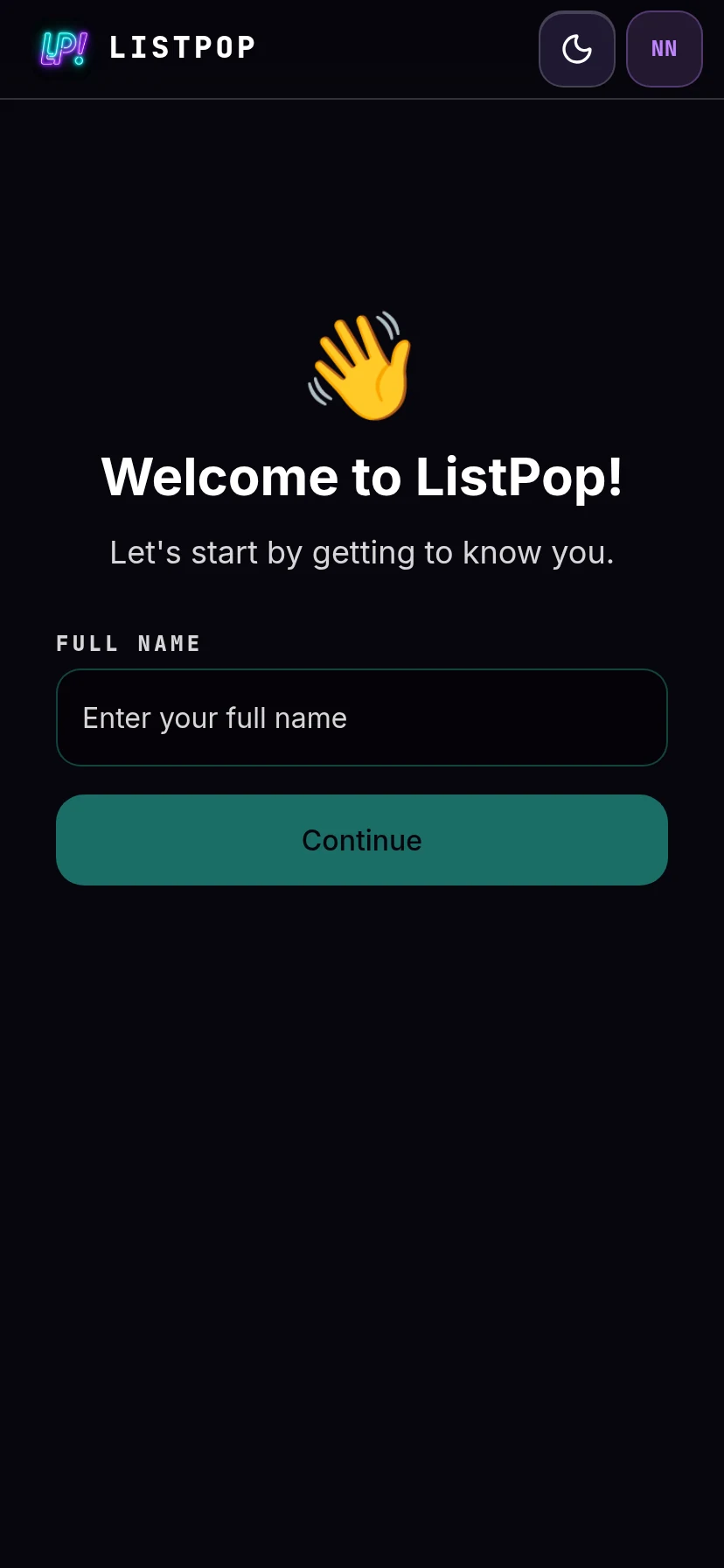
ListPop sends a confirmation email. Click the link in it, and you land on a short setup flow that asks two things: what to call you, and whether you run a venue or work at one.
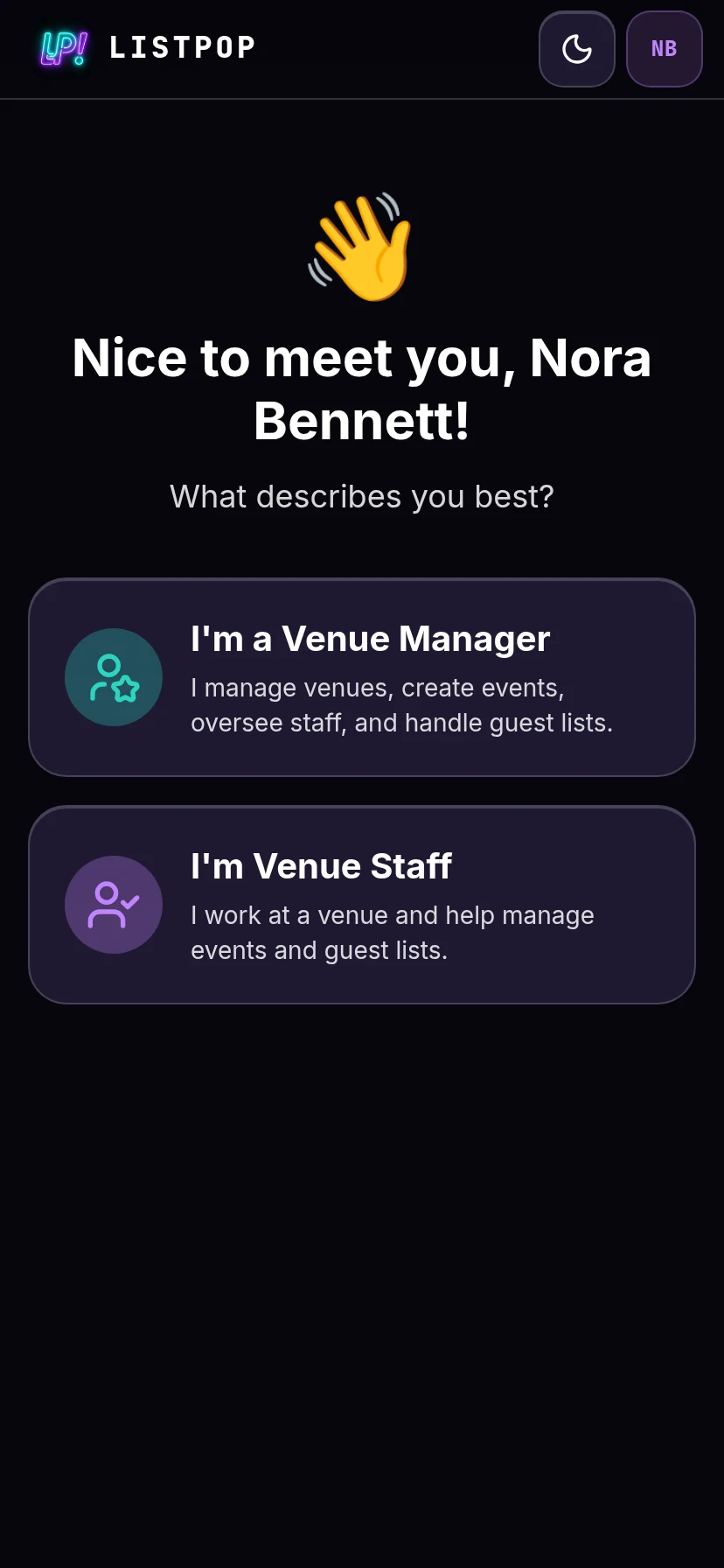
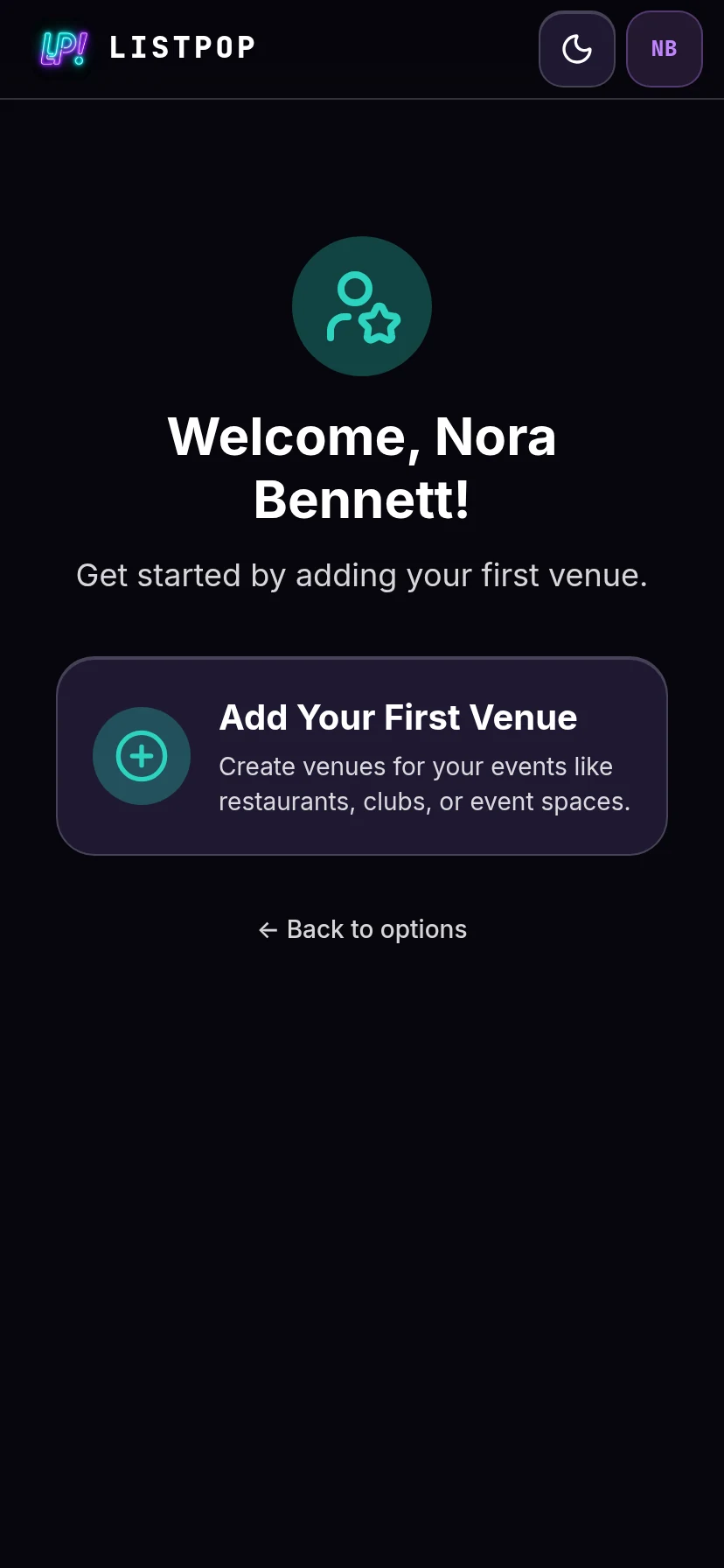
Your promoters and door staff sign up exactly the same way, but they choose I'm Venue Staff. That puts them on a waiting screen showing the email address they registered with. They send you that address, you add them to the venue, and the app lets them in. They cannot add themselves.
Open your first venue
A venue only needs a name, up to 20 characters. Use the name your staff would say out loud, because it appears next to every event and on every guest row.
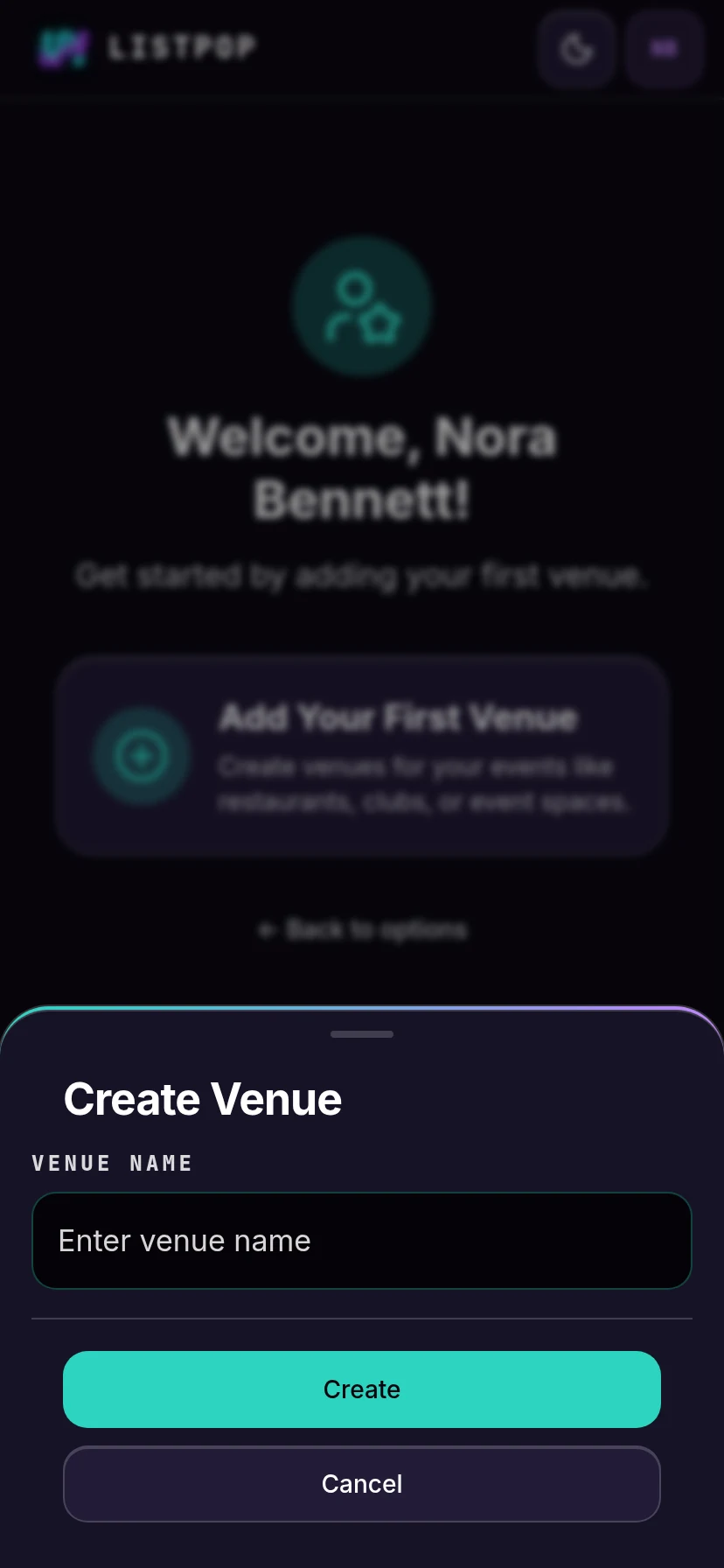
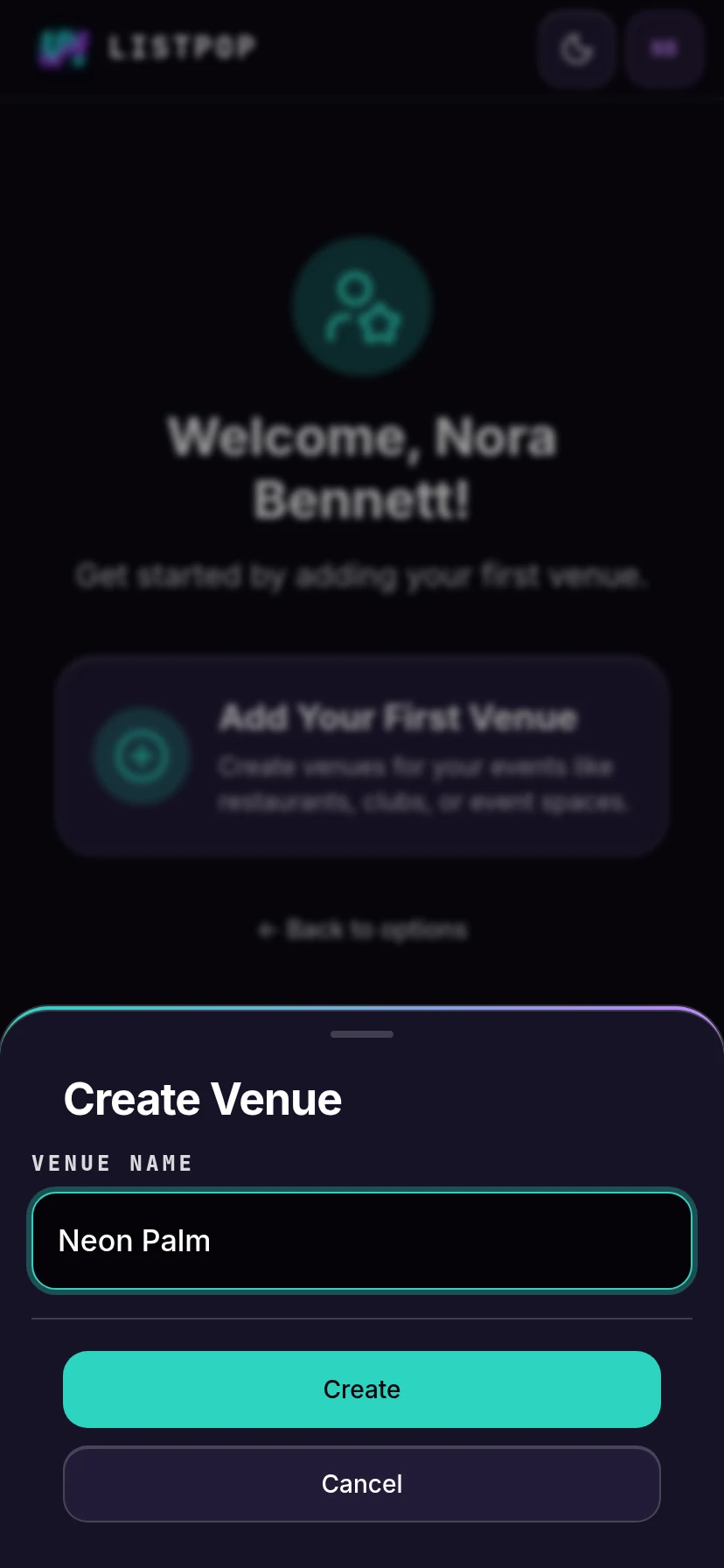
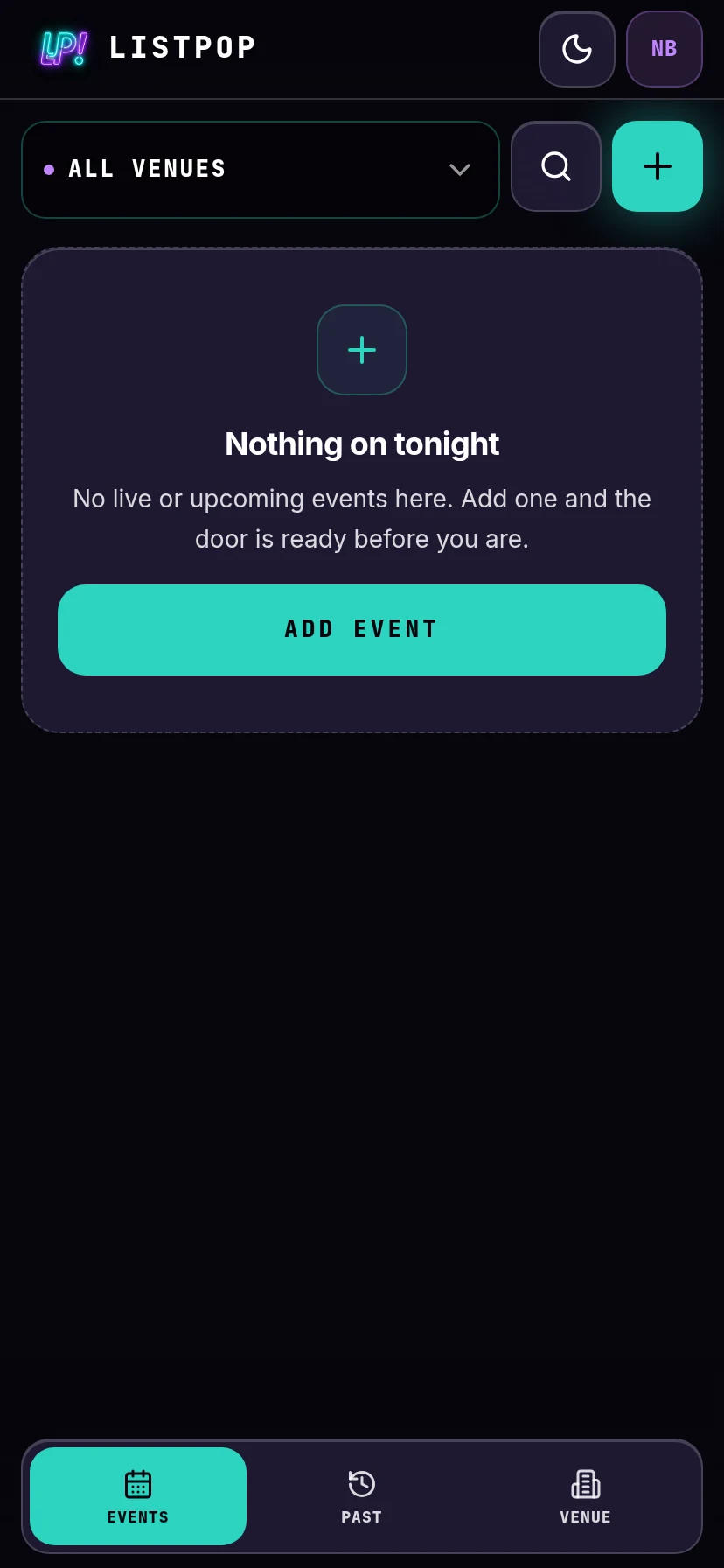
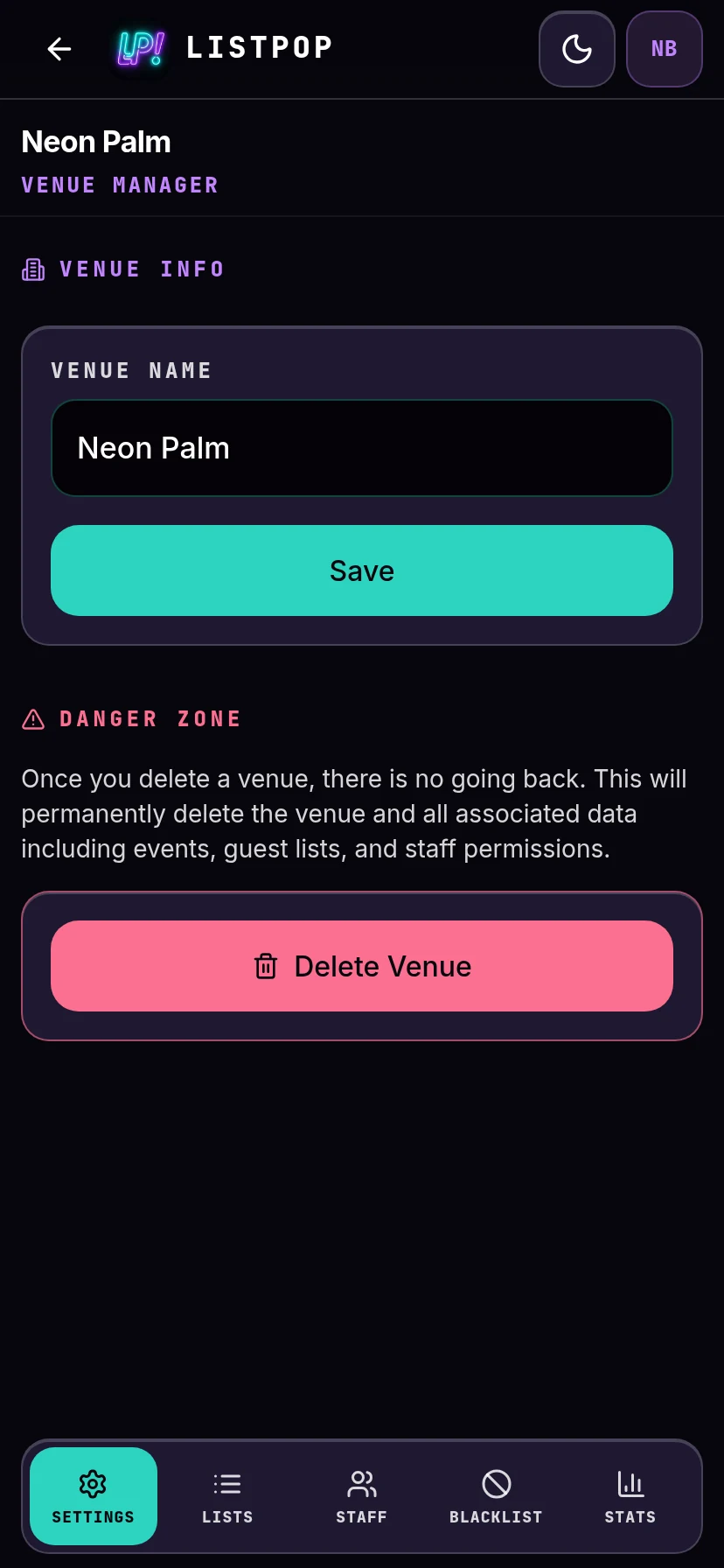
The venue you just made is now the root of everything. Tap Venue in the bottom bar to open it, and you get five tabs: Settings, Lists, Staff, Blacklist and Stats.
Set up your guest lists
Lists are how you split a night up: VIP on one, general admission on another, a list per promoter if that is how you pay them. You set them up once on the venue, and every event you create from then on starts with the same set already made.
Open the venue and go to Lists. A new venue comes with one list called Guests, marked as the default. The default is the list ListPop pre-selects when someone adds a name, so make it whichever list you use most.
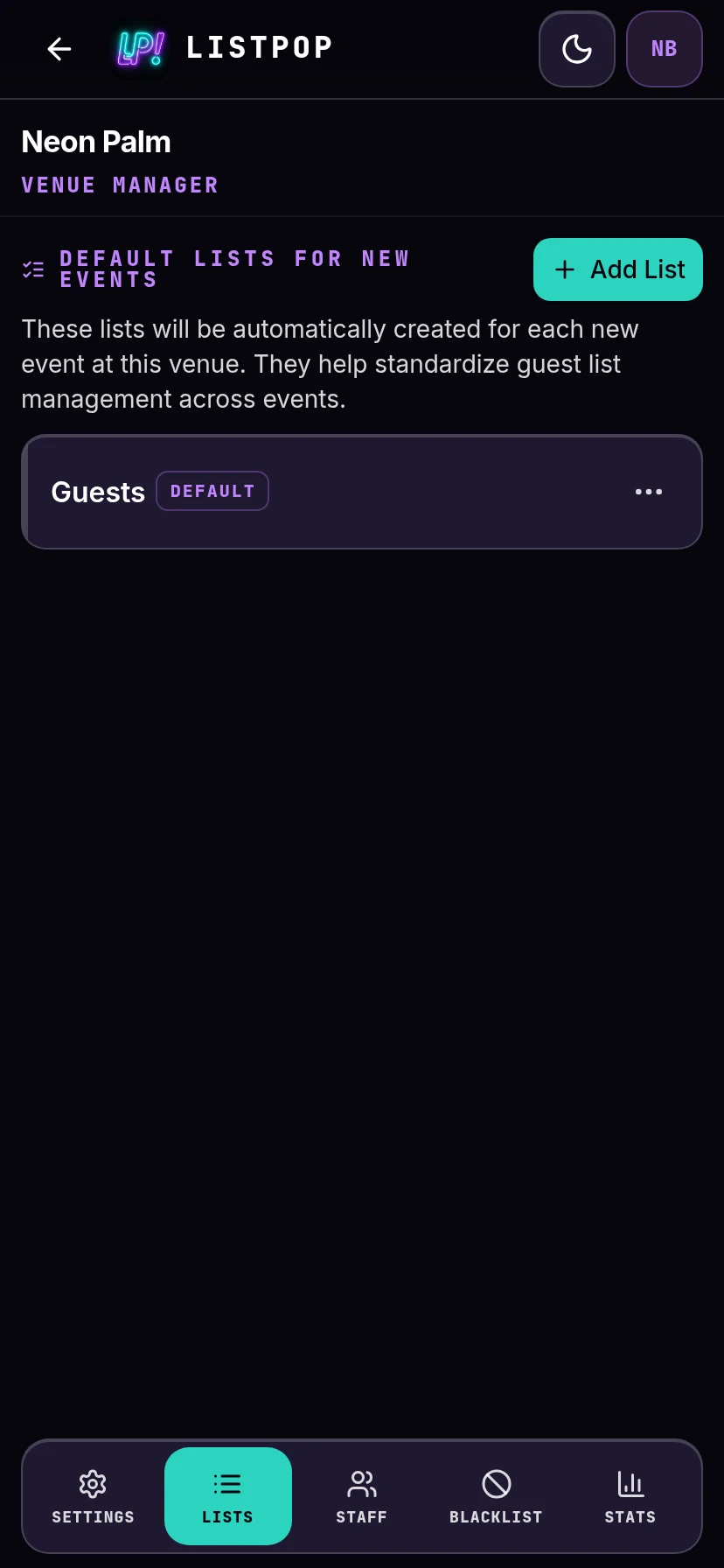
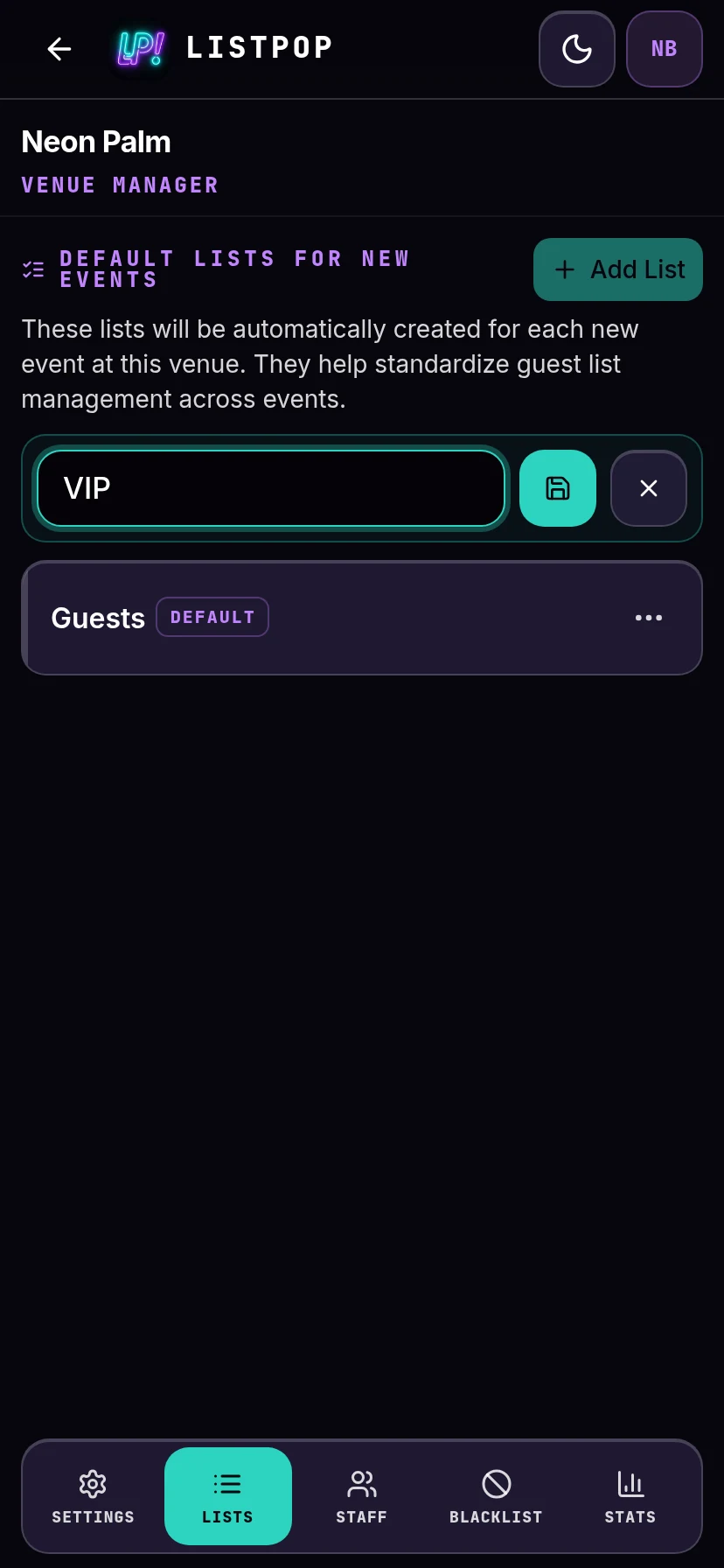
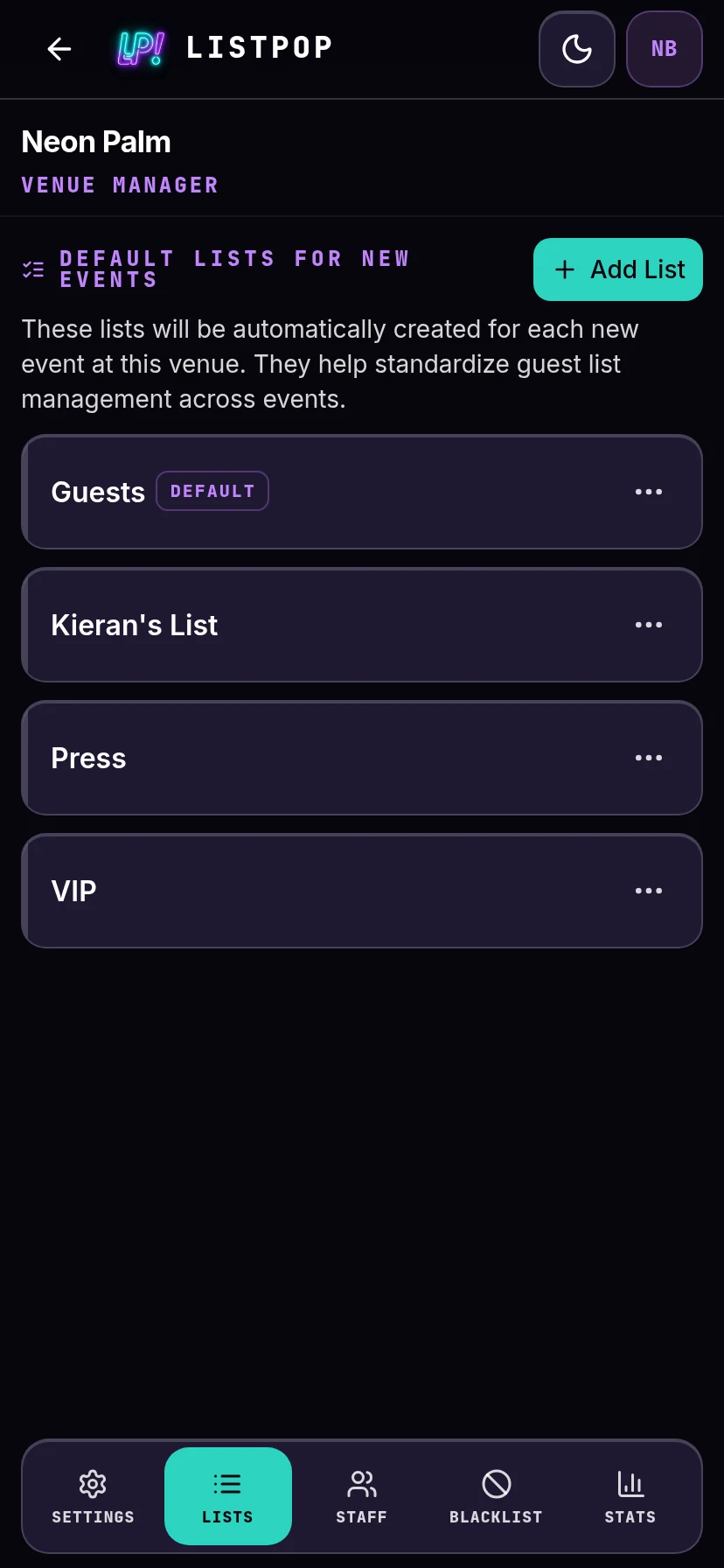
These venue lists are templates. Changing them does not touch events you have already created, it only changes what new events start with. To rename or remove a list on a night that already exists, do it on that event's own Lists tab.
Add your team
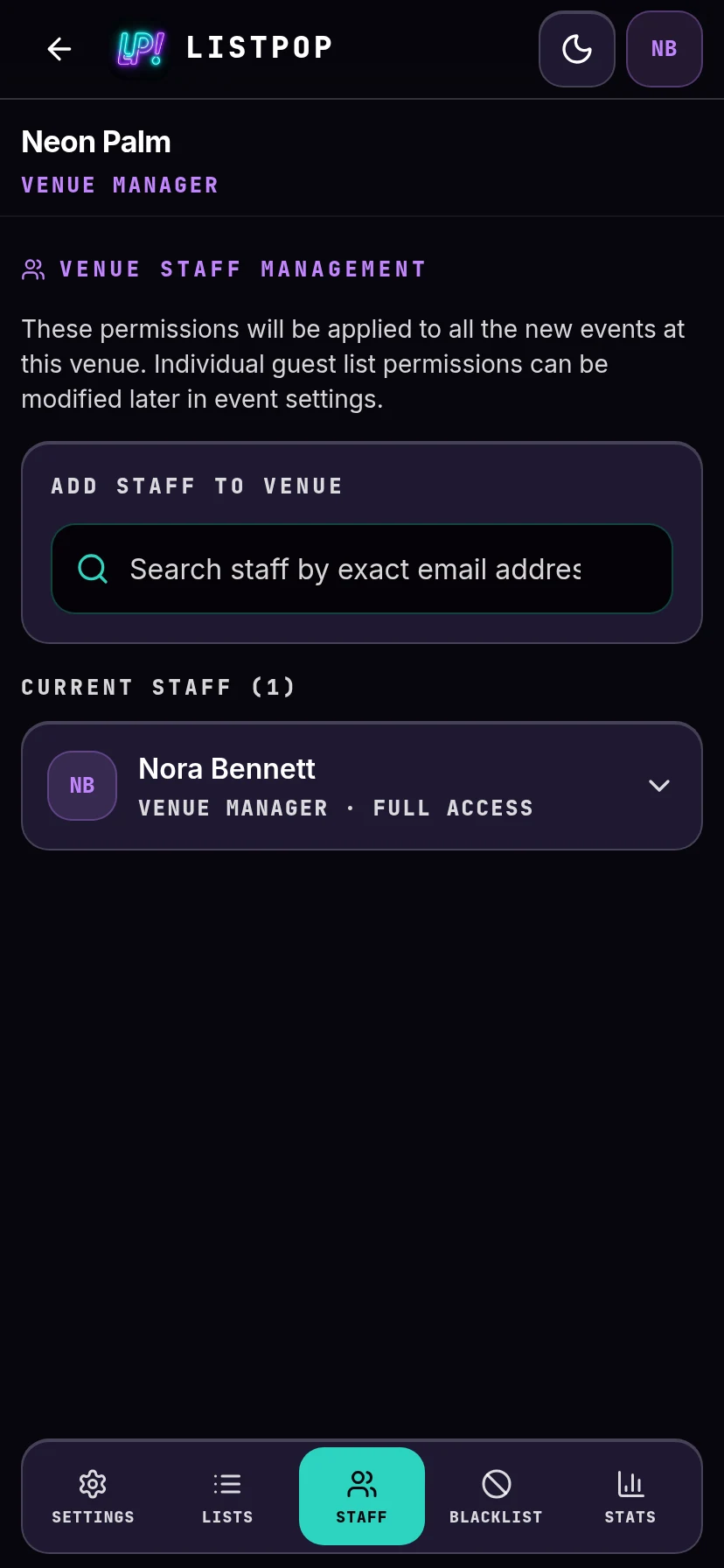
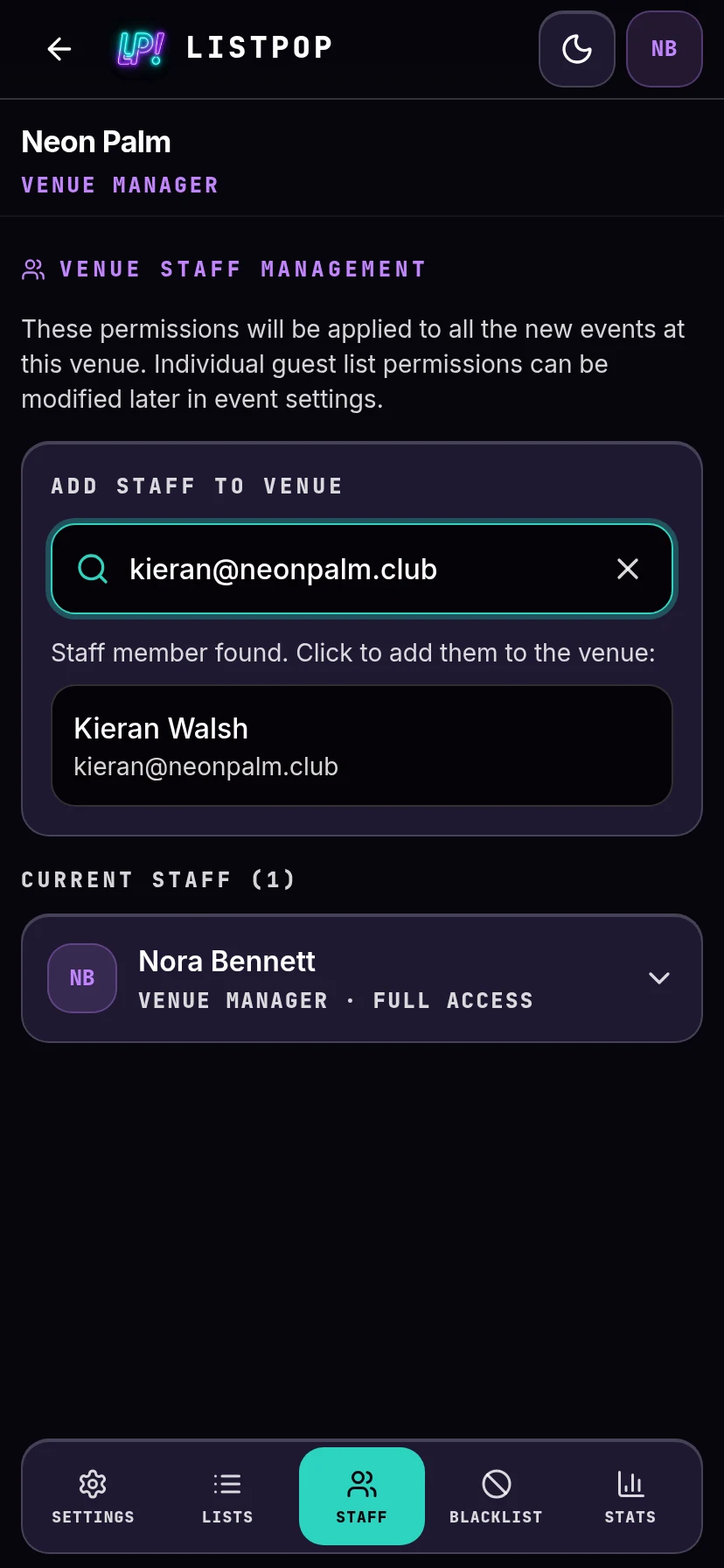
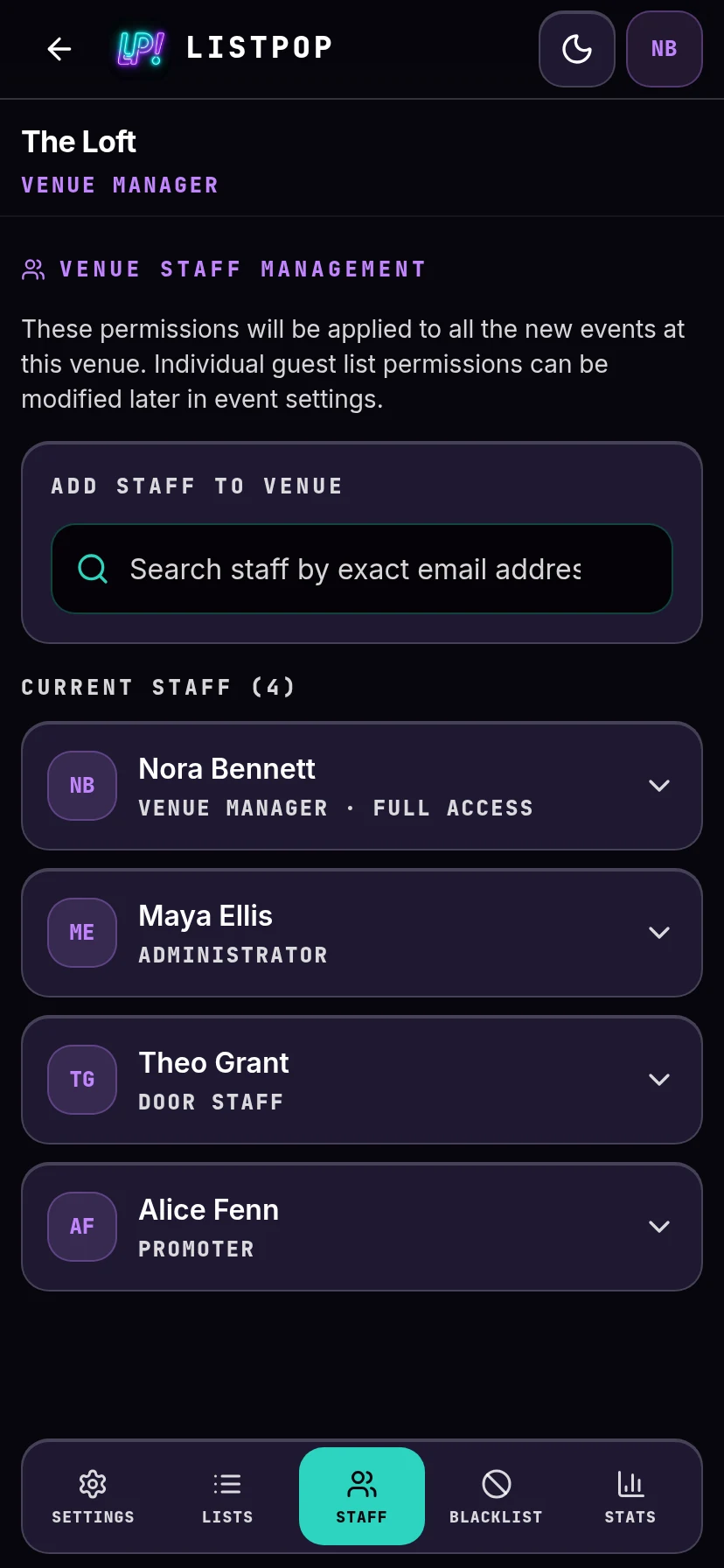
Go to Staff on the venue. Search for someone by their exact email address, the one they signed up with. Partial matches do not work, and this is deliberate: it stops anyone browsing your staff list or guessing at addresses.
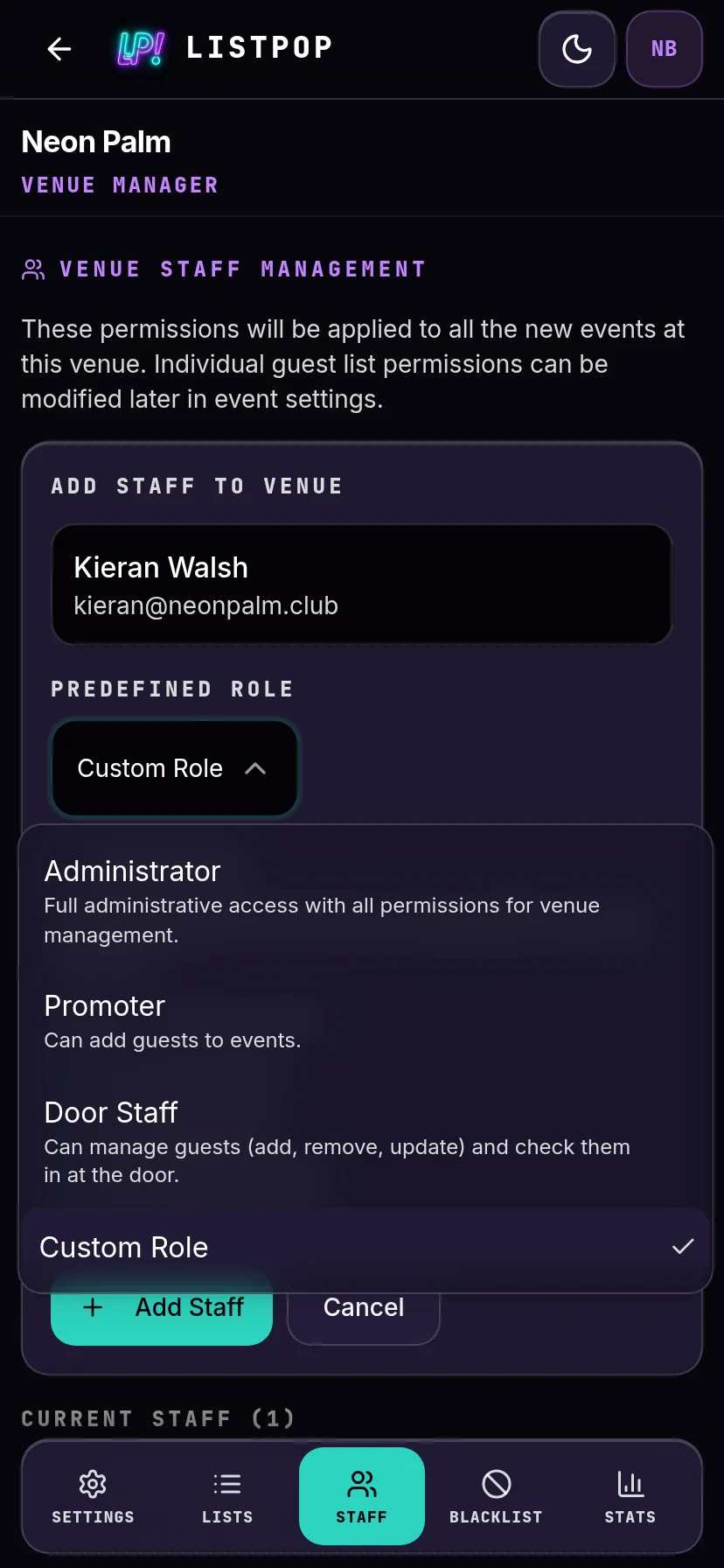
The four roles
Administrator
Everything you can do, apart from deleting the venue. Use this for a manager who runs nights when you are not there.
Promoter
Can add guests, and nothing else. They cannot remove a name or check anyone in.
Door Staff
Can add, edit and remove guests, and check people in. This is the role for whoever holds the phone at the door.
Custom Role
Set the four permissions yourself: view, add, remove, check in. Use it when none of the three above quite fit.
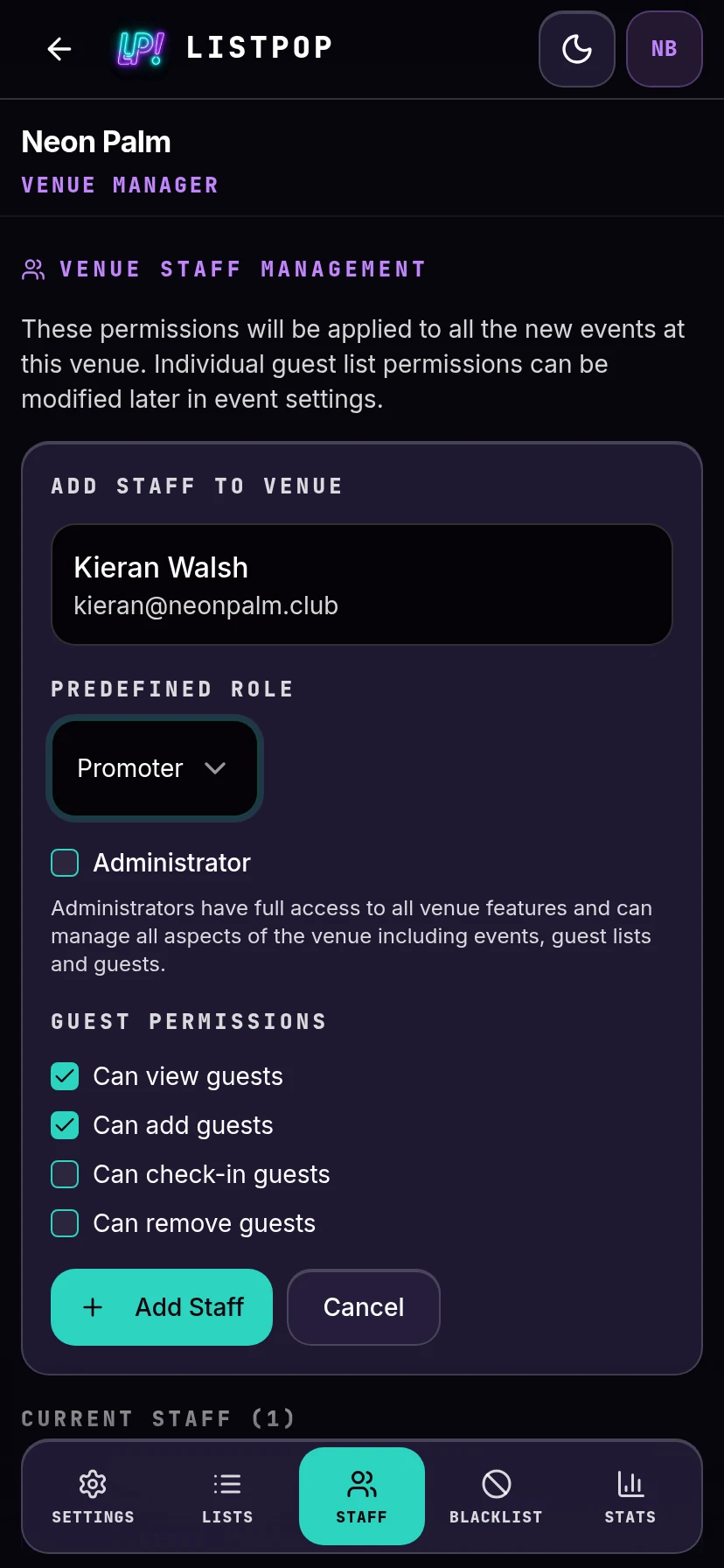
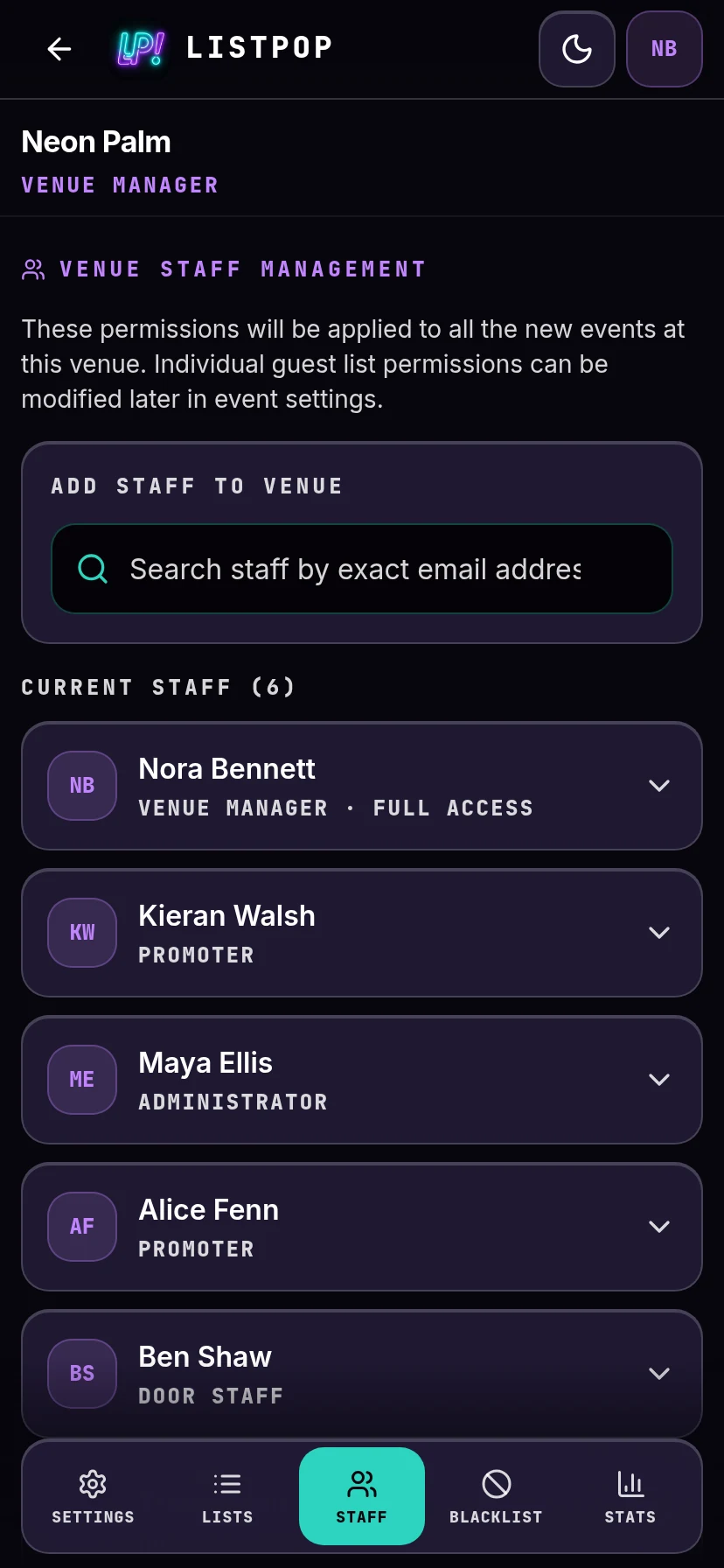
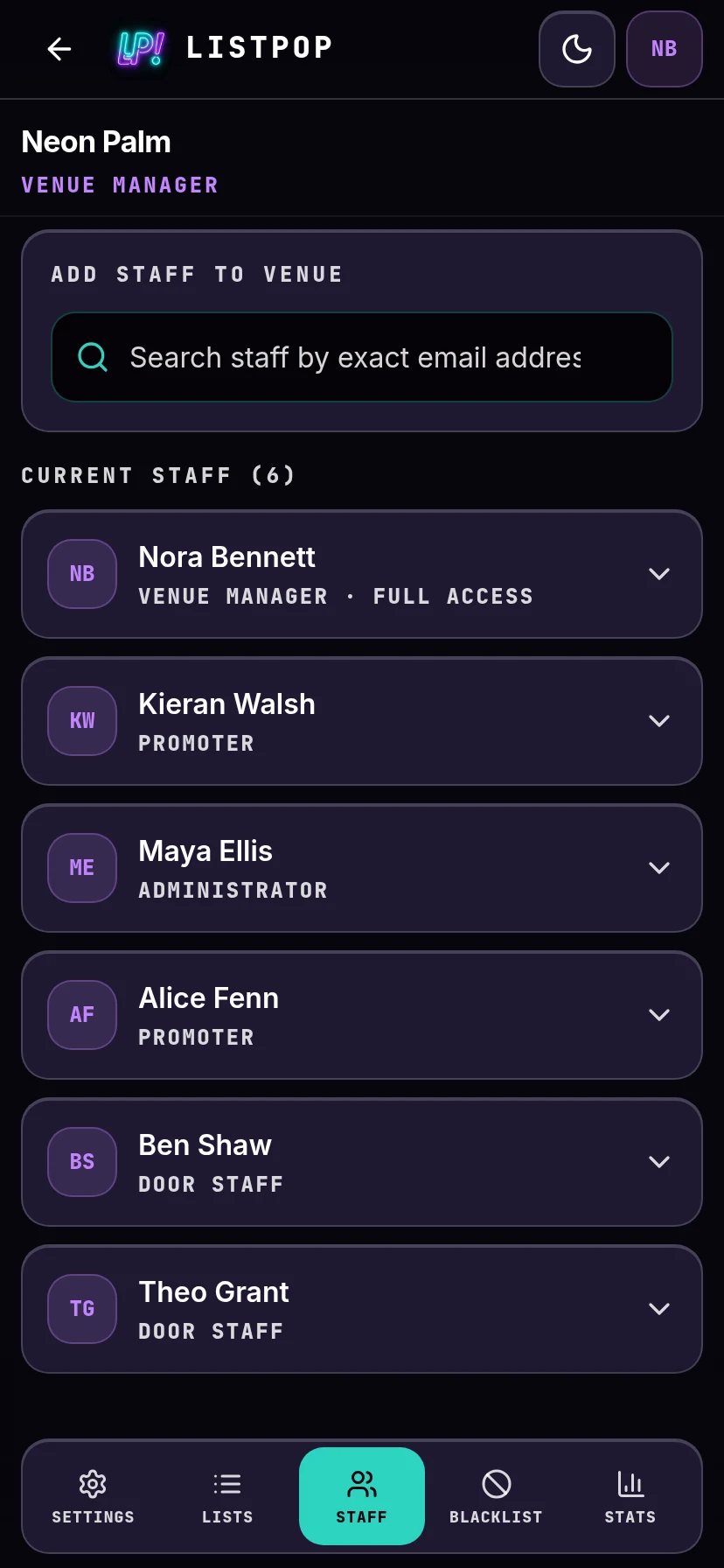
What you set here becomes each person's default across every event at the venue. You can still override it for a single night or a single list later, on the event's Access tab.
Ban a name
The Blacklist tab holds names that should not get in. It works on names, not accounts, and it applies to the whole venue rather than one night.
Add a name, and optionally a reason and a photo. The reason is what your door staff will read at two in the morning, so write it for them.
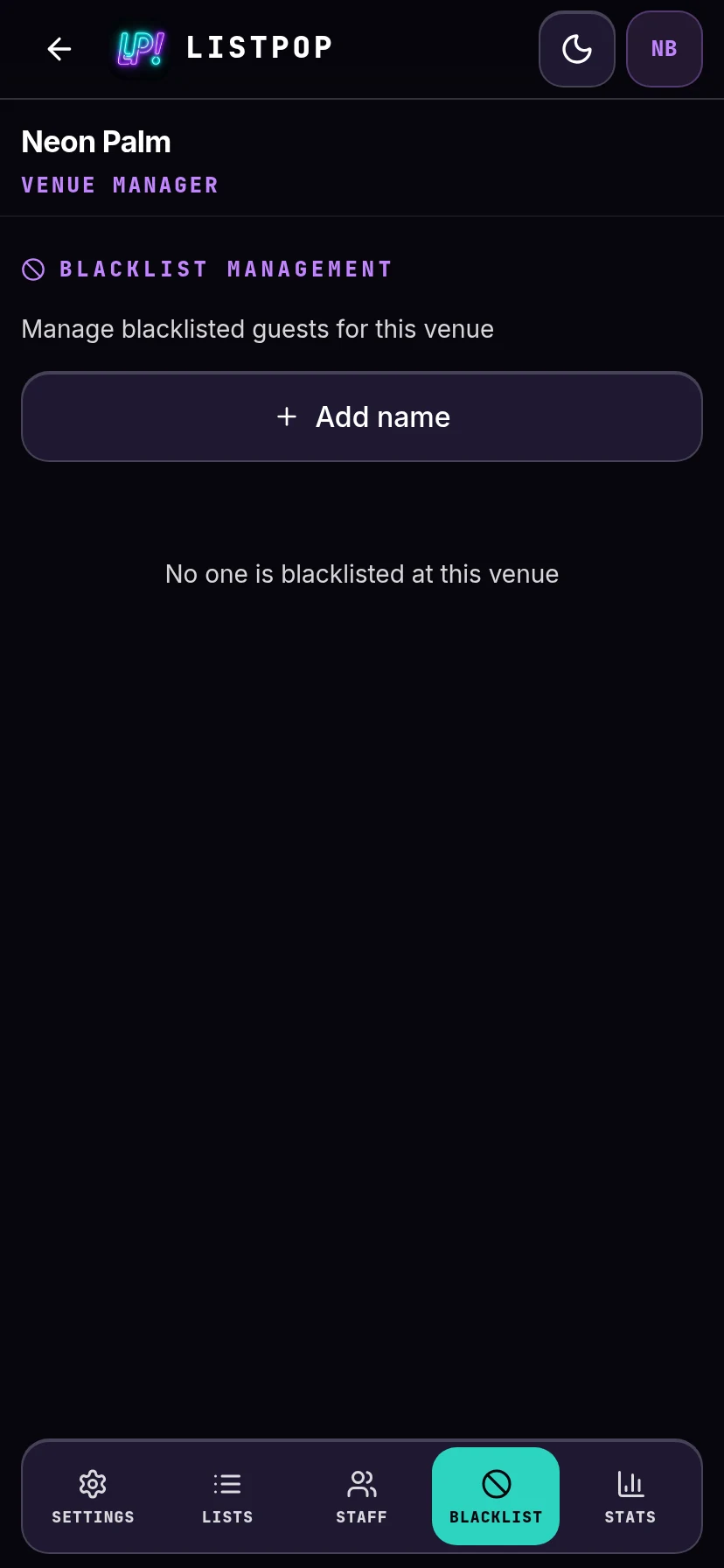
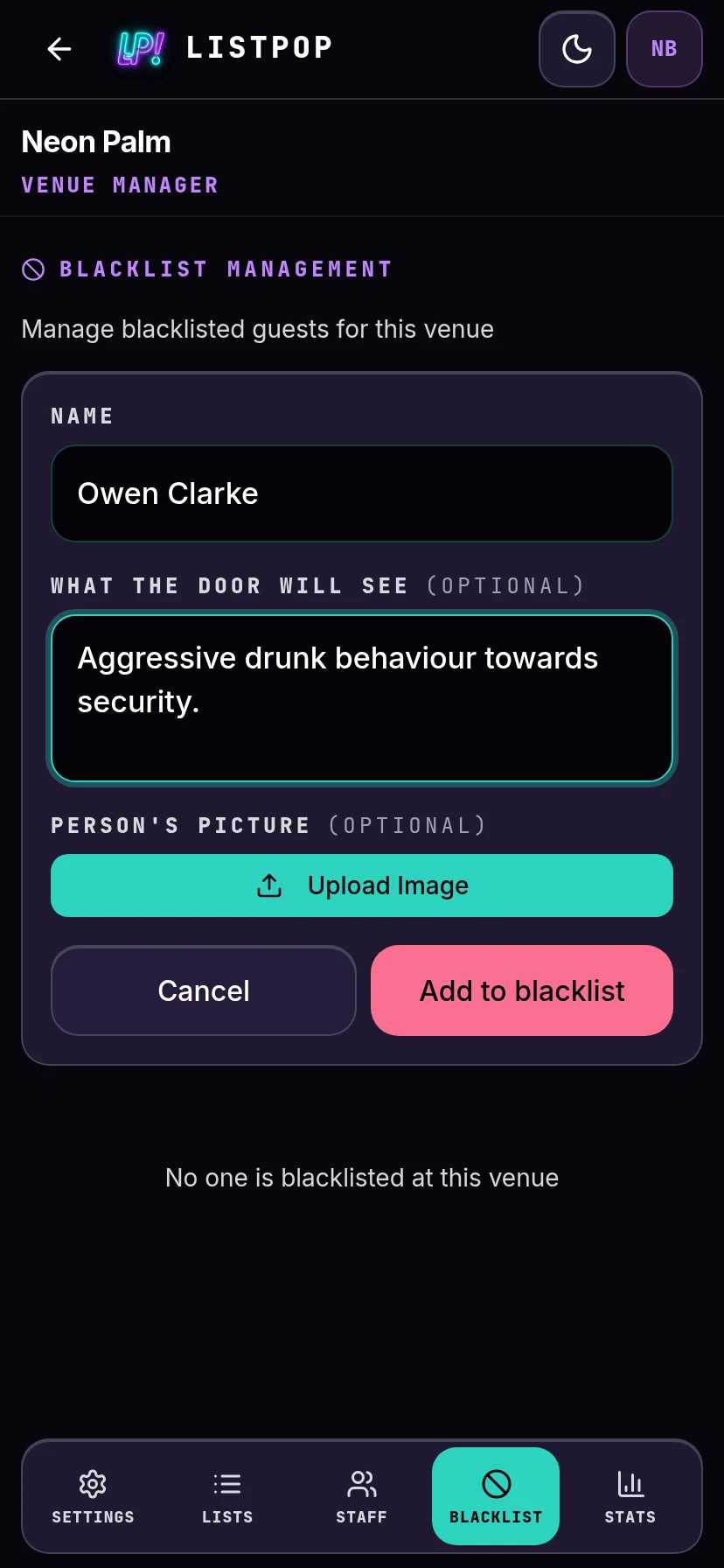
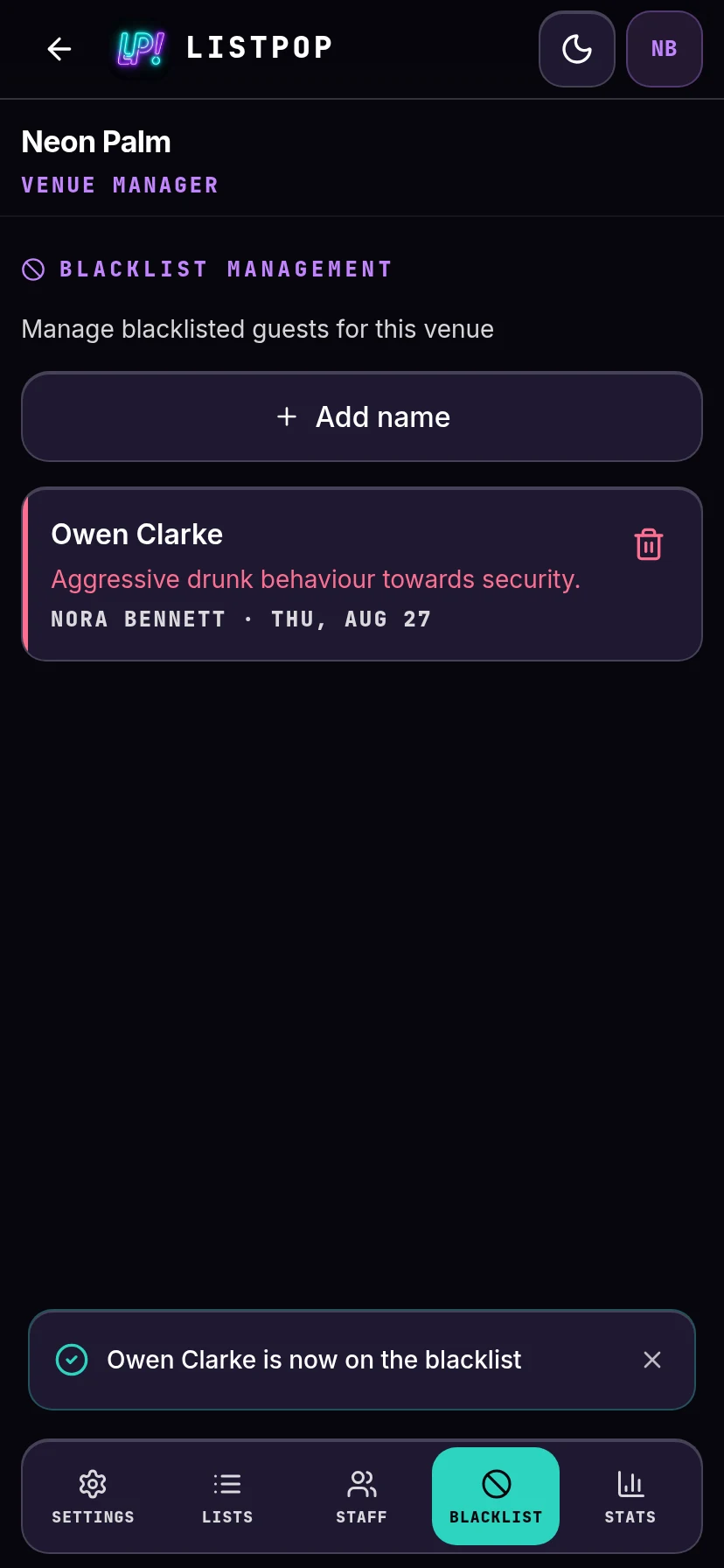
A banned name can still be added to a list and can still be checked in. ListPop paints the row red, shows the reason, and makes whoever does it confirm on purpose. The decision stays with the person on the door, which is where it belongs. Names come off the list from this same tab.
Matching ignores accents and capitals, so ŞEYMA KAYA, Şeyma Kaya and
seyma kaya are treated as the same person. That matters for Turkish names, where
the same person gets written five different ways over the course of a week.
Run more than one room
If you run several rooms, add each one as its own venue. Tap the account icon in the top right and choose Venues, then Add New Venue.
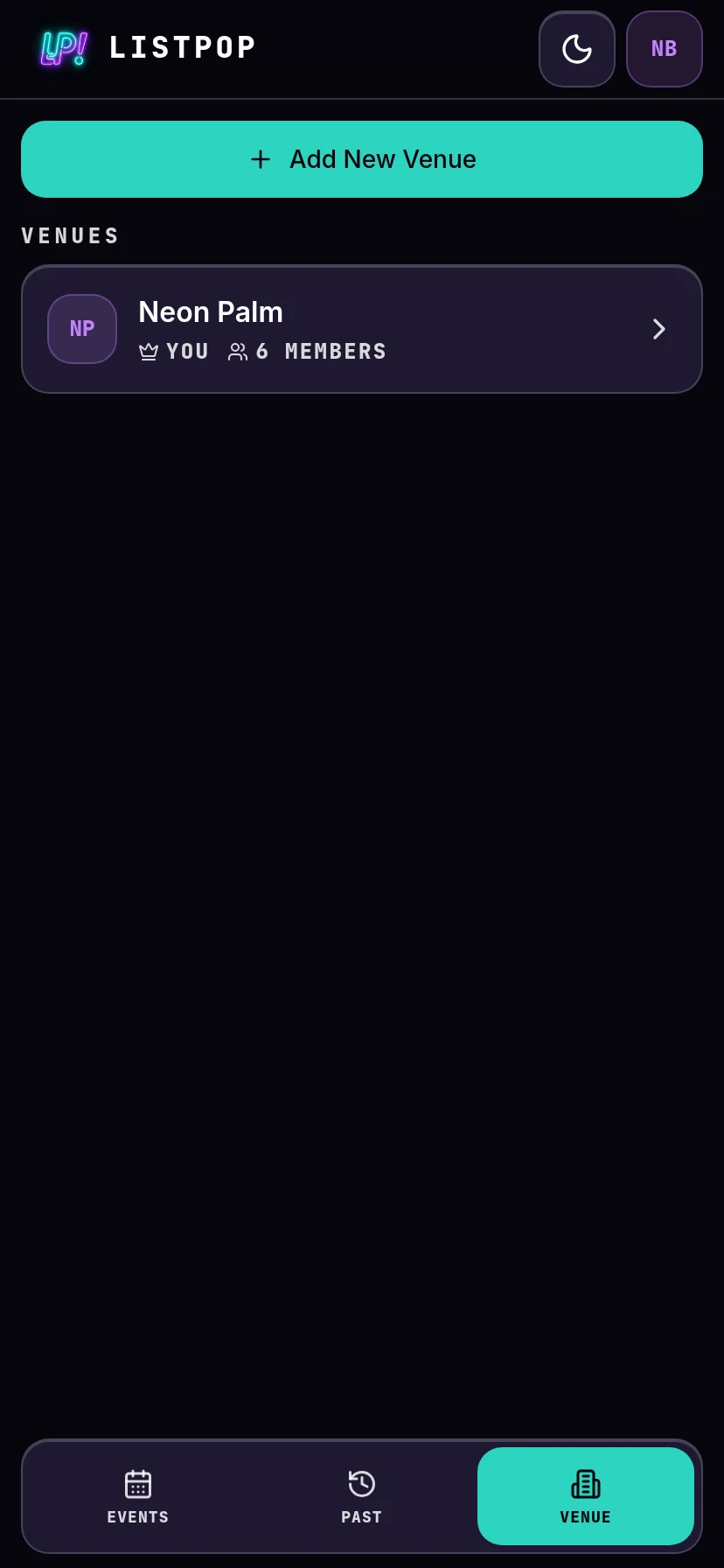
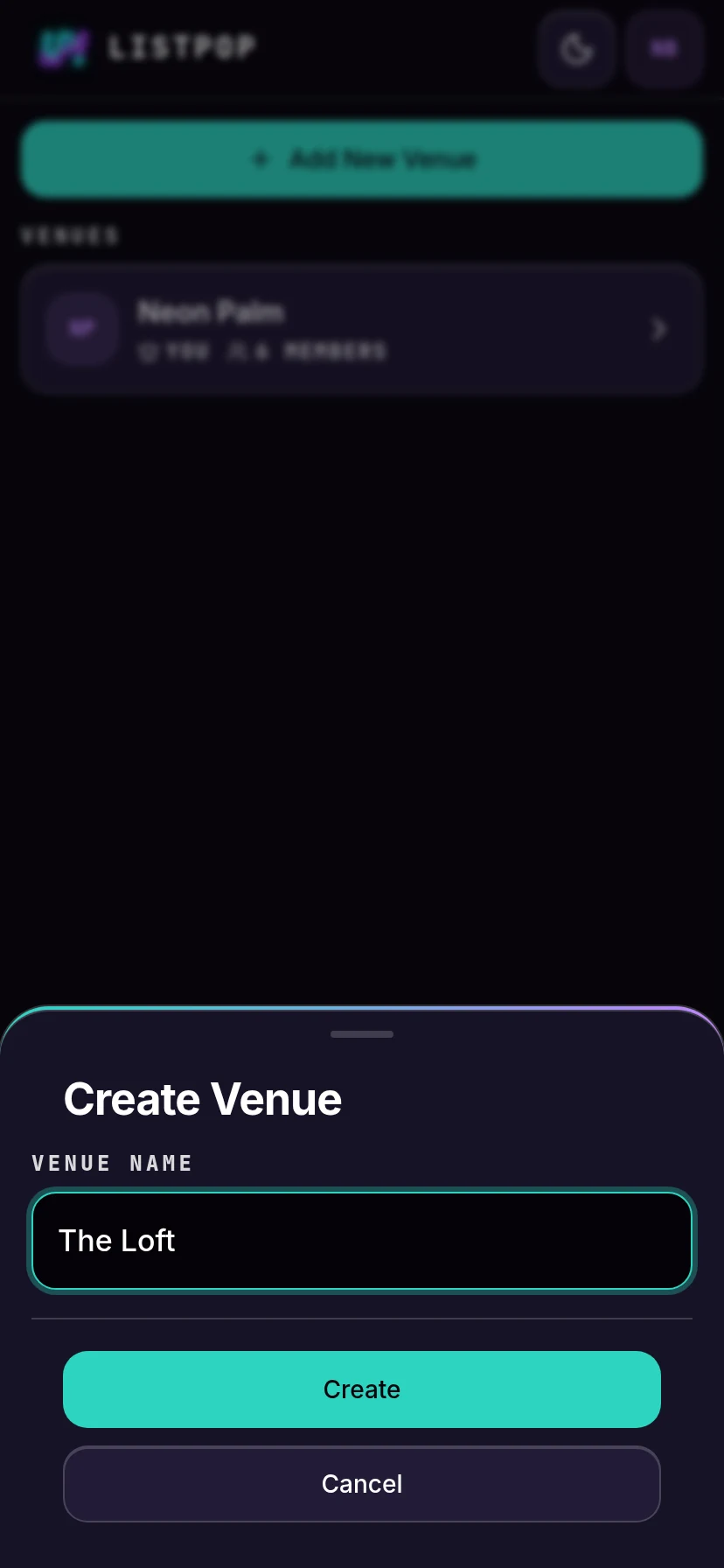
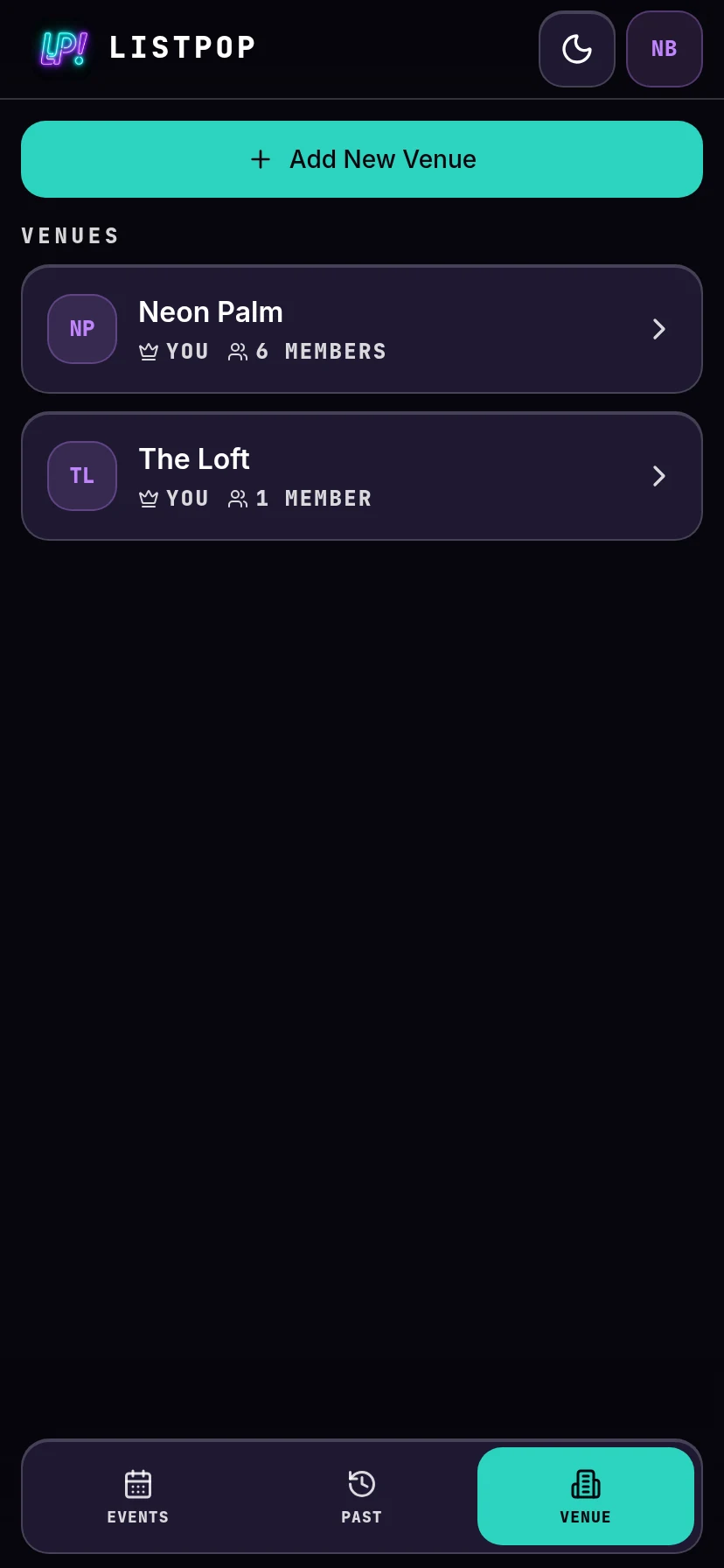
Venues are kept fully separate. Lists, staff, banned names and stats belong to one venue and do not leak into another. Somebody who works both rooms is added to both, and can be a promoter in one and door staff in the other.
Create an event
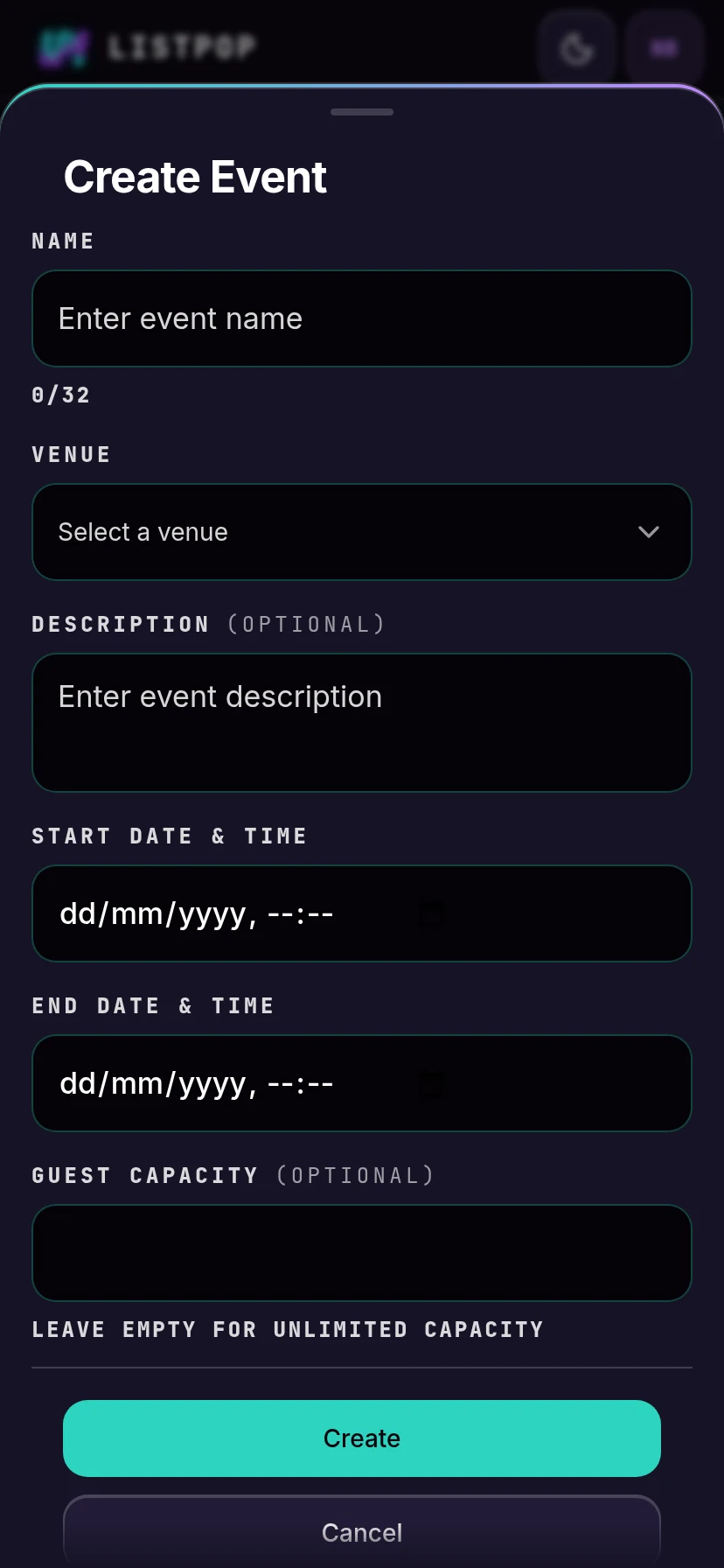
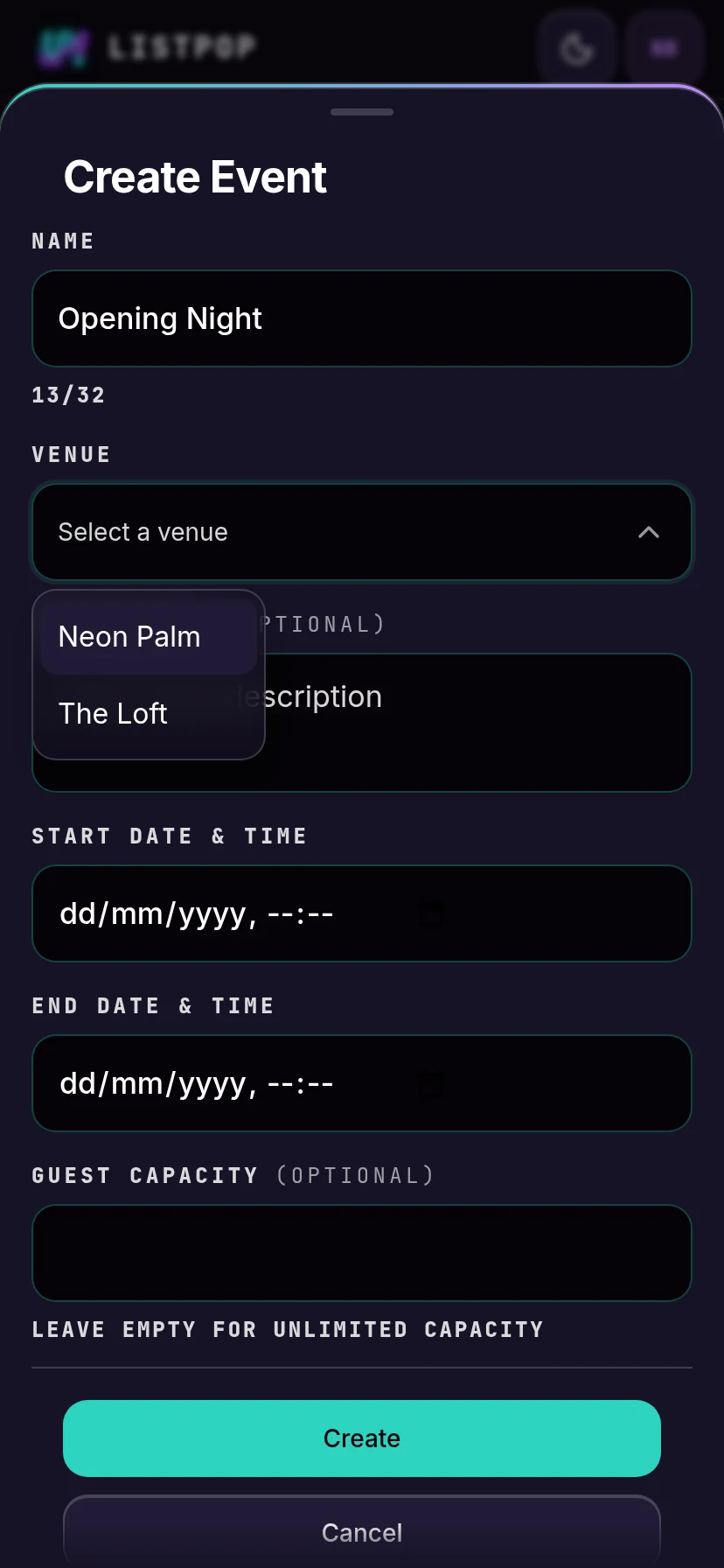
Tap the + button at the top of the home screen. An event is one night, and it needs a name, a venue, a start and an end.
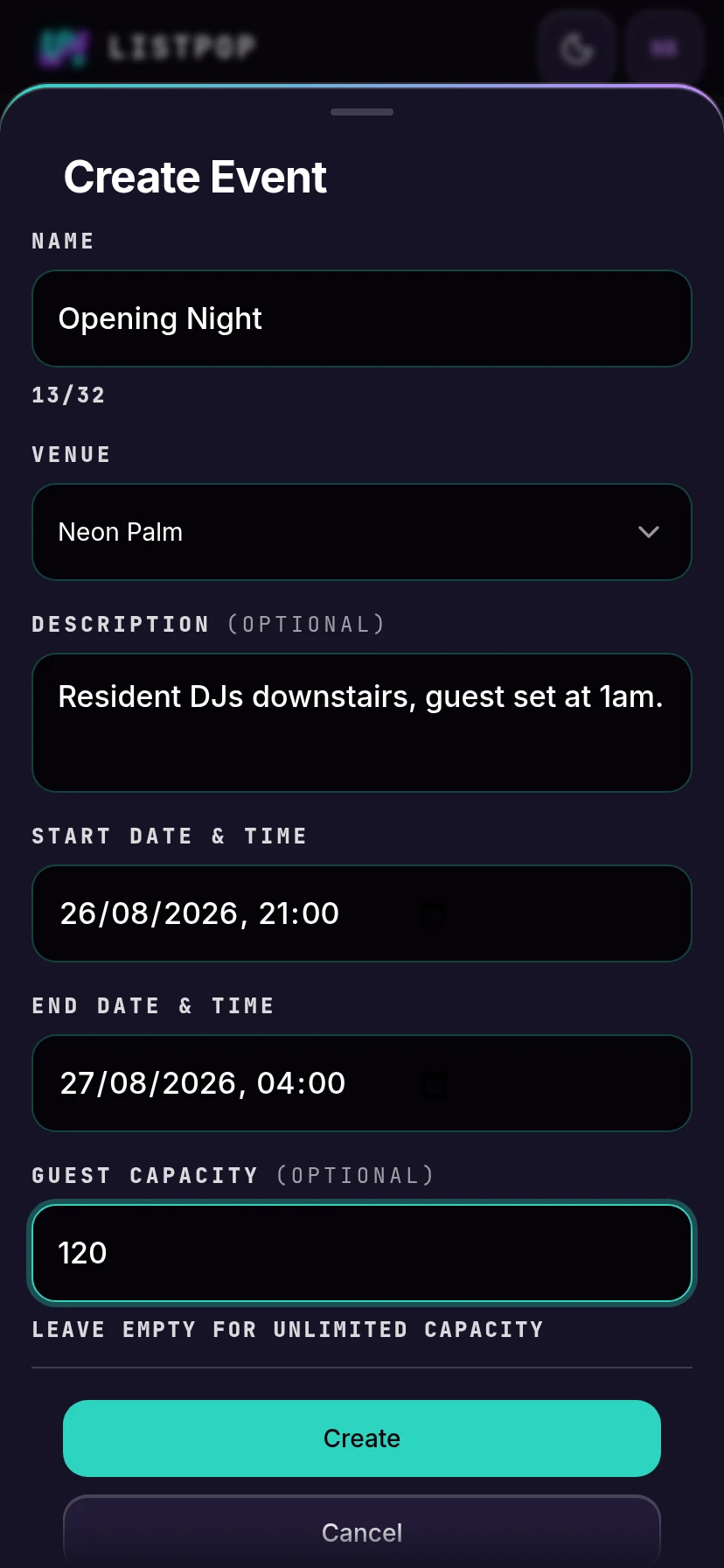
| Field | Notes |
|---|---|
| Name | Up to 32 characters. This is what your staff will look for on the home screen. |
| Venue | Pre-filled if you only run one room. |
| Description | Optional. A line for your own staff, not for guests. |
| Start and end | Both required. An end after midnight is normal and expected. |
| Guest capacity | Optional. Fill it in and the home screen shows how full the night is, warns you as it gets close, and asks you first about any add that would take the night past it. Leave it empty and the home screen measures the night against a typical night of that weekday at your venue instead. |
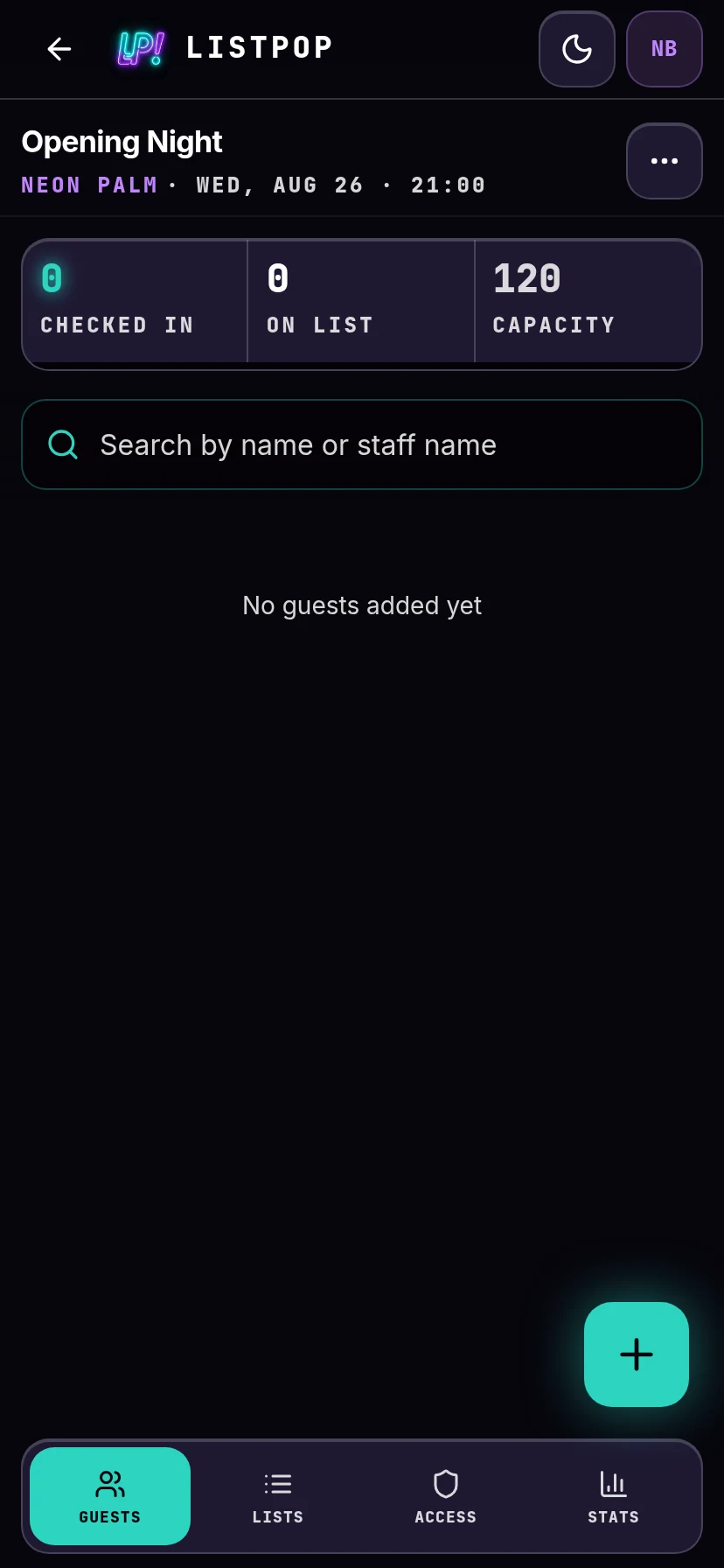
The moment you create the event, every guest list you set up on the venue is copied into it. The night is ready for names before you have typed one.
Add a guest by hand
Open the event and tap the green + in the bottom right. The sheet opens on Single, which is one name at a time.
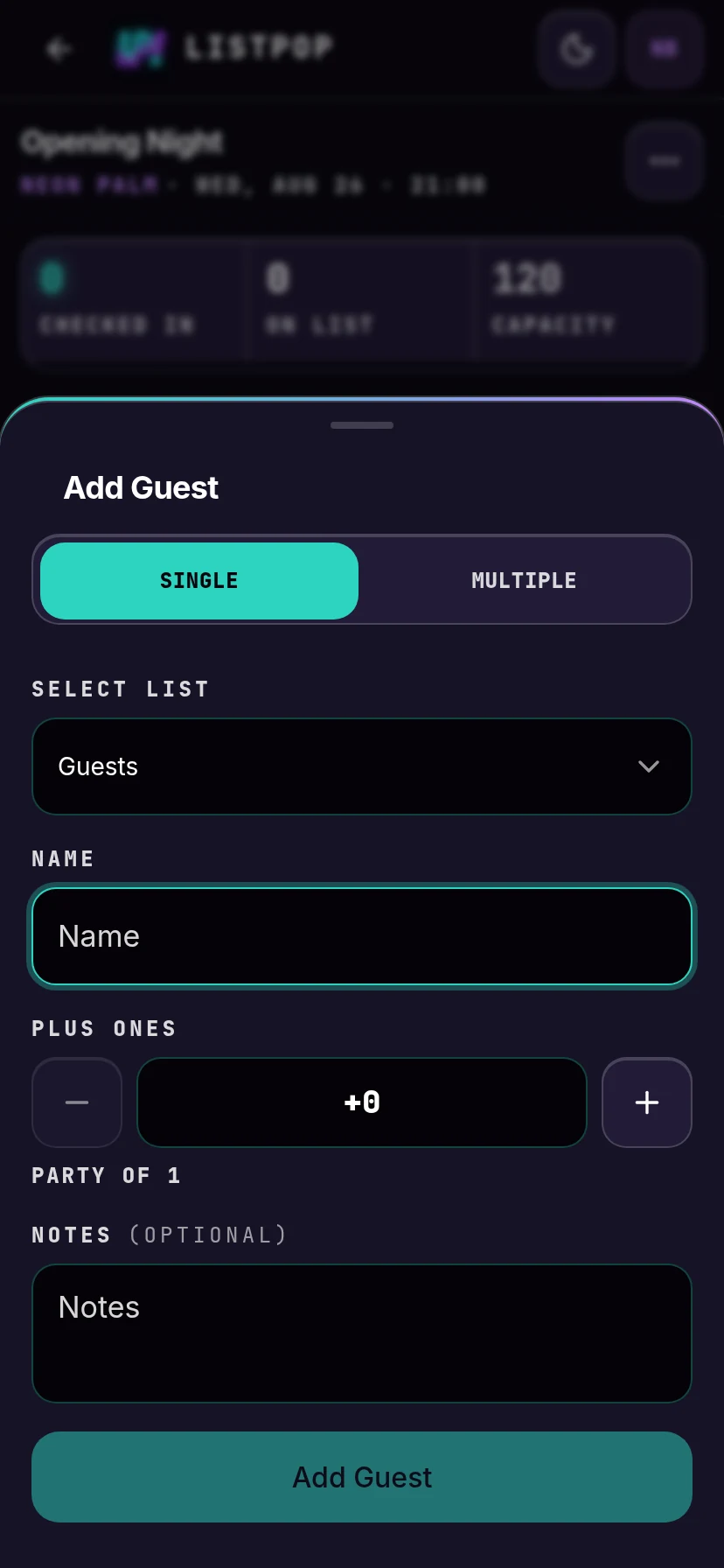
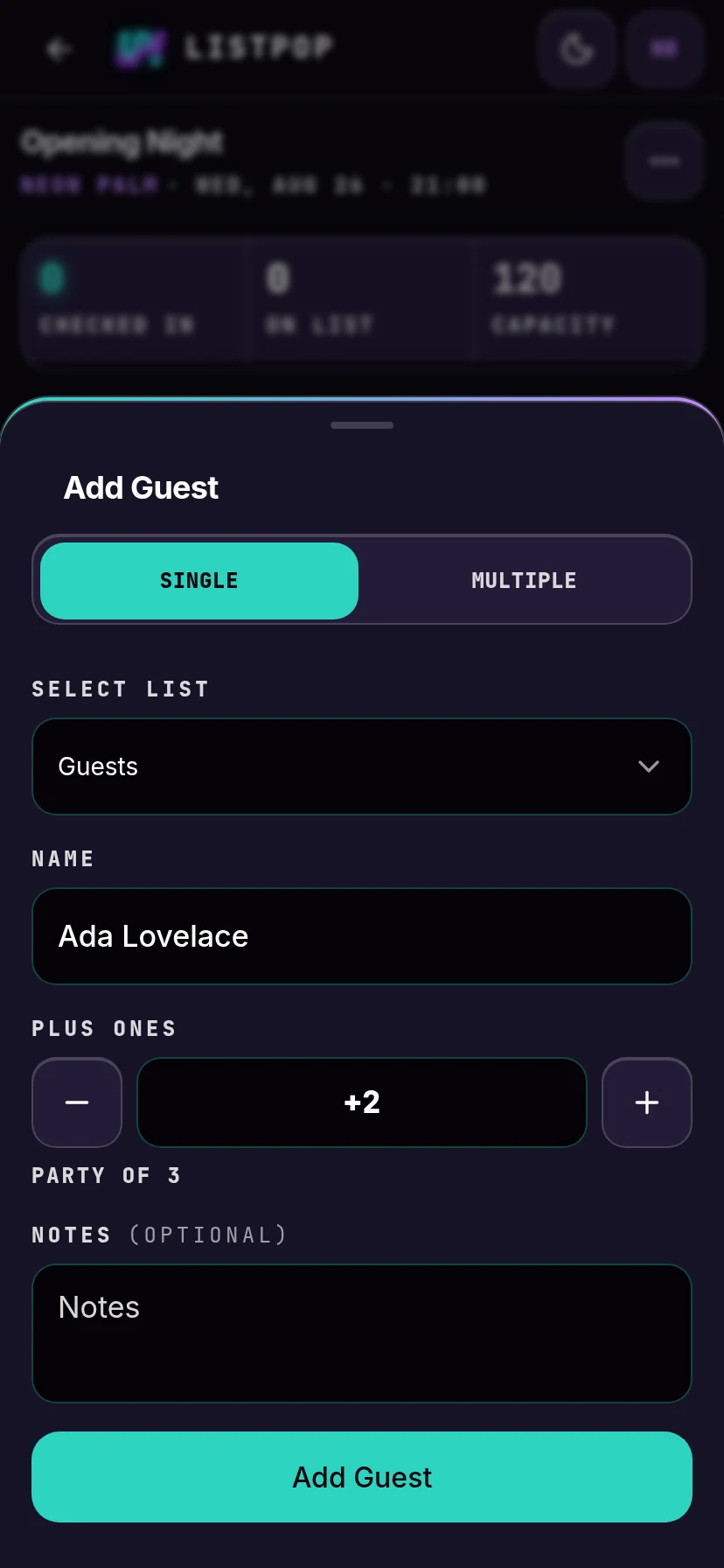
- Select list starts on your default list and can be changed per guest.
- Name is the only required field. Write it as the guest will say it at the door.
- Plus ones counts the extra people, not the total. Ada with two friends is
+2, and ListPop shows "Party of 3" underneath so there is no confusion. The most you can add is+99. - Notes is optional and only your staff see it. Table numbers, who to ask for, anything the door needs.
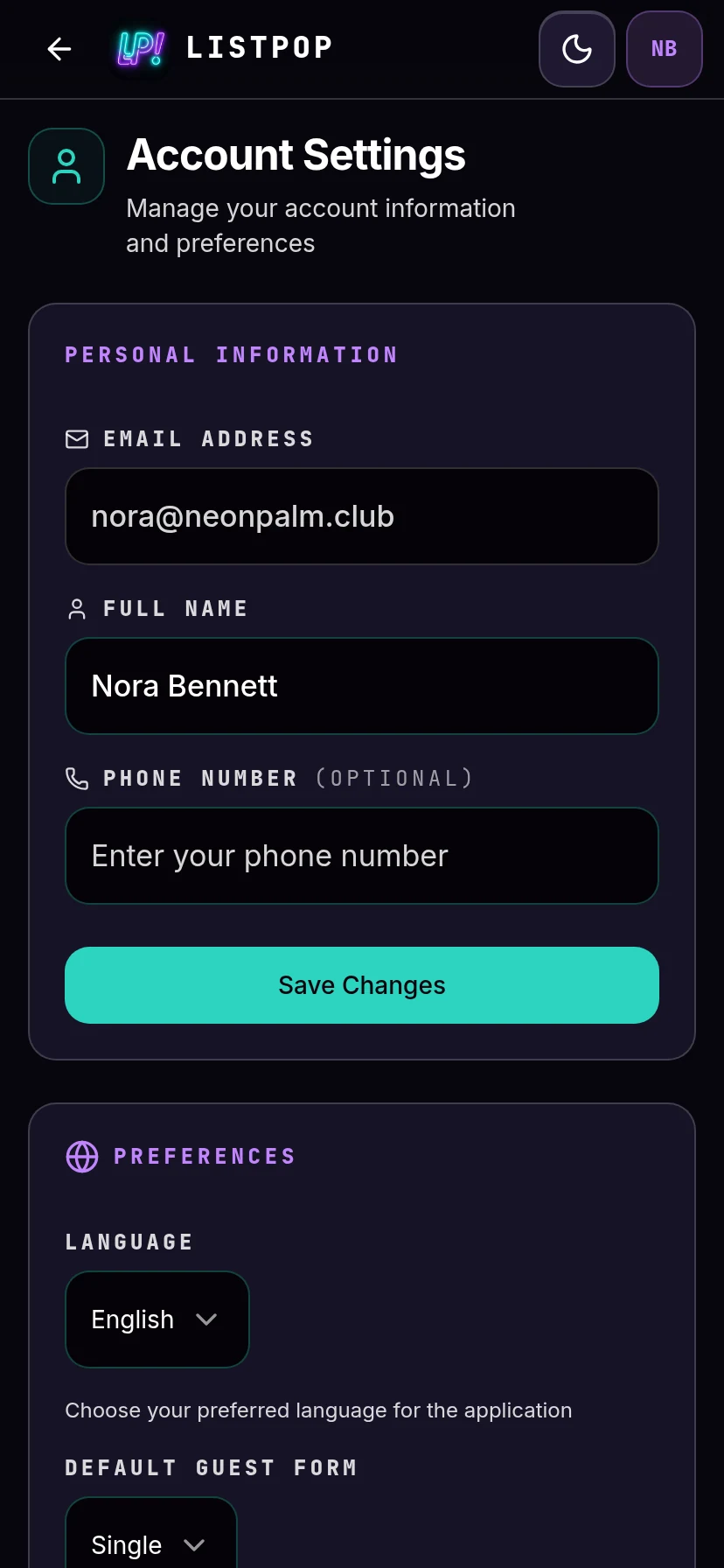
If you mostly paste lists rather than type single names, open Account Settings and set your Default Guest Form to Multiple. The sheet will open on the paste box from then on.
Paste a whole list
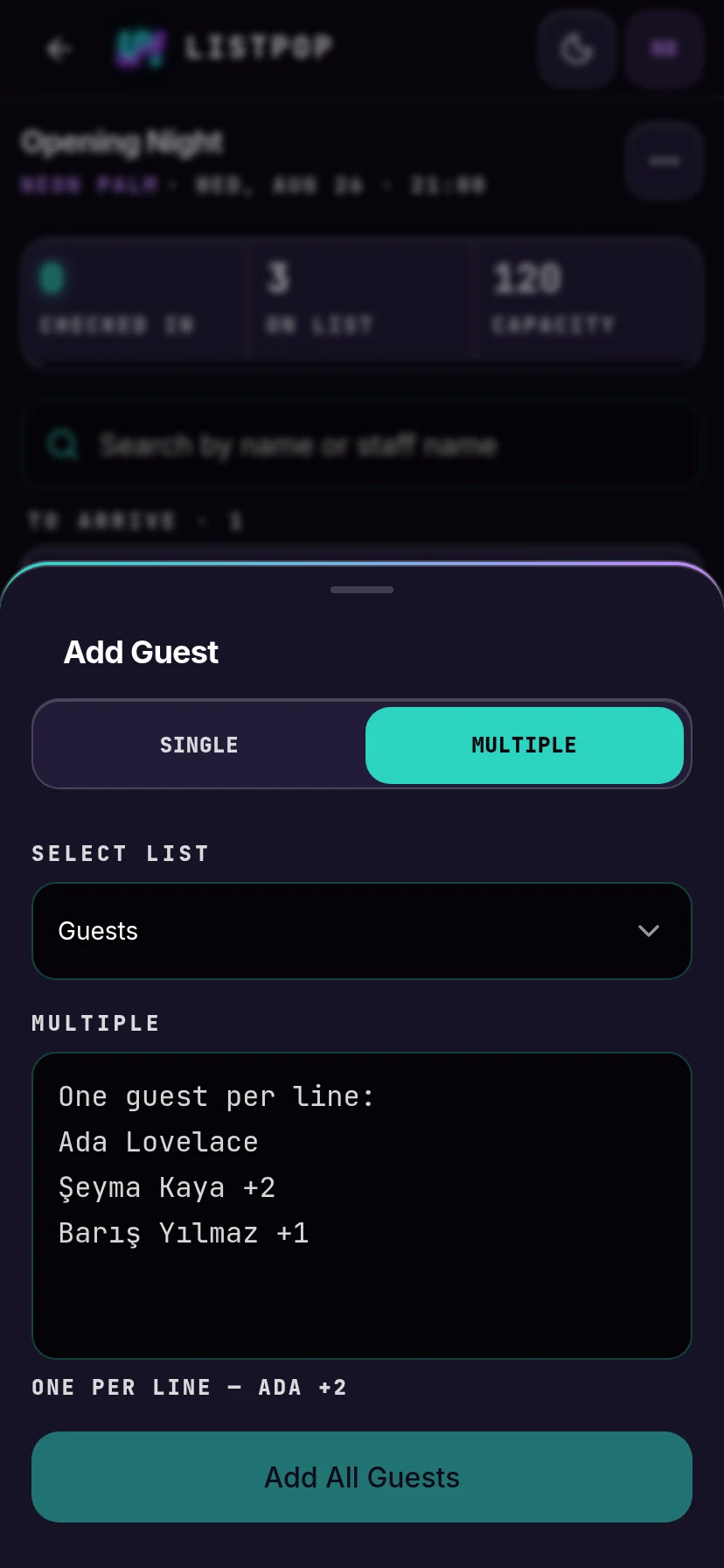
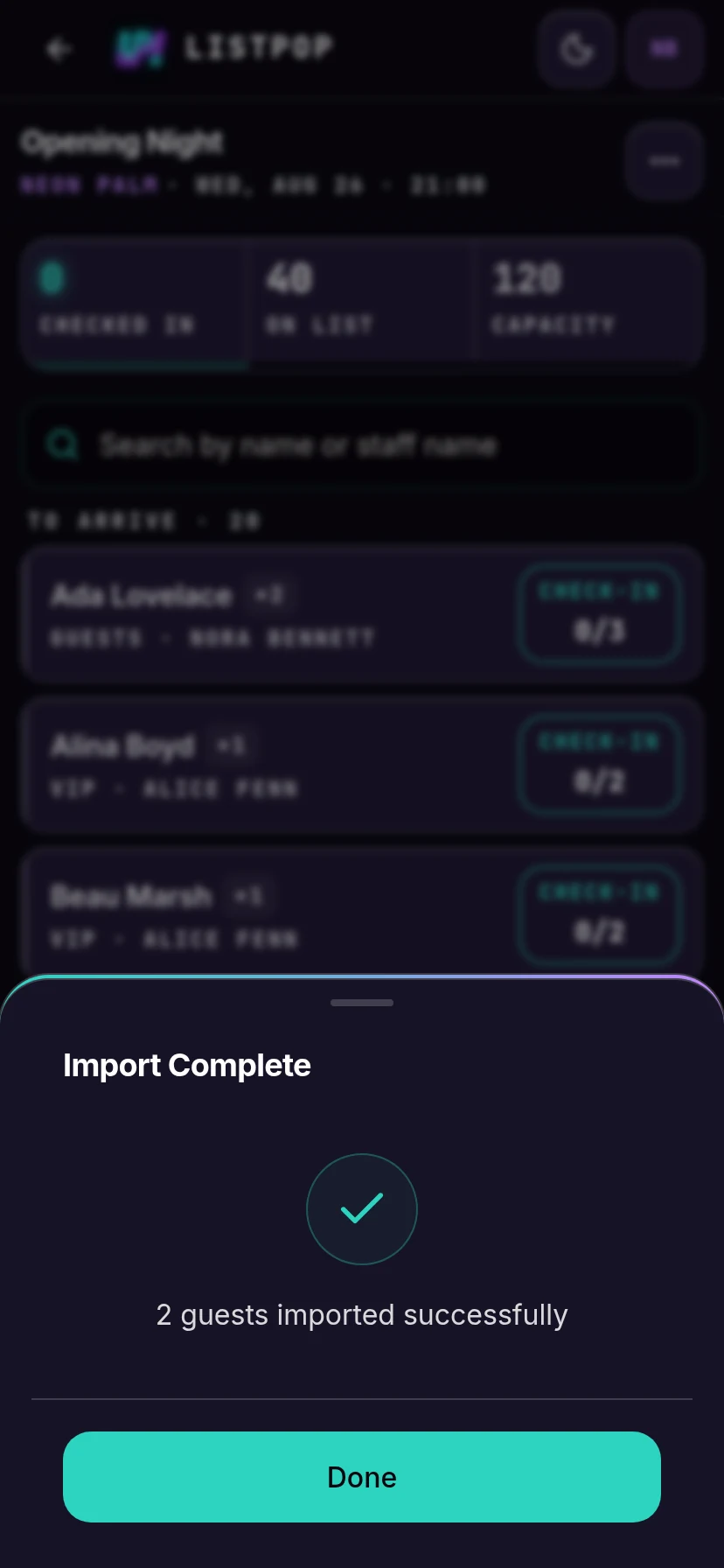
This is how most names get in. A promoter has a list in a message thread or a notes app, and they paste it in one go. Switch the sheet to Multiple and you get a single box to paste into.
The format
The grey text in the empty box is the whole rulebook:
One guest per line:
Ada Lovelace
Şeyma Kaya +2
Barış Yılmaz +1
One person per line. Write the name, then +2 if they are bringing two people with
them. No plus sign means they are coming alone. There is no other syntax to learn, no commas, no
column headers, no special file to prepare. Accents, Turkish characters and capitals all work as
typed, and extra spaces are ignored.
What the box does while you type
-
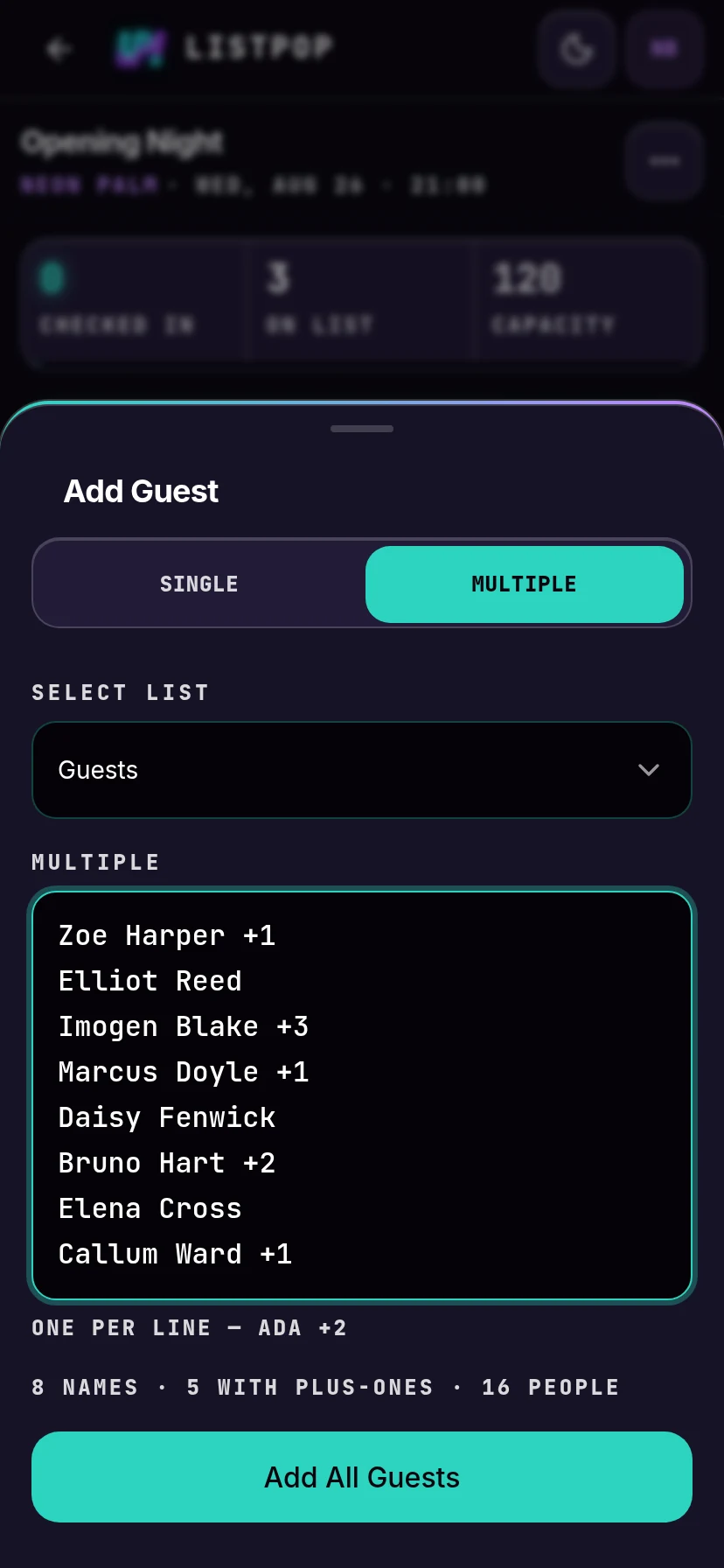
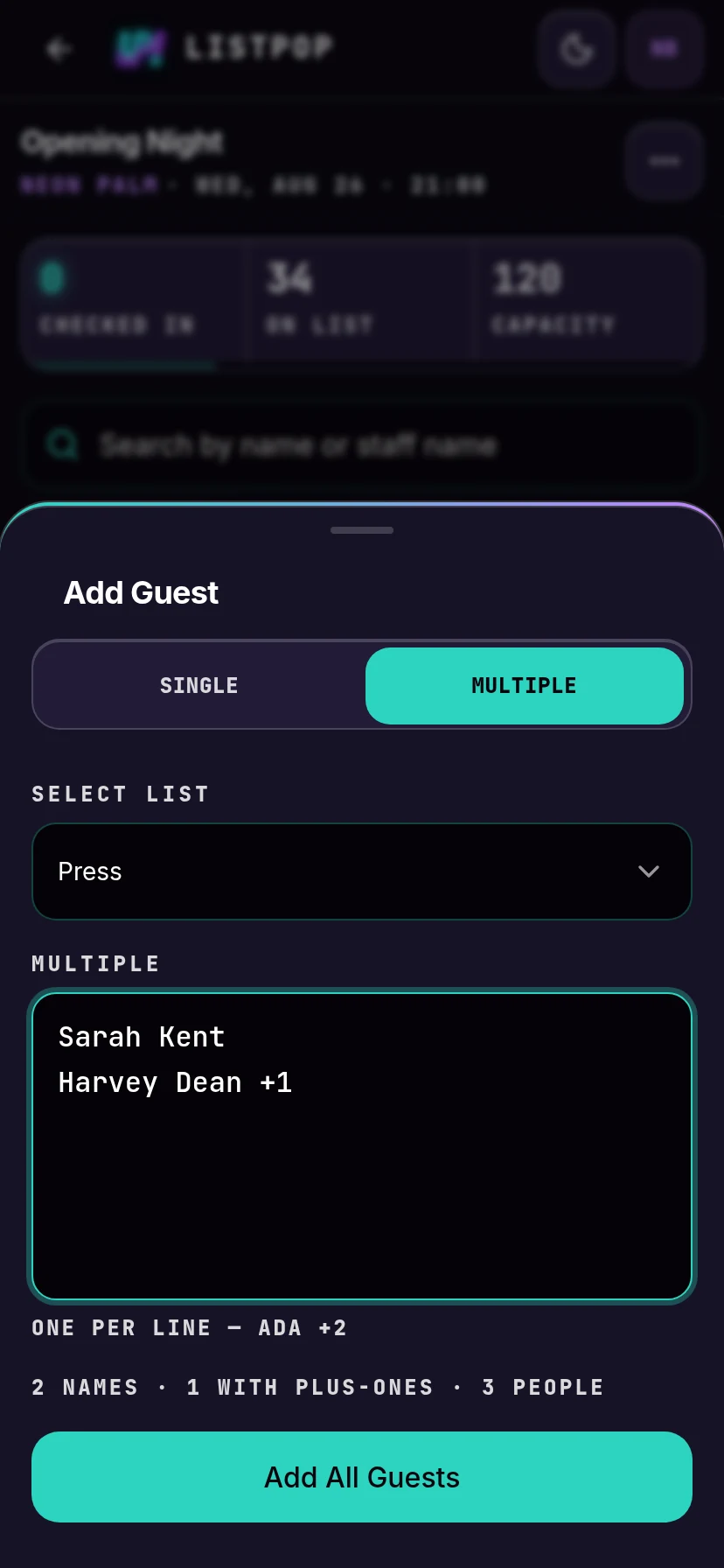
It counts as you go. Under the box you get a running summary in the form
8 names · 5 with plus-ones · 16 people. The last number is the one that matters for capacity, because it counts plus ones. - It picks a list first. The Select list dropdown above the box decides where the whole paste lands. Set it before you paste, not after.
-
It flags lines it cannot read, in pink, next to the summary:
2 lines need fixing. That count updates live. - It refuses to half-import. Press Add All Guests with broken lines still in the box and ListPop names each problem instead of adding anything. You fix the lines and press again. You never end up with a list that is partly in and partly missing.
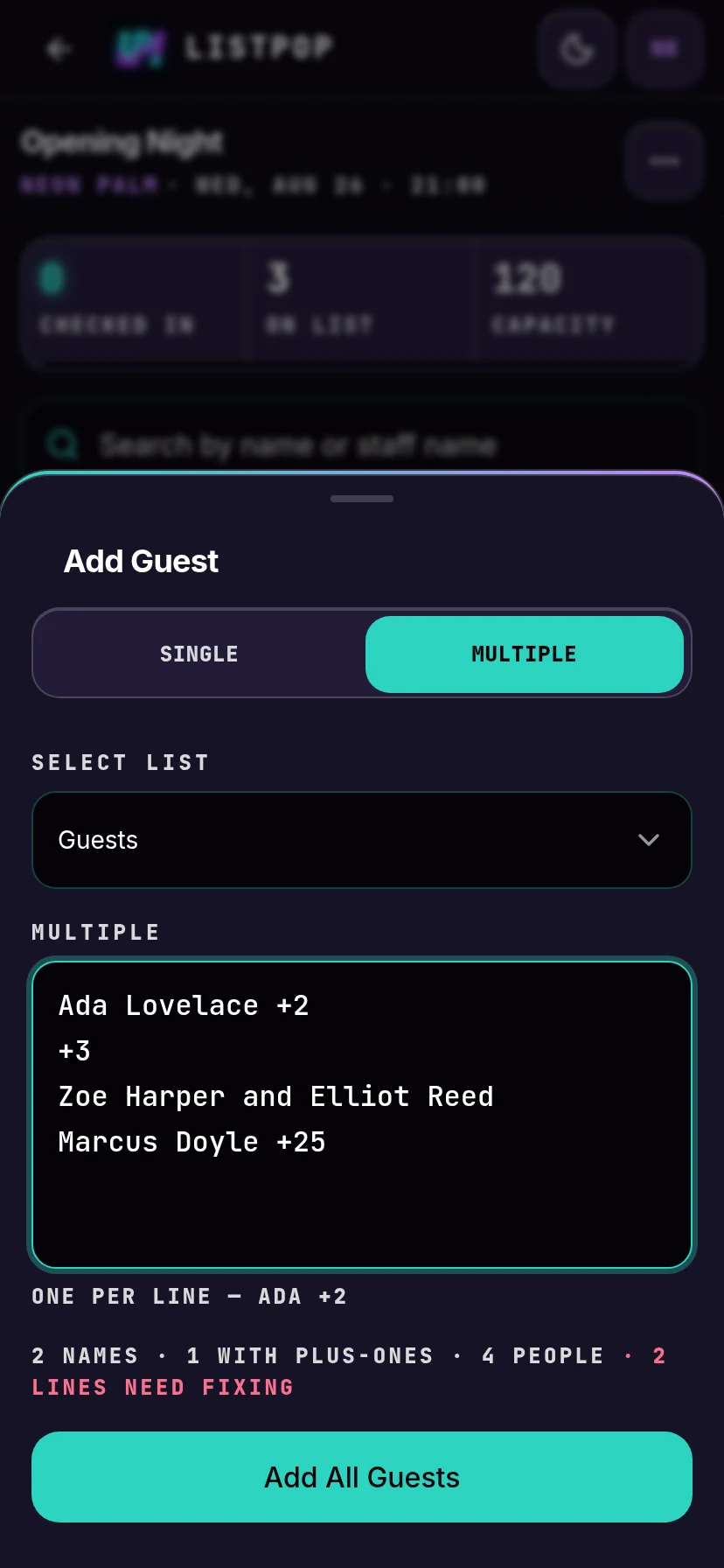
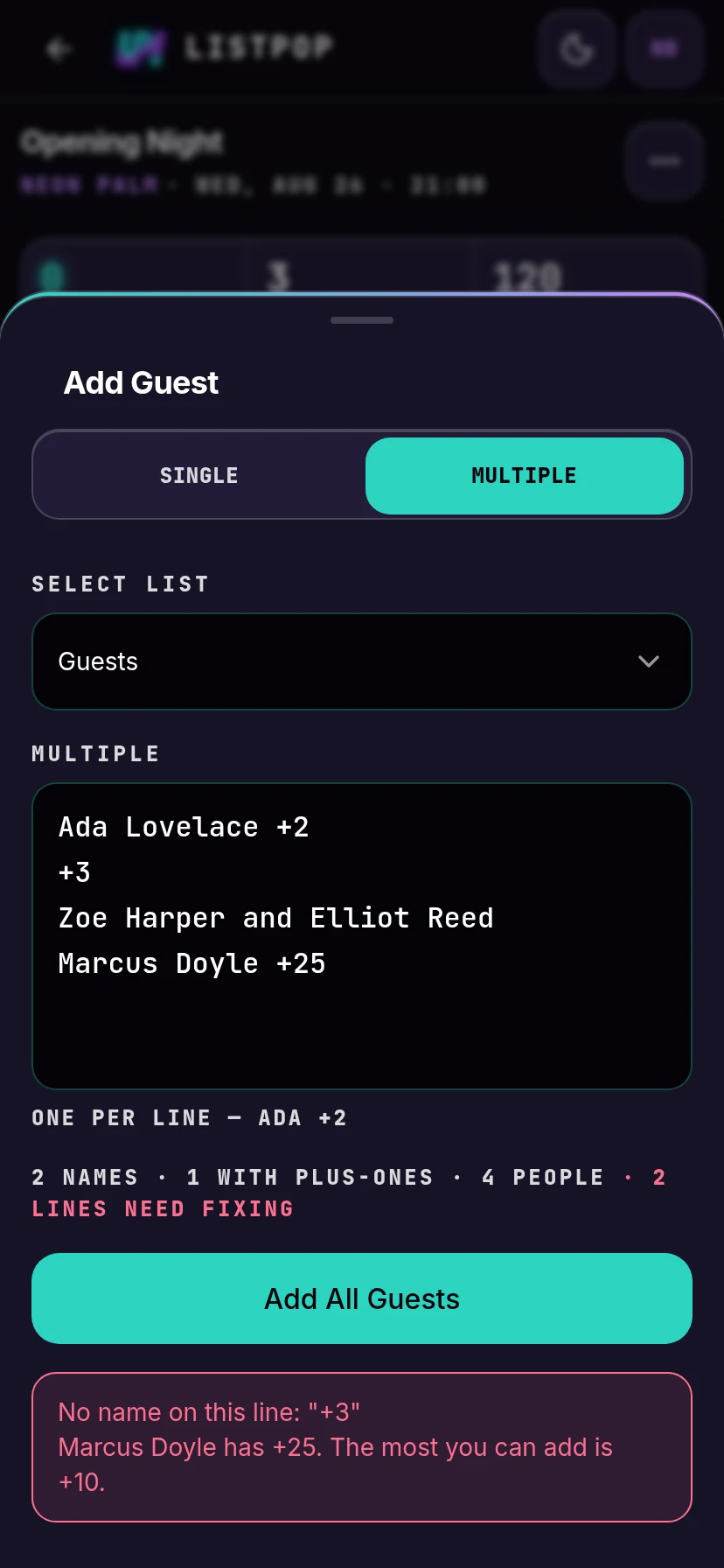
The two things it will stop on:
| Line | What you get told |
|---|---|
+3 | No name on this line. A plus count with nobody attached to it. |
Mert Aslan +250 | Mert Aslan has +250. The most you can add is +99. |
Choosing the list
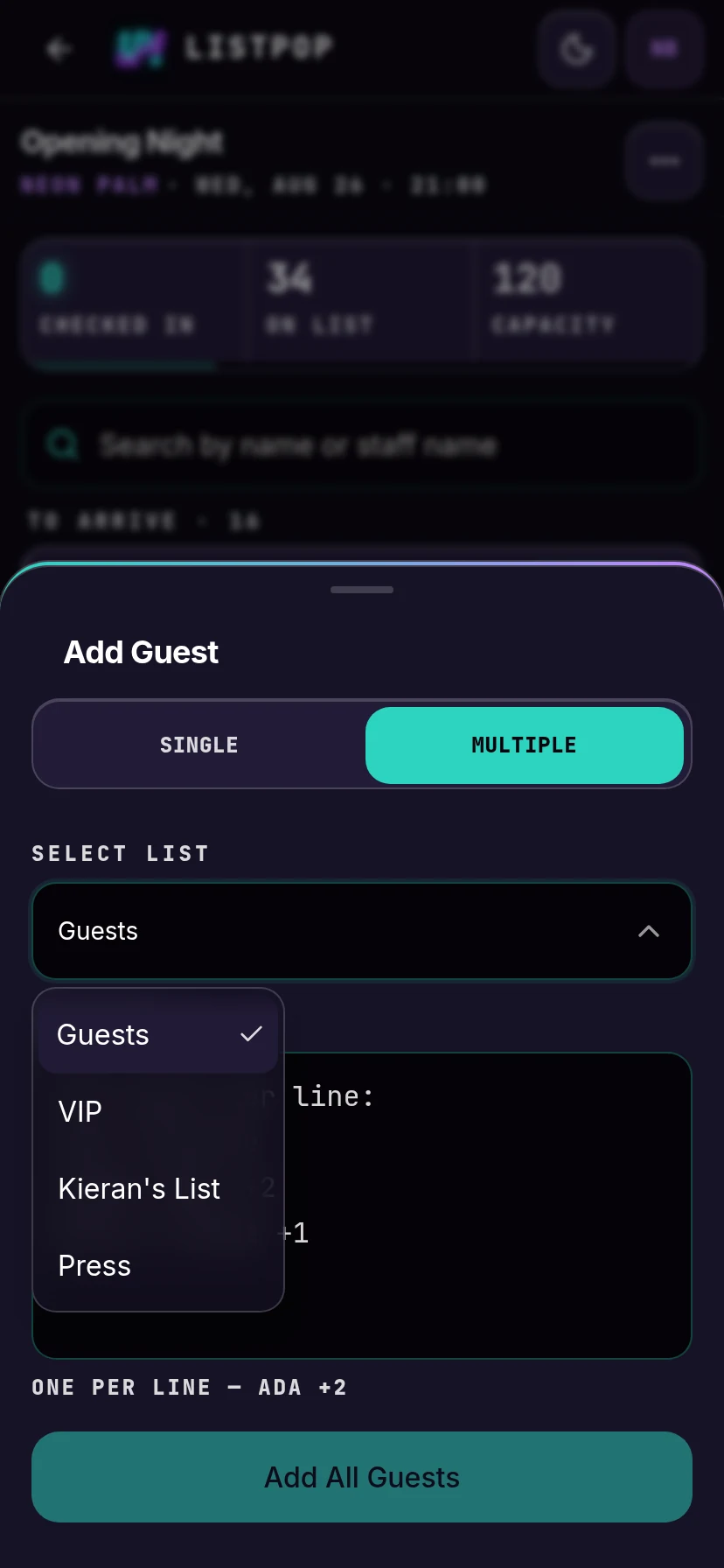
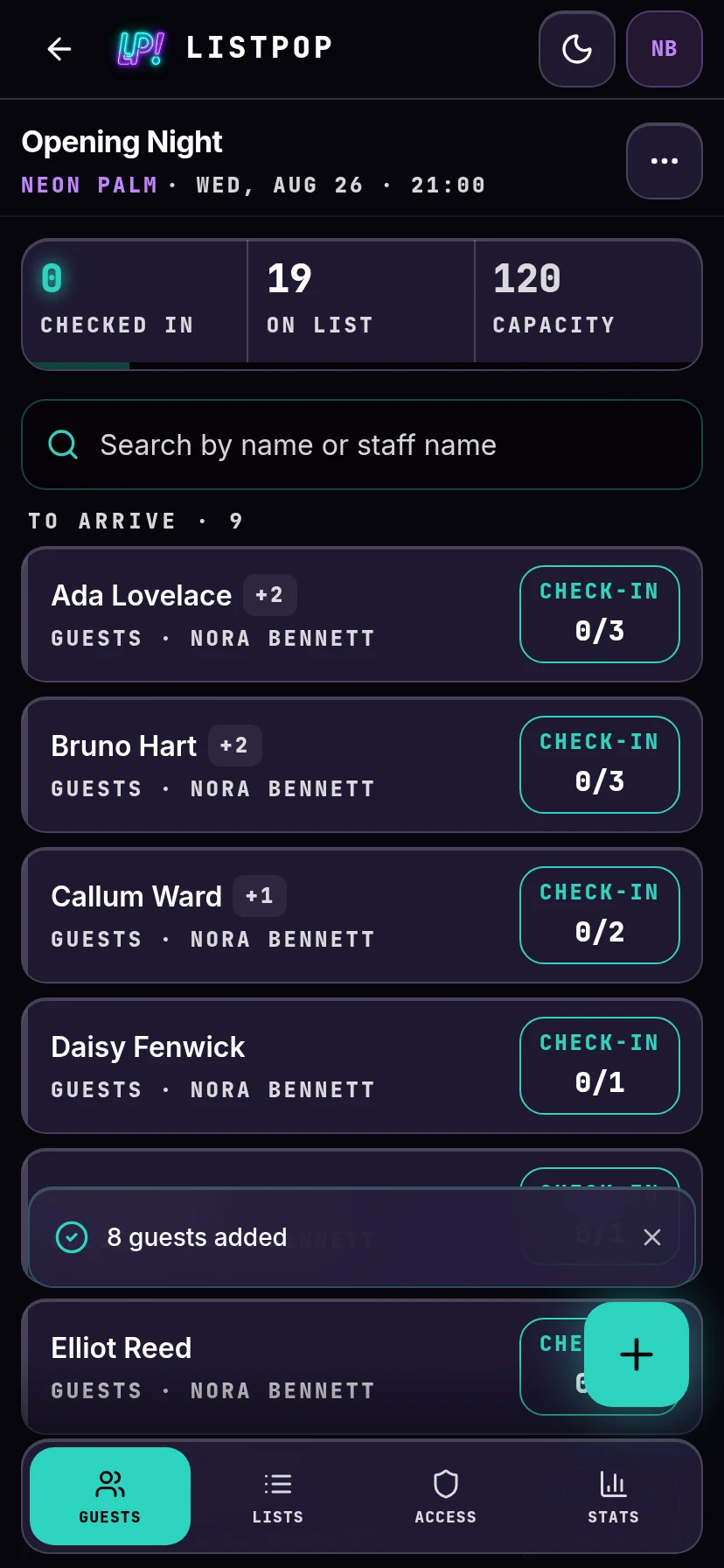
The same paste box serves every list on the night. Open the dropdown, pick VIP or Press or a promoter's own list, then paste. Whoever is signed in is recorded as the person who added those names, which is what the promoter leaderboard is built from later.
When names clash
Paste a list into a night that already has names on it and you will eventually hit a clash. Two promoters both claim the same person, a name appears twice in one paste, or somebody on the banned list turns up in a promoter's list.
ListPop catches all of that before anything is written, and walks you through it in two steps.
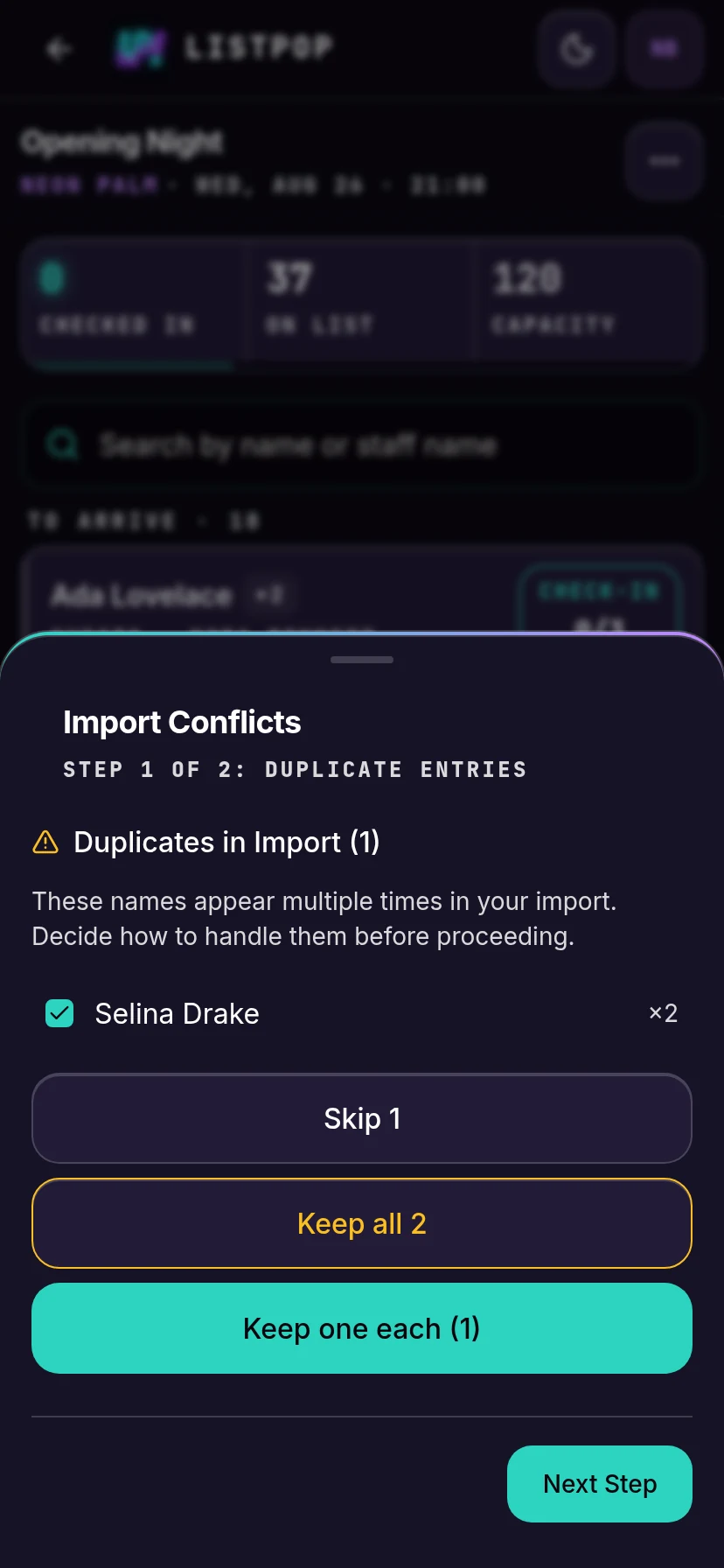
Step one: duplicates inside your own paste
The same name twice in one block. You choose: skip them, keep every copy, or keep one of each.
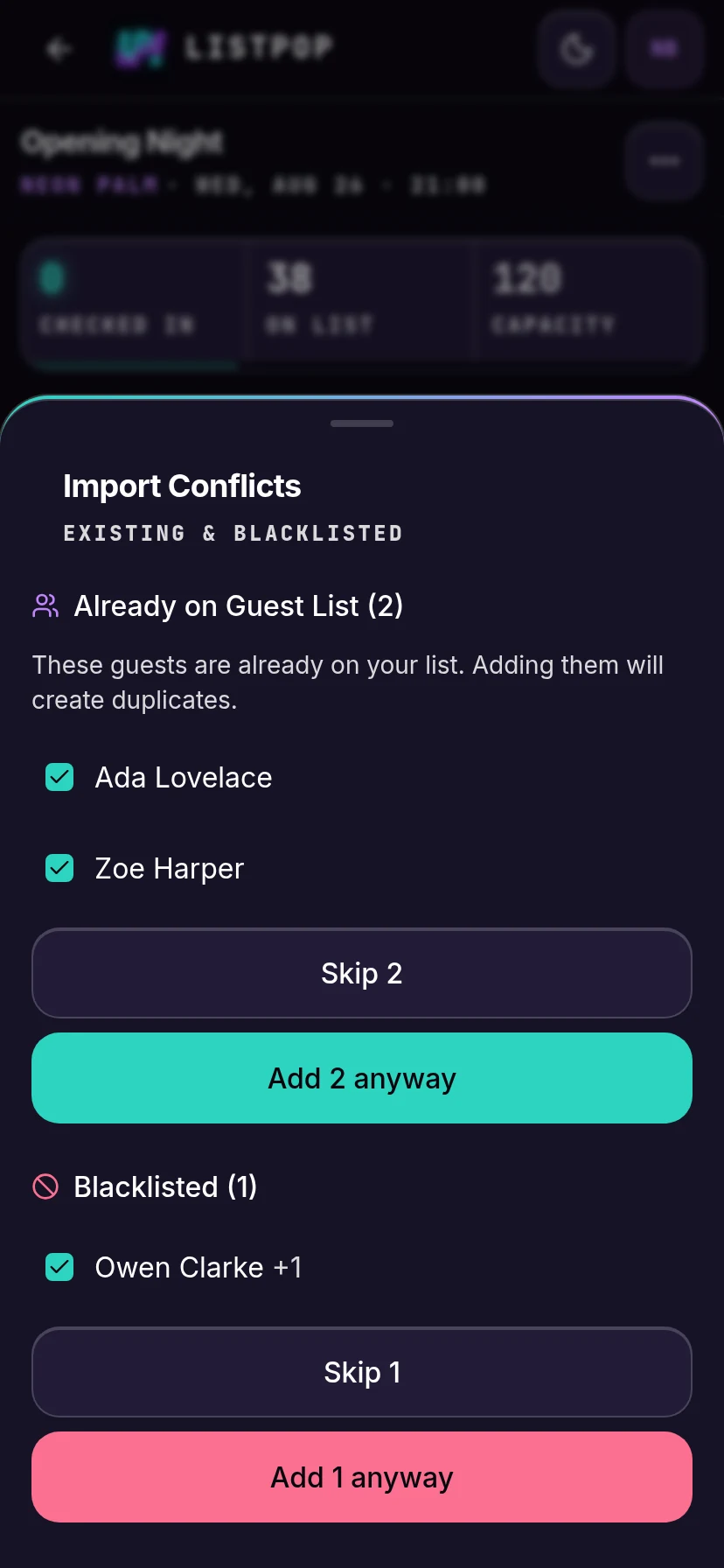
Step two: already on the list, and banned
The second step separates two different problems. Already on Guest List is people who are on the night already, where adding them again would put the door in front of two identical rows. Blacklisted is names you have banned at this venue.
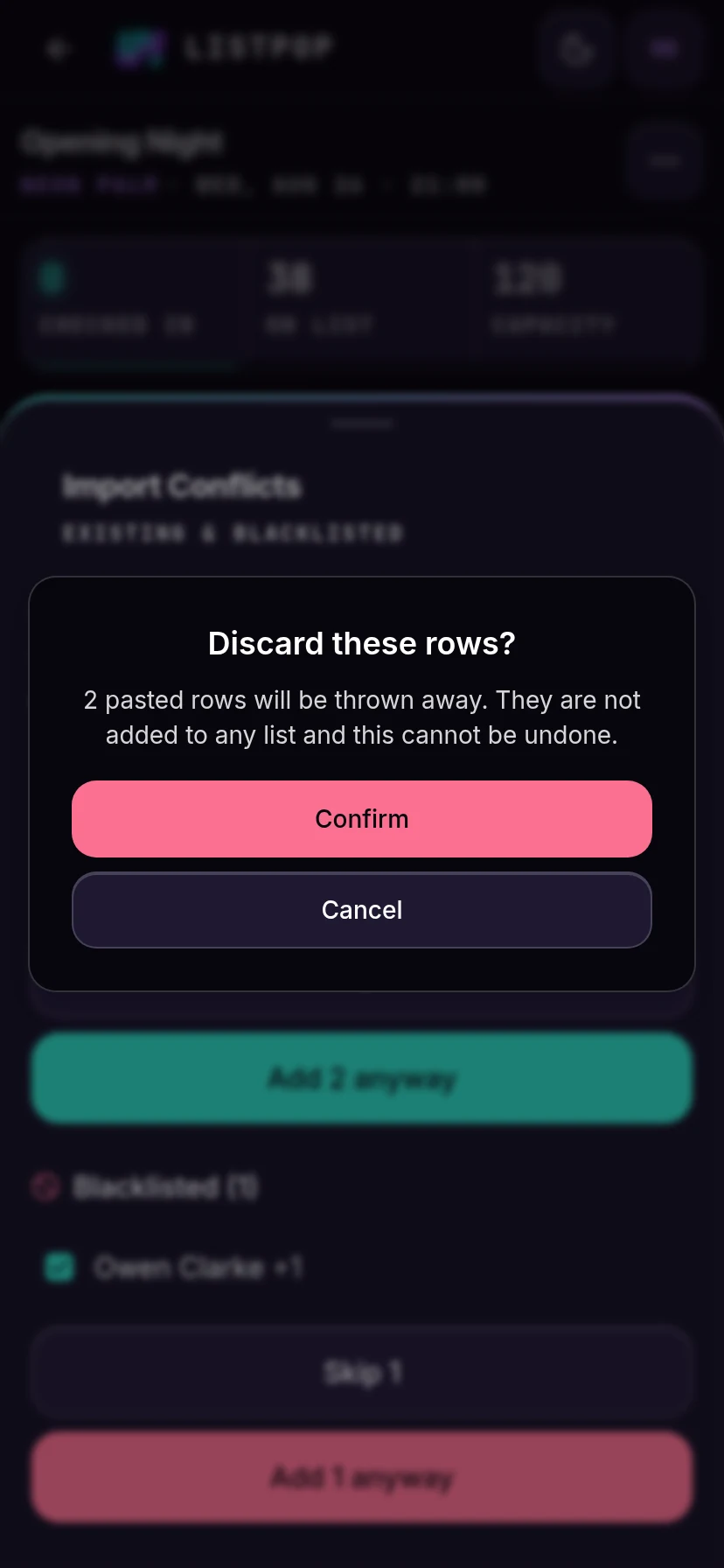
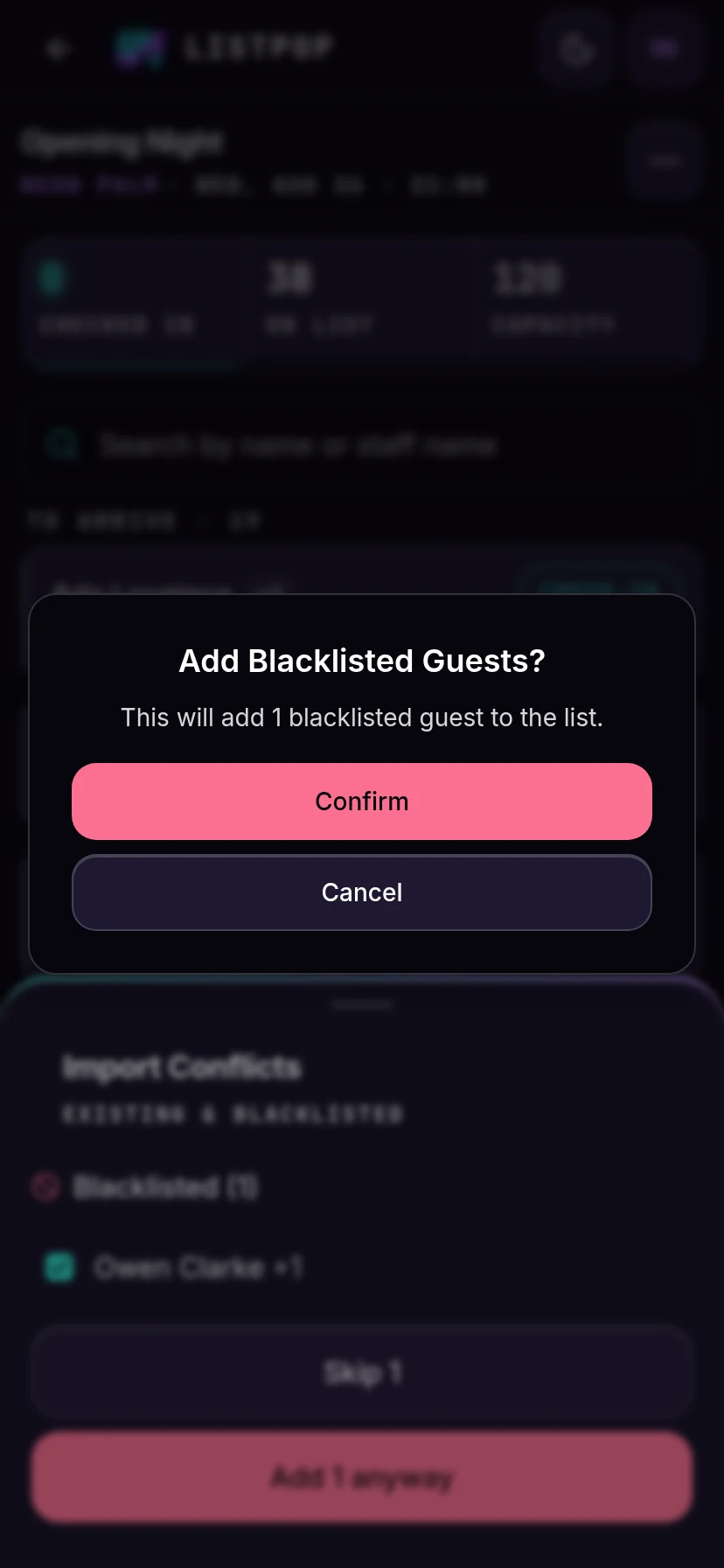
Each group gets its own pair of buttons, so you can skip the duplicates and still let the banned name through, or the other way round. Both choices ask you to confirm, because both are hard to undo.
Going past capacity
If the event has a capacity, ListPop also checks the size of the night. When the names you are adding would take the list past the cap it tells you before writing anything: what the capacity is, how many people are on the list already, and what the number would become. For a paste that last number is the most it could reach, since names already on the list go to the steps above instead of straight onto the night. It never refuses. Press Add Anyway and they go in.
Going past the cap and adding a banned name are two separate decisions, so you answer both. One guest by hand asks about the ban first and the capacity right after. A paste asks about the capacity first, before anything is written, and brings the banned names up afterwards, in the two steps above.
Working the door
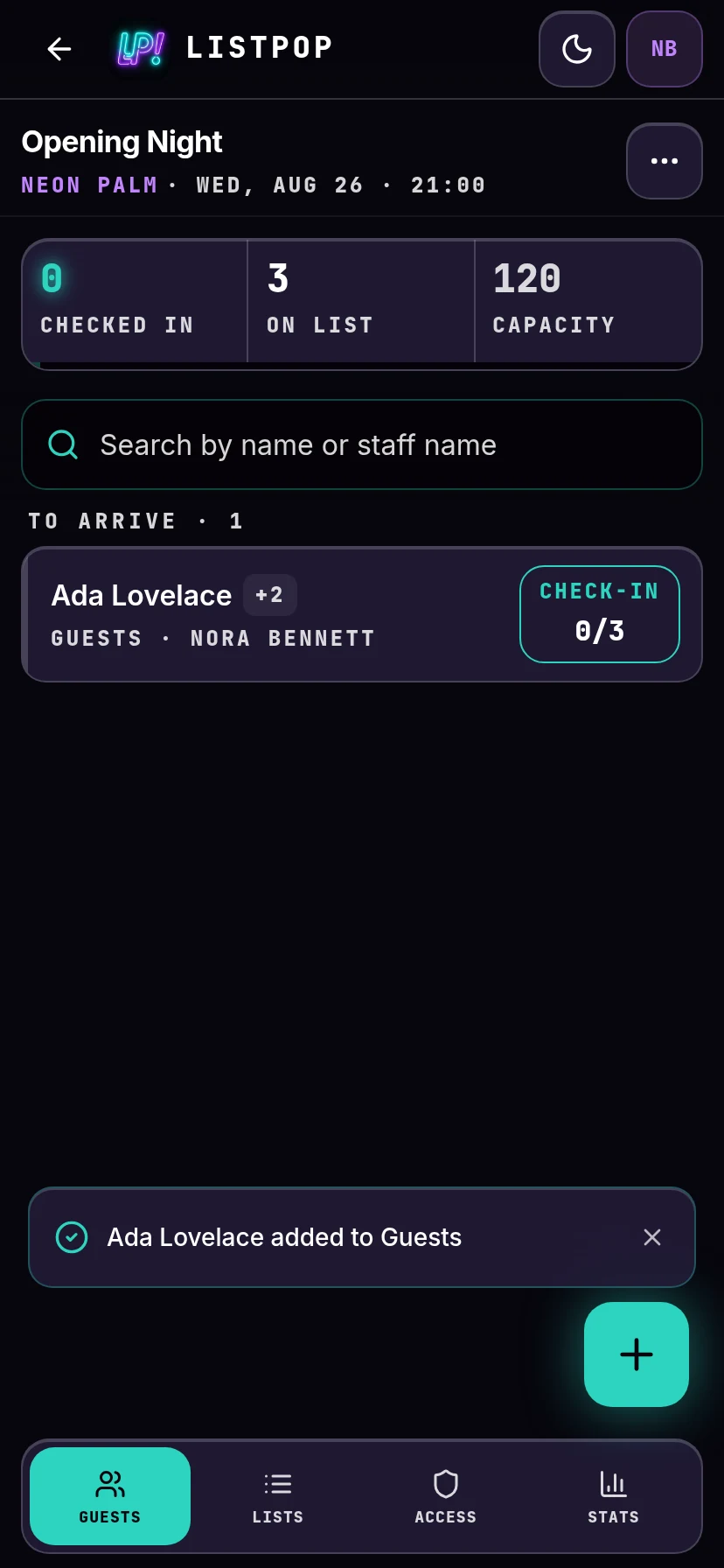
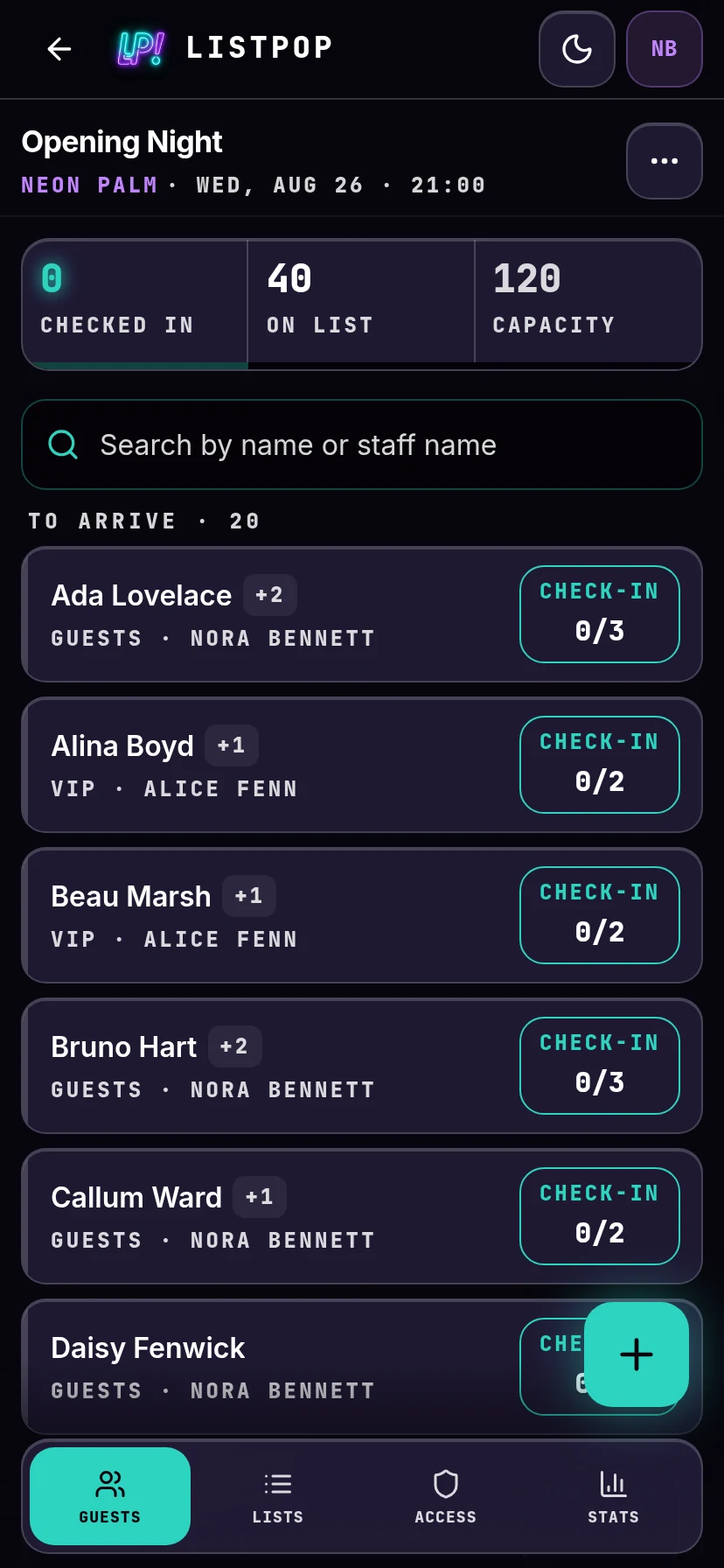
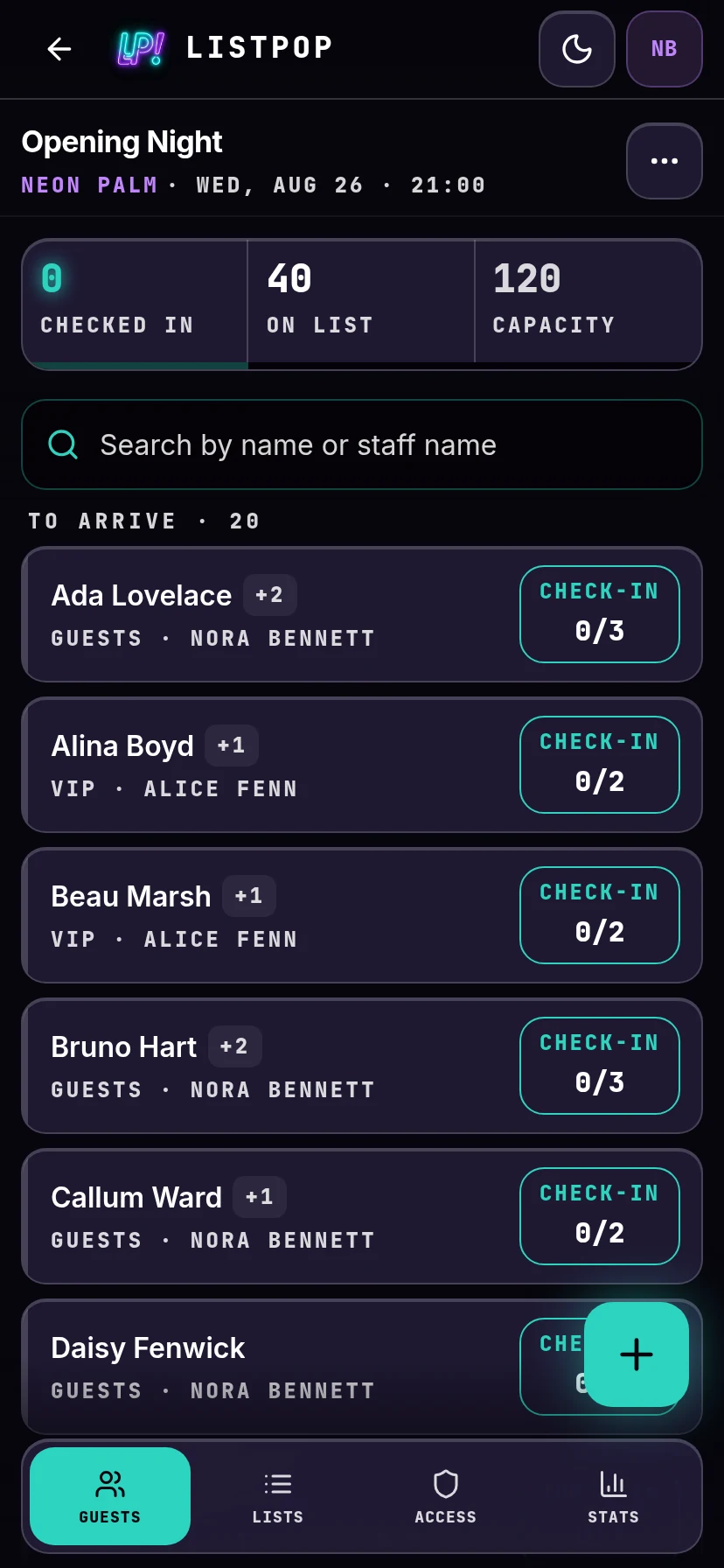
On the night, open the event and you are looking at the door screen. Every row is a party: the name, how many they are, which list they are on, and who put them there.
The three counters at the top are the night in one line: how many people are inside, how many are on the list, and your capacity.
Tap for one, hold for the whole party
The button on the right of each row does both jobs. Tap it and one person goes in. Hold it and the whole party goes in at once. That single gesture covers the two things that actually happen at a door: the guest who arrives alone and says the rest are coming later, and the group of four who walk up together.
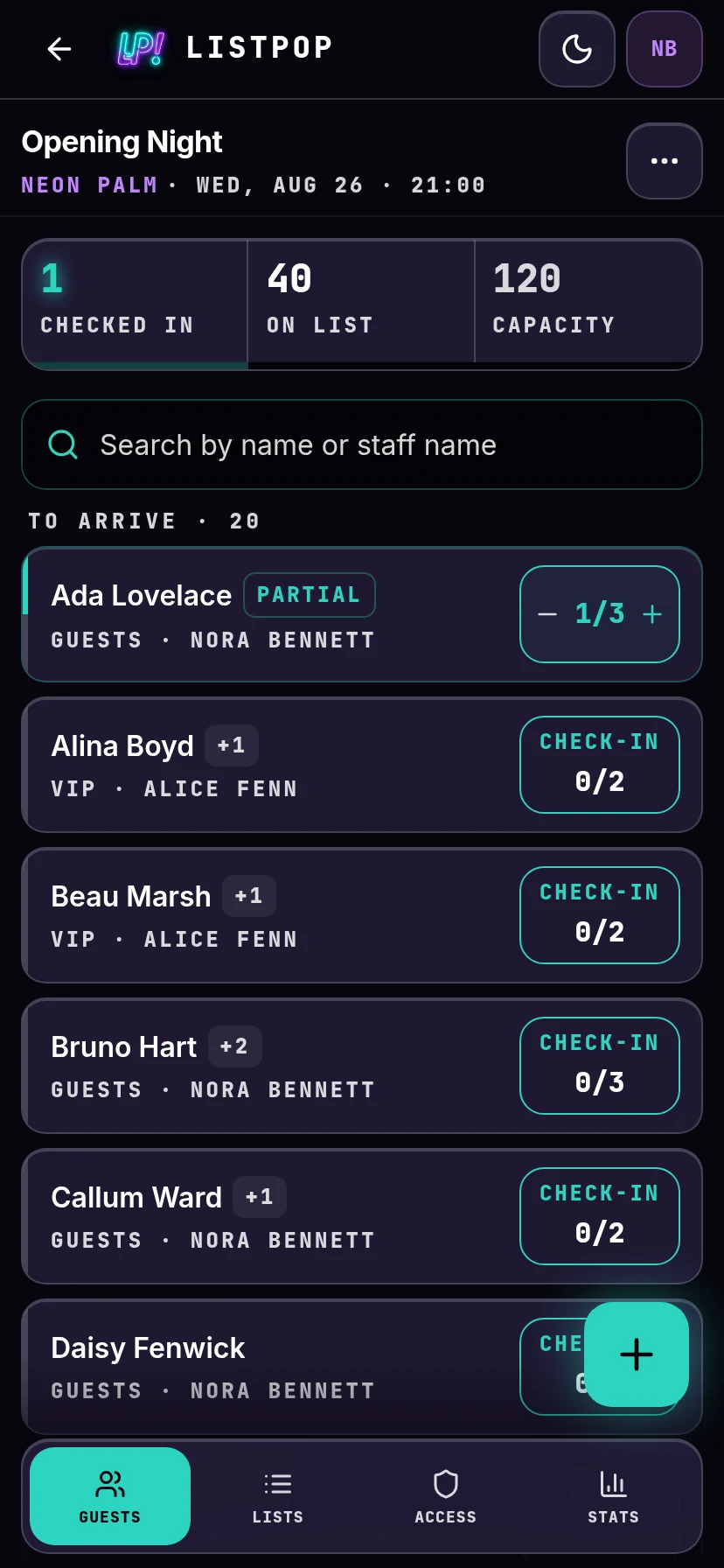
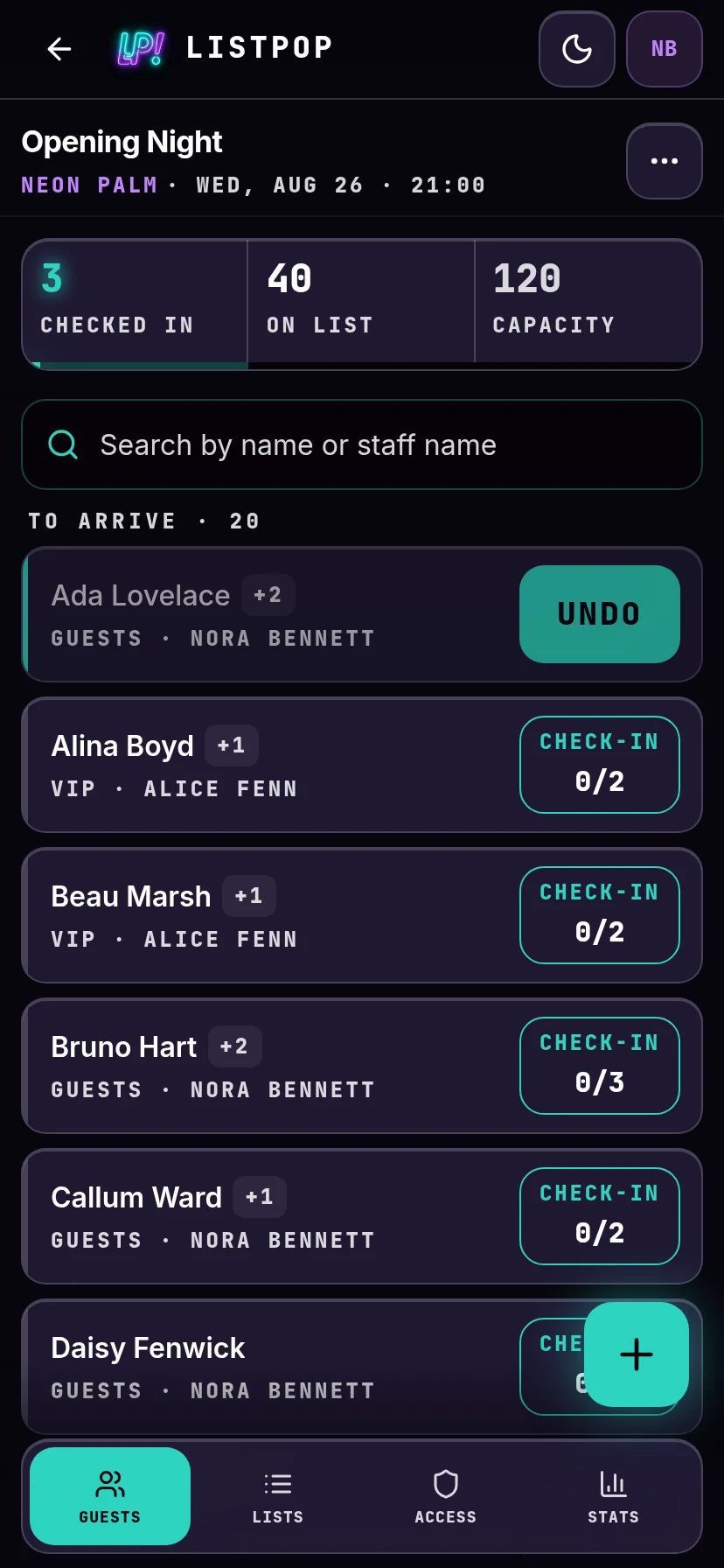
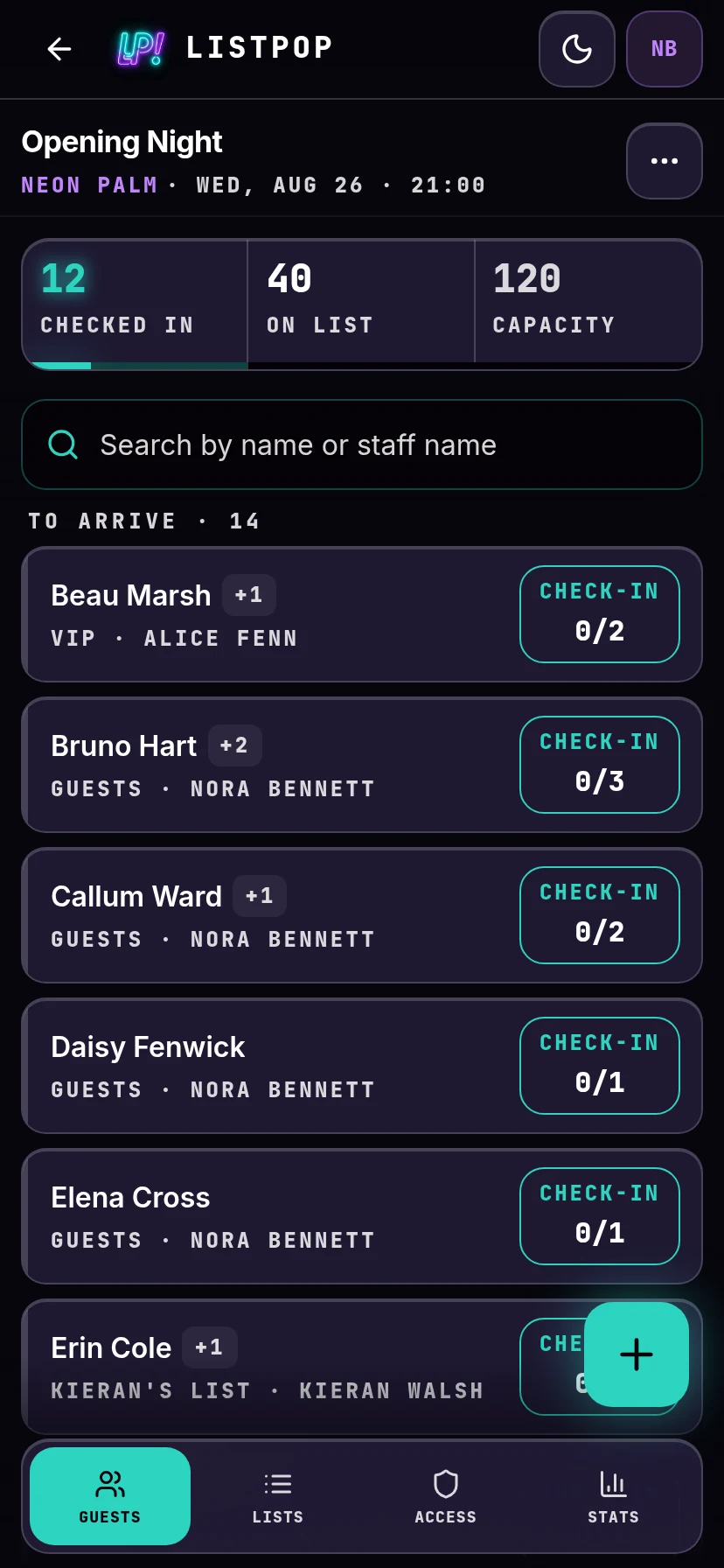
Nothing is final. A row that has been checked in shows Undo for a moment afterwards, and you can always open the guest and check them back out.
Finding someone fast
The search box matches the guest's name and the name of whoever added them. Type a few letters of a surname and the list narrows immediately. Searching by staff name is how you answer "she said she is on Kerem's list" without knowing the spelling of anything.
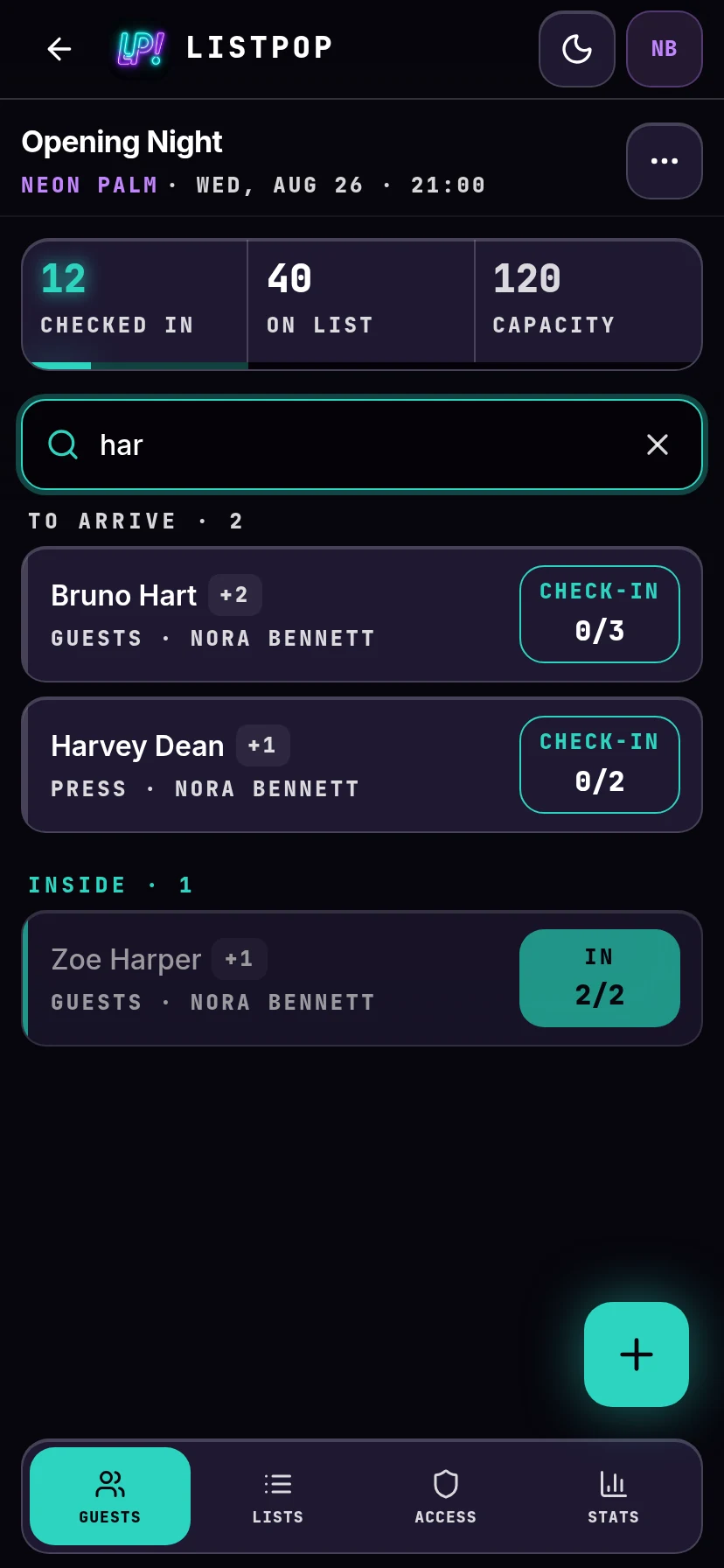
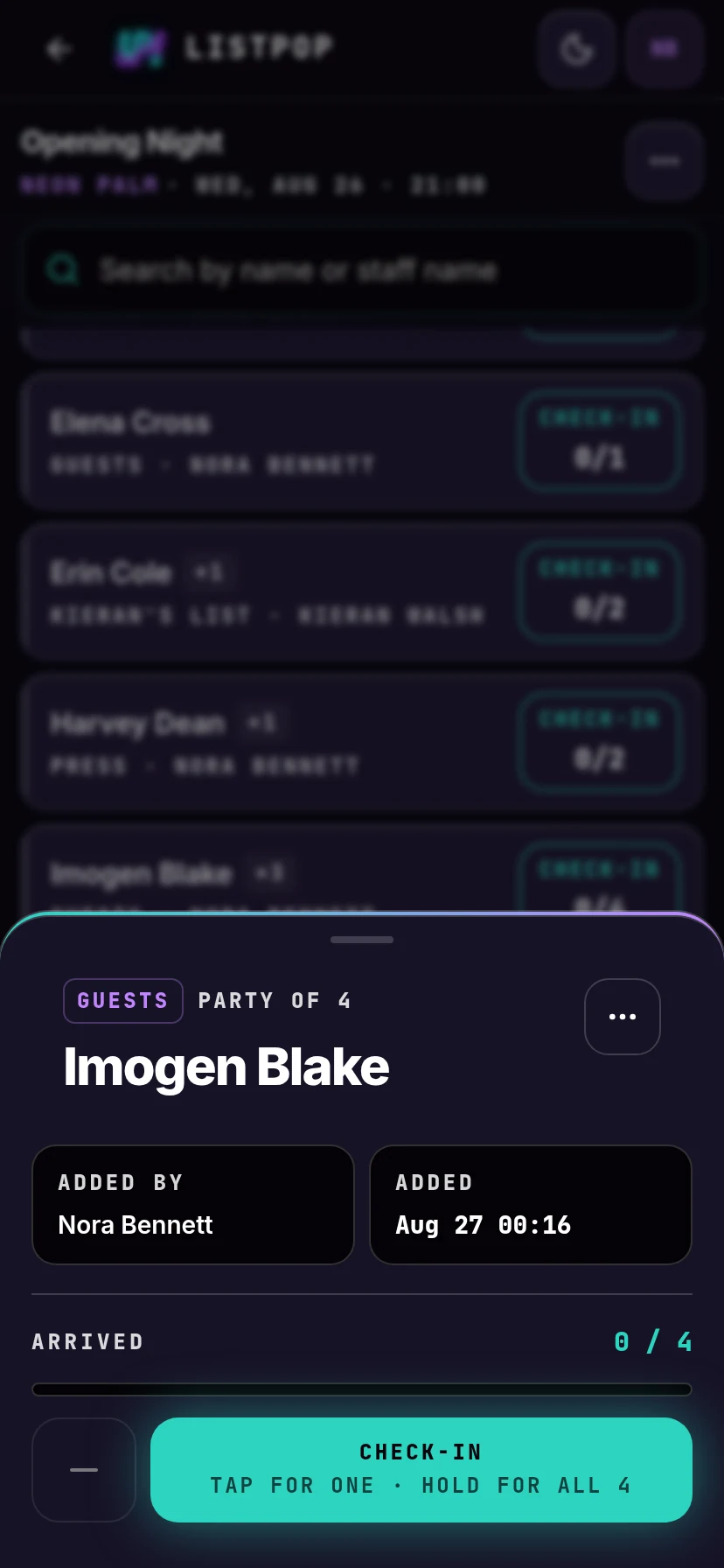
Tapping the name rather than the button opens the guest. You get their list, party size, who added them, when, how many have arrived, and any notes. From the menu in the corner you can edit the name or party size, ban them, or delete the row.
Banned names and walk-ins
A banned name at the door
A banned guest sits on the list in red, marked BANNED. Try to check them in and ListPop stops you with the reason you wrote when you banned them, and two choices: check in anyway, or cancel.
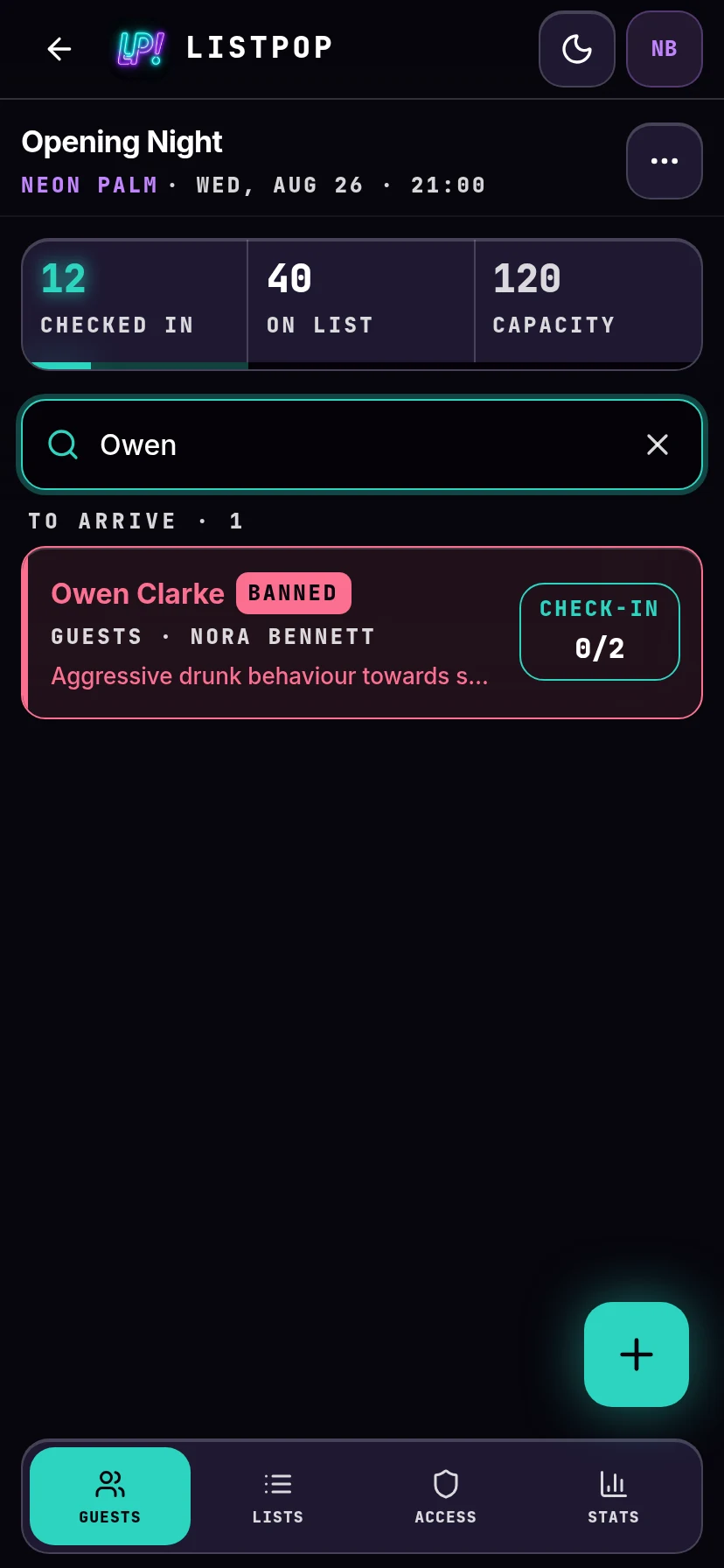
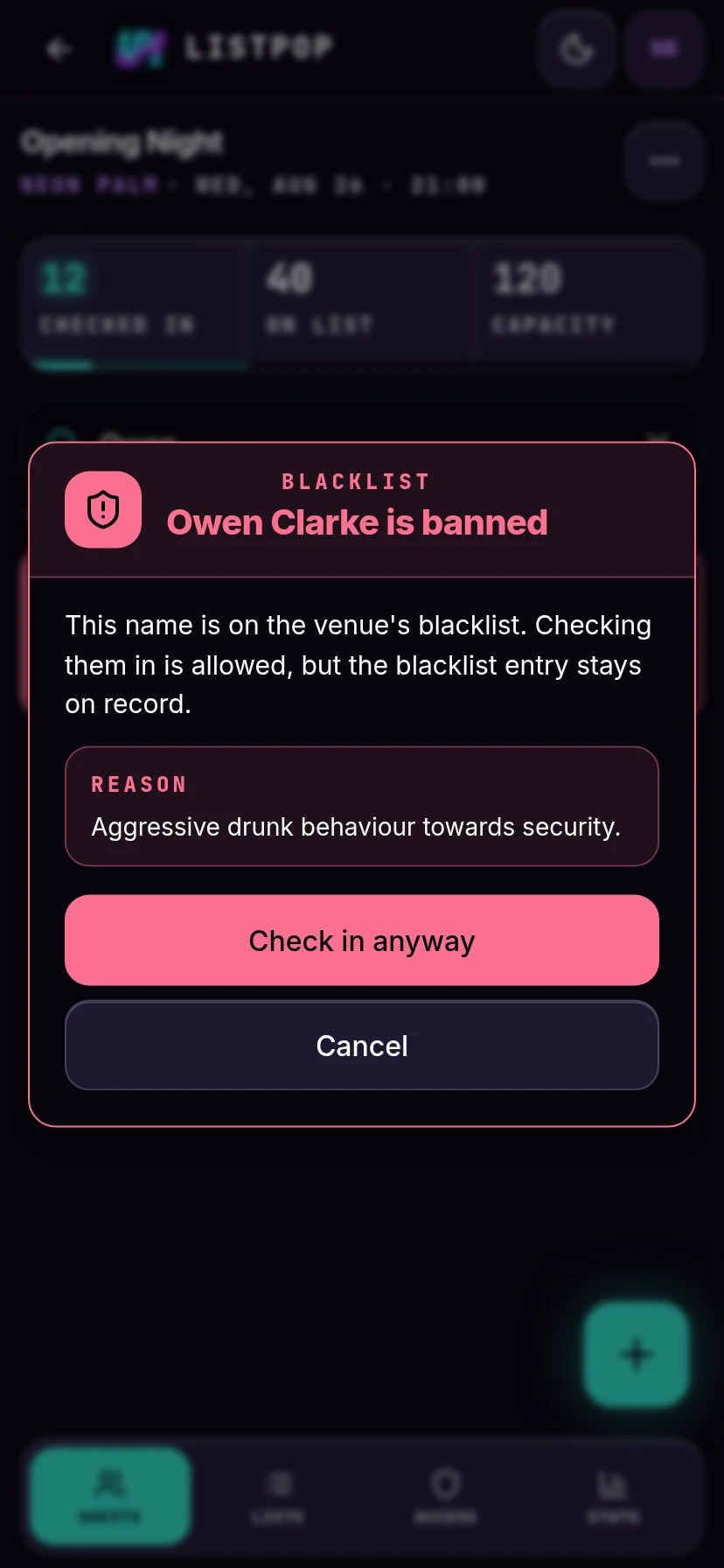
Letting them in does not clear the ban. The entry stays on the venue's blacklist until you remove it yourself.
Someone who is not on the list
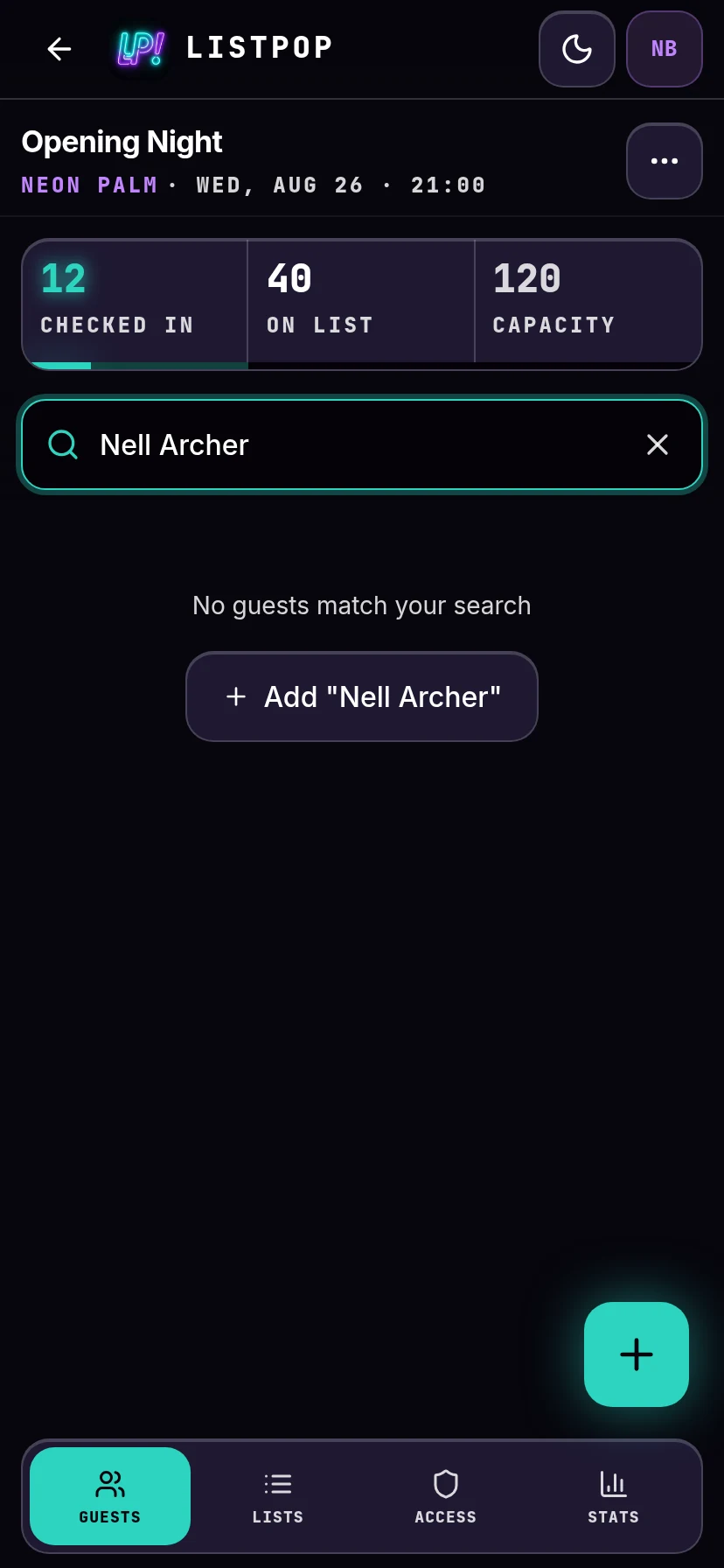
Search for a name that is not there and ListPop offers to add it. One tap puts the walk-in on the list and you can check them straight in, so the headcount stays honest without anyone leaving the door.
Lists on the night
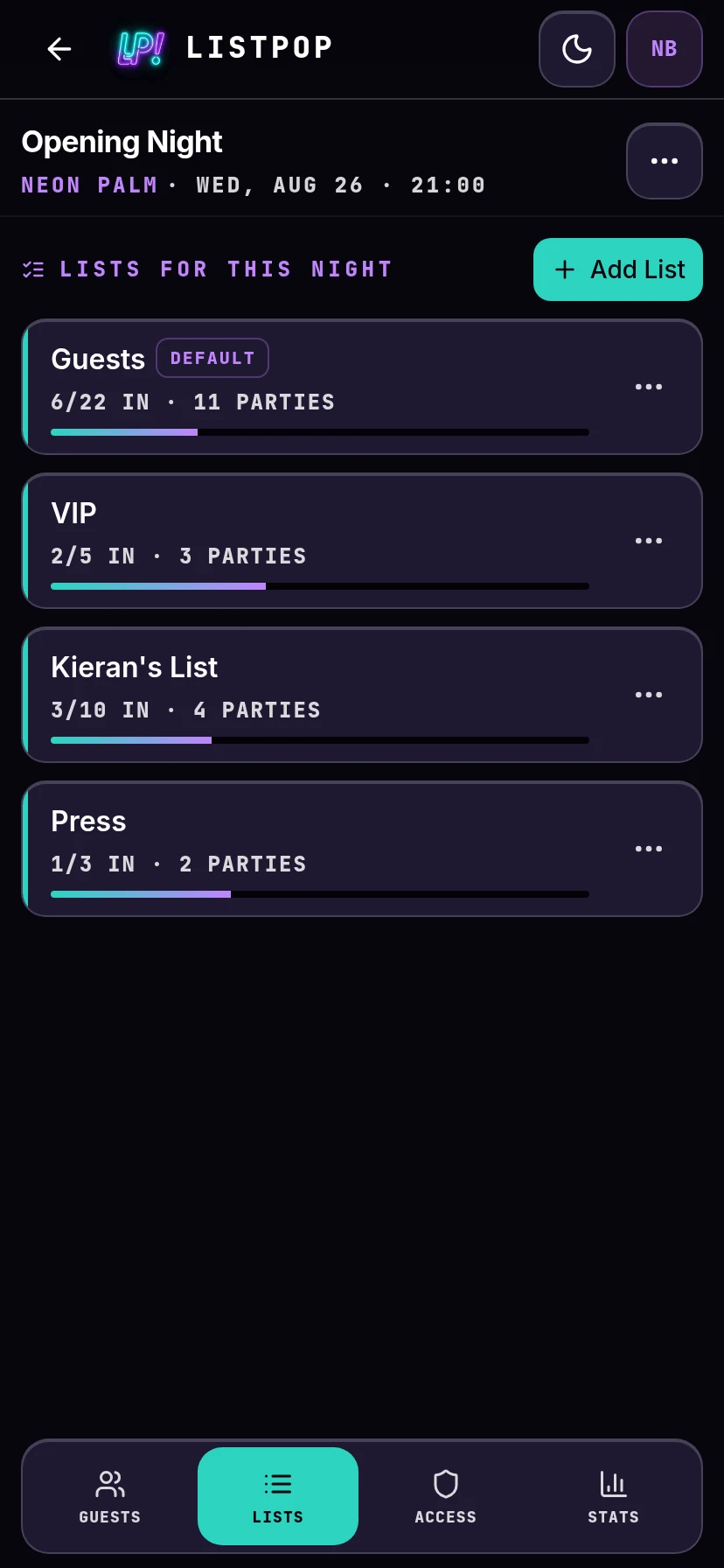
The Lists tab inside an event shows how the night is split and how each list is filling up: how many are inside, how many are on it, how many parties.
You can add a list mid-week, rename one, or set a different default for this night only. If you delete a list that has people on it, ListPop makes you choose another list to move them to first. Nobody gets deleted by accident.
Who can do what
The Access tab answers one question: who can do what tonight. Everyone with access to the venue appears, with a summary of what they are allowed to do.
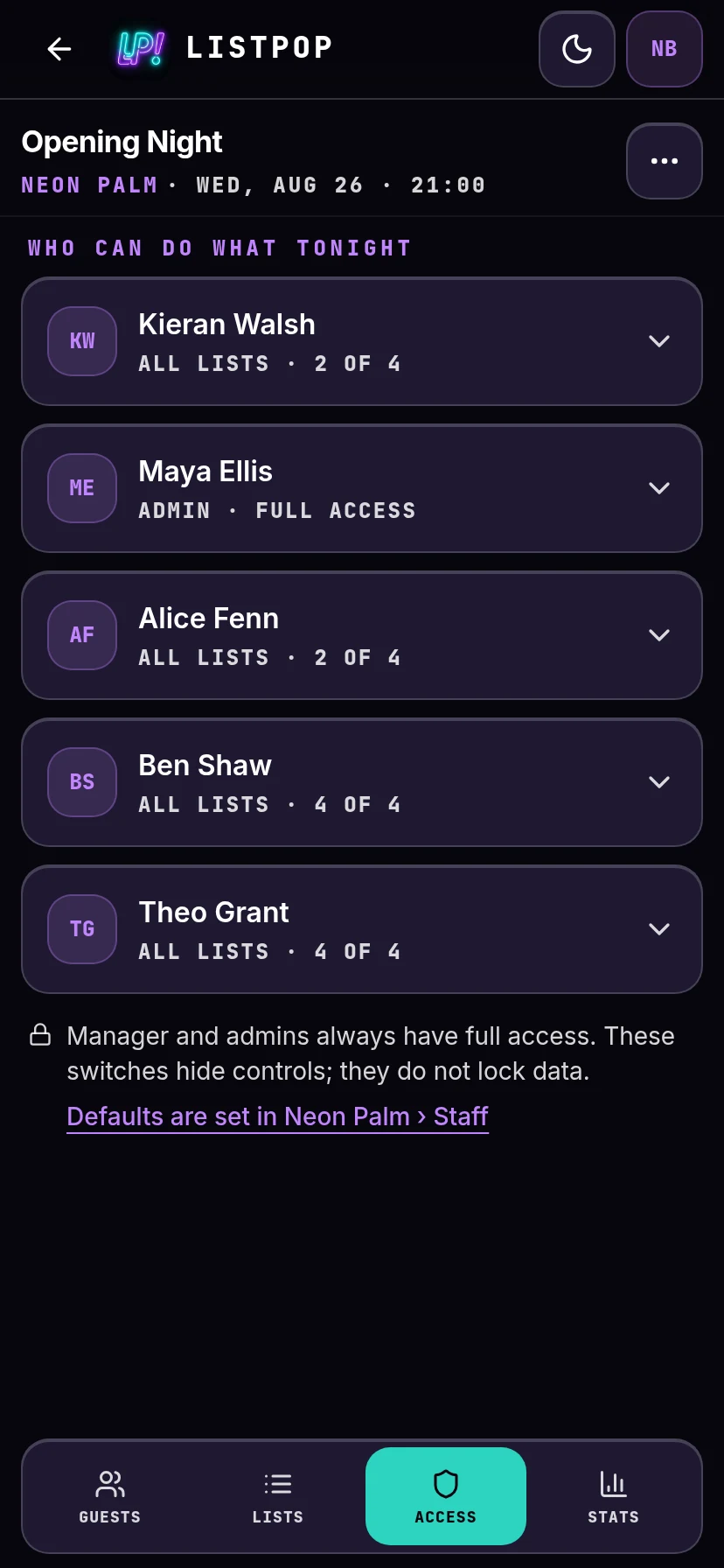
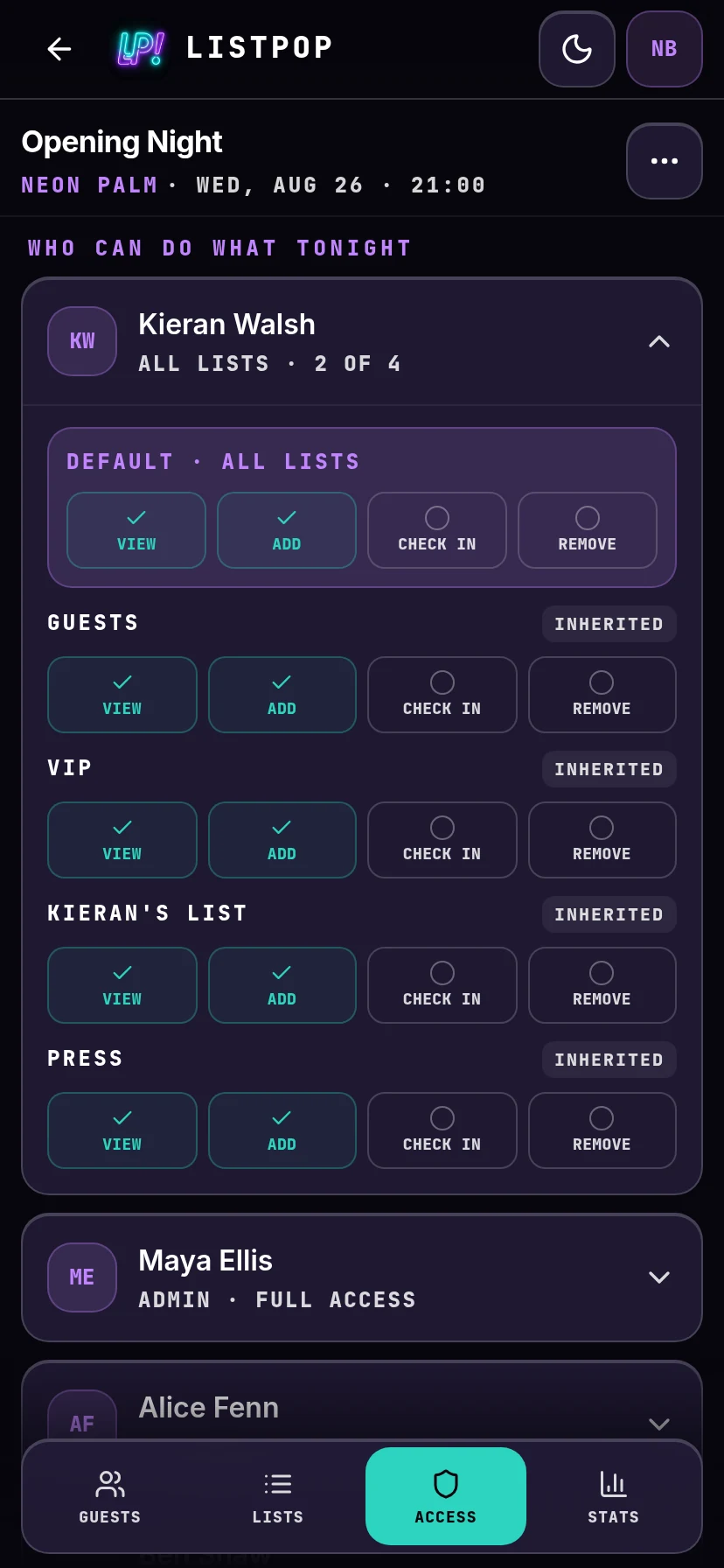
Tap anyone and their permissions open up. The purple row at the top is their default across the whole night, and it has the four switches everything else is built from: view, add, check in, remove. Kerem above is a promoter, so view and add are on and the other two are off.
Under that, every list on the night gets its own row. They start marked Inherited, meaning they follow the default. Change a switch on one of them and that row becomes an Override and stops following. This is how you let a promoter check in their own list while still only being able to look at everyone else's, or give one person the right to remove names from a single list and nowhere else. Reset to default clears an override and puts the row back to inherited.
Two things do not change. Administrators always have full access and cannot be restricted here, and neither can you. Everyone else starts from the role you gave them on the venue's Staff tab, and the link at the bottom of this screen takes you straight there.
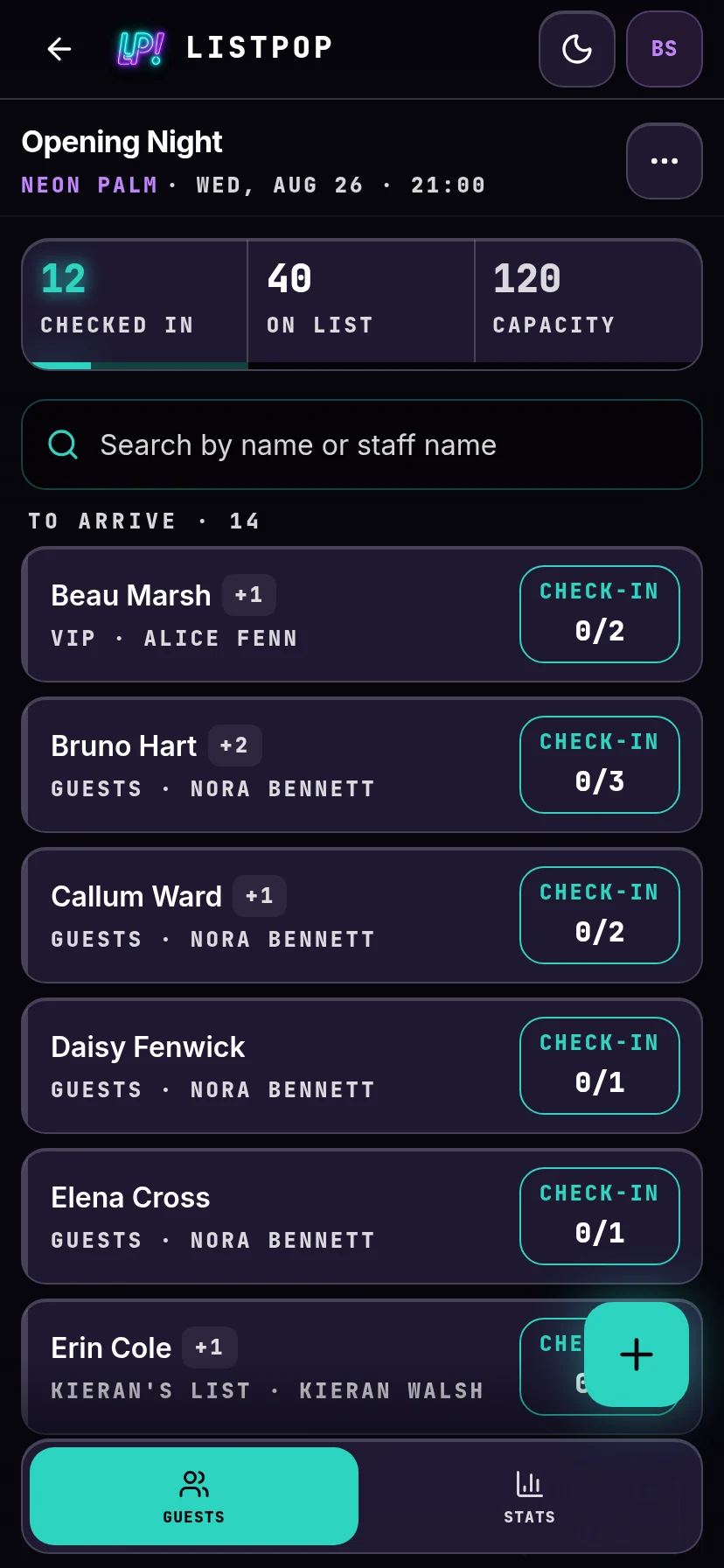
Staff who are not administrators see a simpler version of the same event: Guests and Stats only. Lists and Access are manager tools, so they are not shown. If a member of your team says the tabs are missing, that is the reason, and the fix is to make them an administrator on the venue's Staff tab.
Stats
The Stats tab is live during the night and settles into a report afterwards.
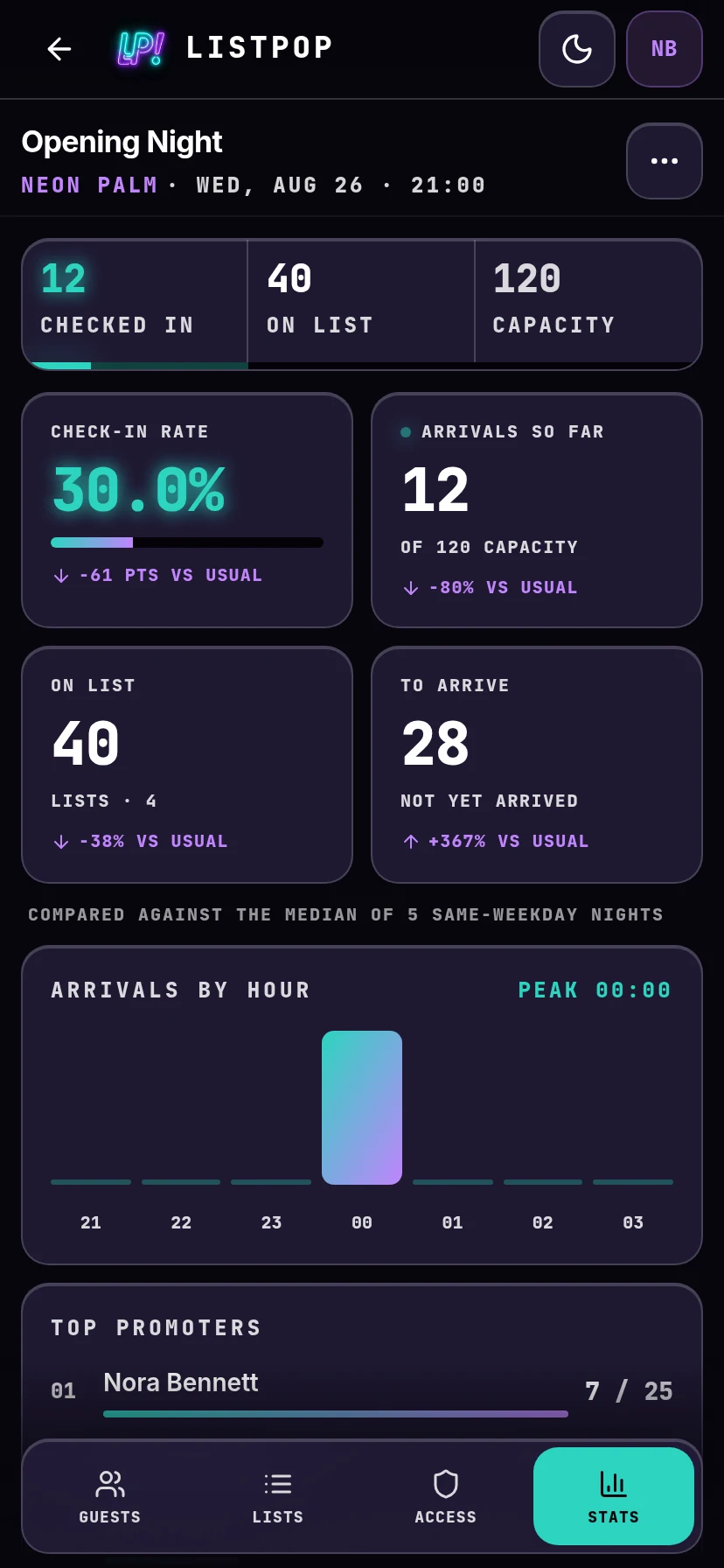
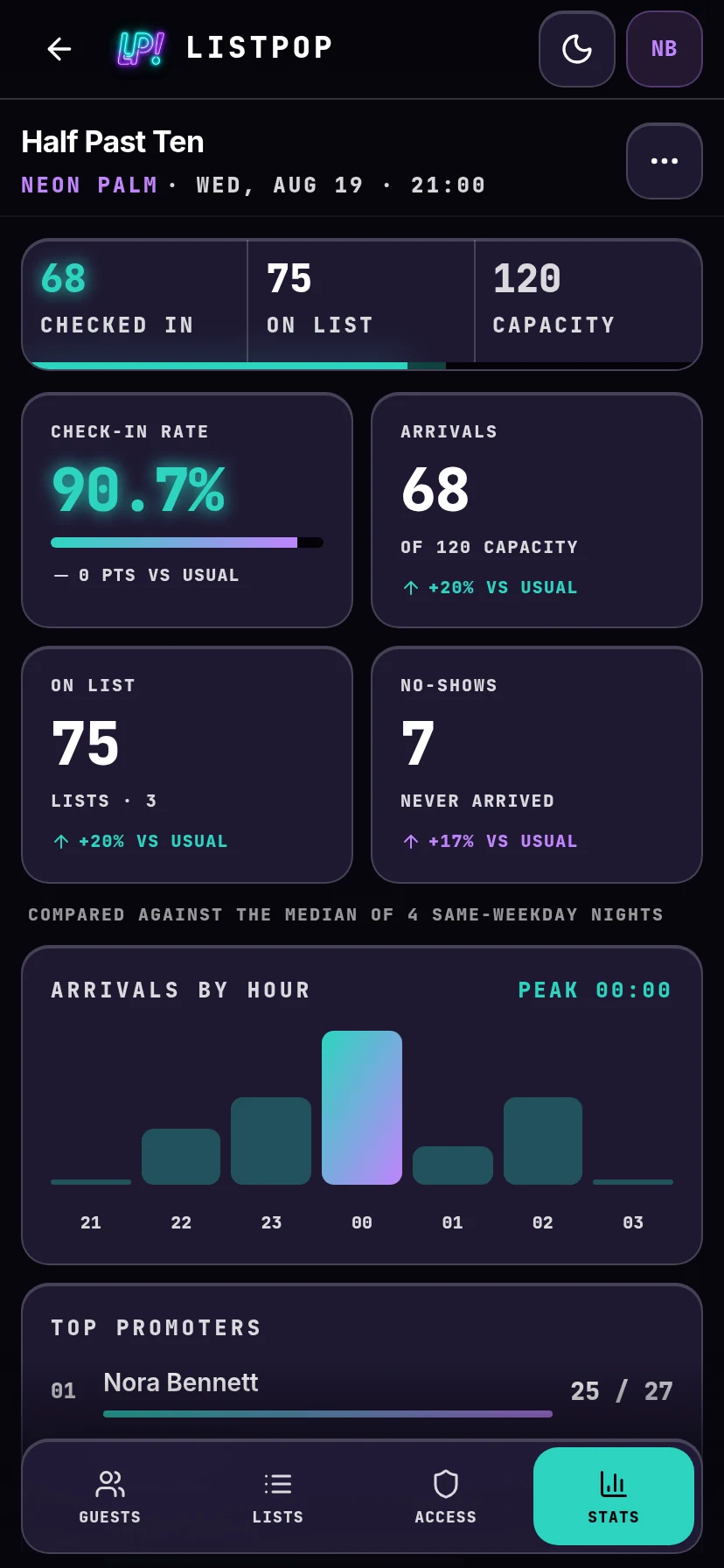
| Tile | What it tells you |
|---|---|
| Check-in rate | What share of the people on your list actually arrived. |
| Arrivals | Headcount through the door, against capacity if you set one. |
| On list | Total people promised across every list, plus ones included. |
| No-shows | People who were on a list and never arrived. |
Under each number is a comparison against the same weekday at the same venue. While the door is still going, only On list carries one, because your list is complete at any hour but an hour of arrivals against a whole night's is not a fair comparison. Check-in rate, Arrivals and No-shows pick theirs up once the night is over, as long as the door ticked someone in. Once you have run four of them, On list reads something like "Median Sat 64 · rank 2/9": the usual size of a Saturday in your room, and where this night places among them. Below four nights it counts what you have instead, "3 nights so far", and the comparisons stay off until there is enough history behind them to mean anything.
Arrivals by hour, promoters, and lists
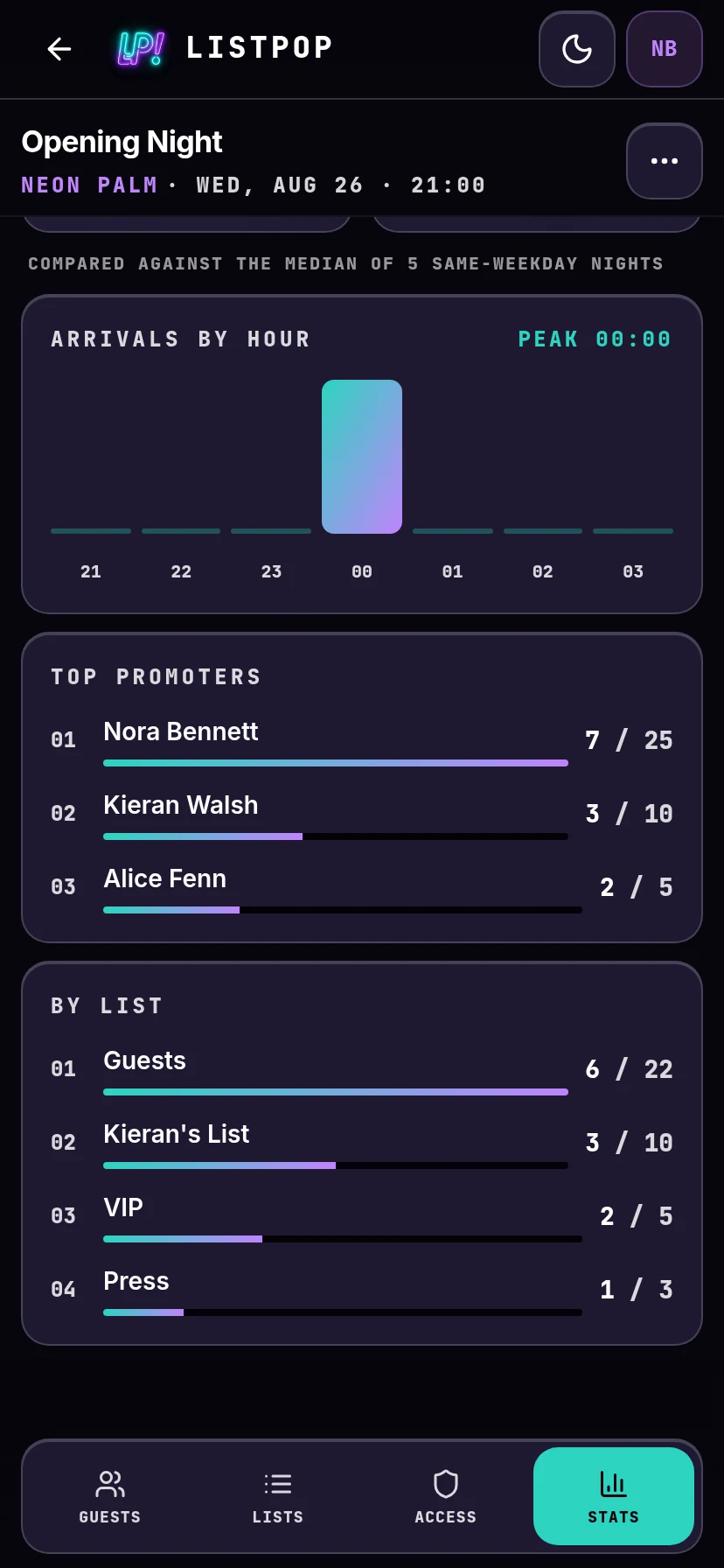
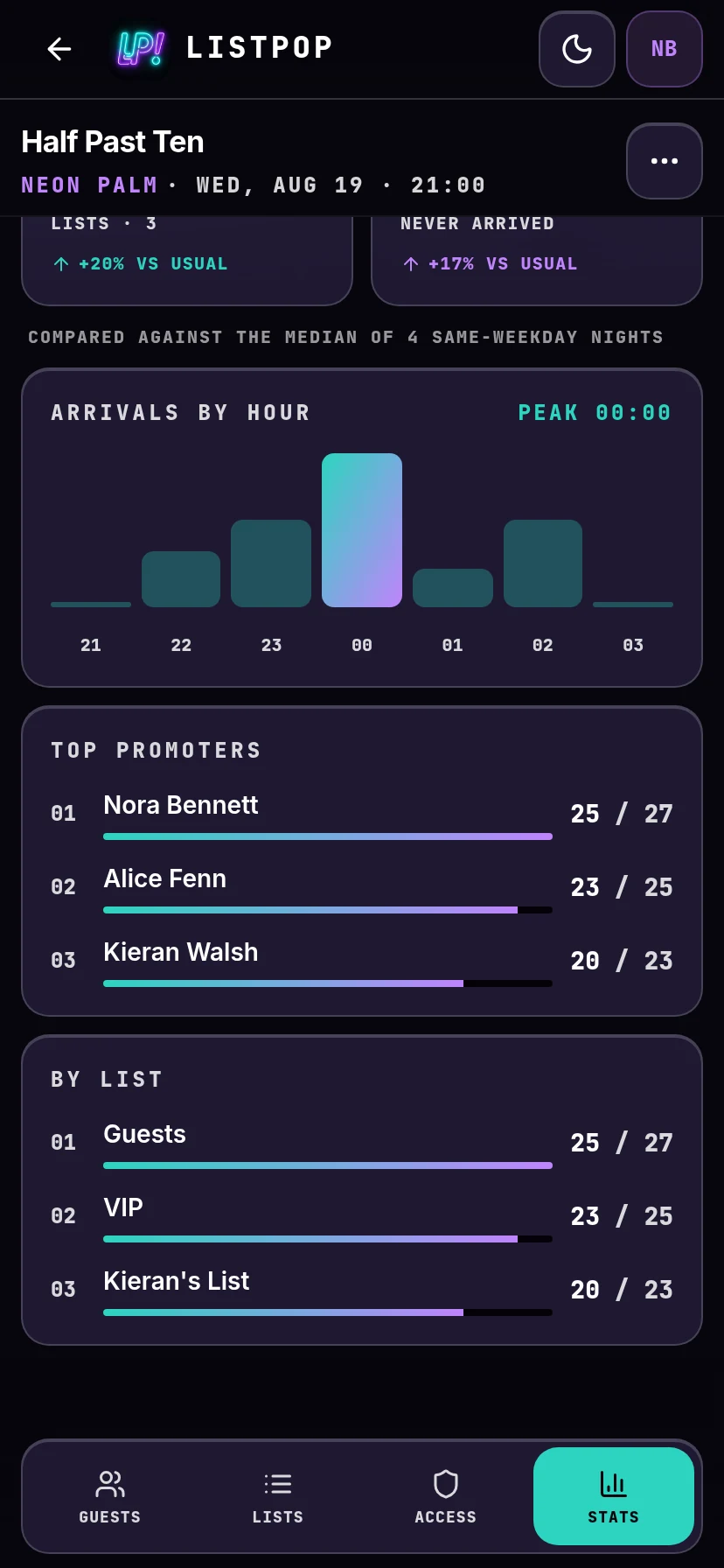
Scroll down for the shape of the night. Arrivals by hour shows when people actually walked in and marks your peak. Top promoters ranks your team by how many of their names turned up, not by how many they wrote down, which is the number worth paying on. By list does the same per list.
Past nights
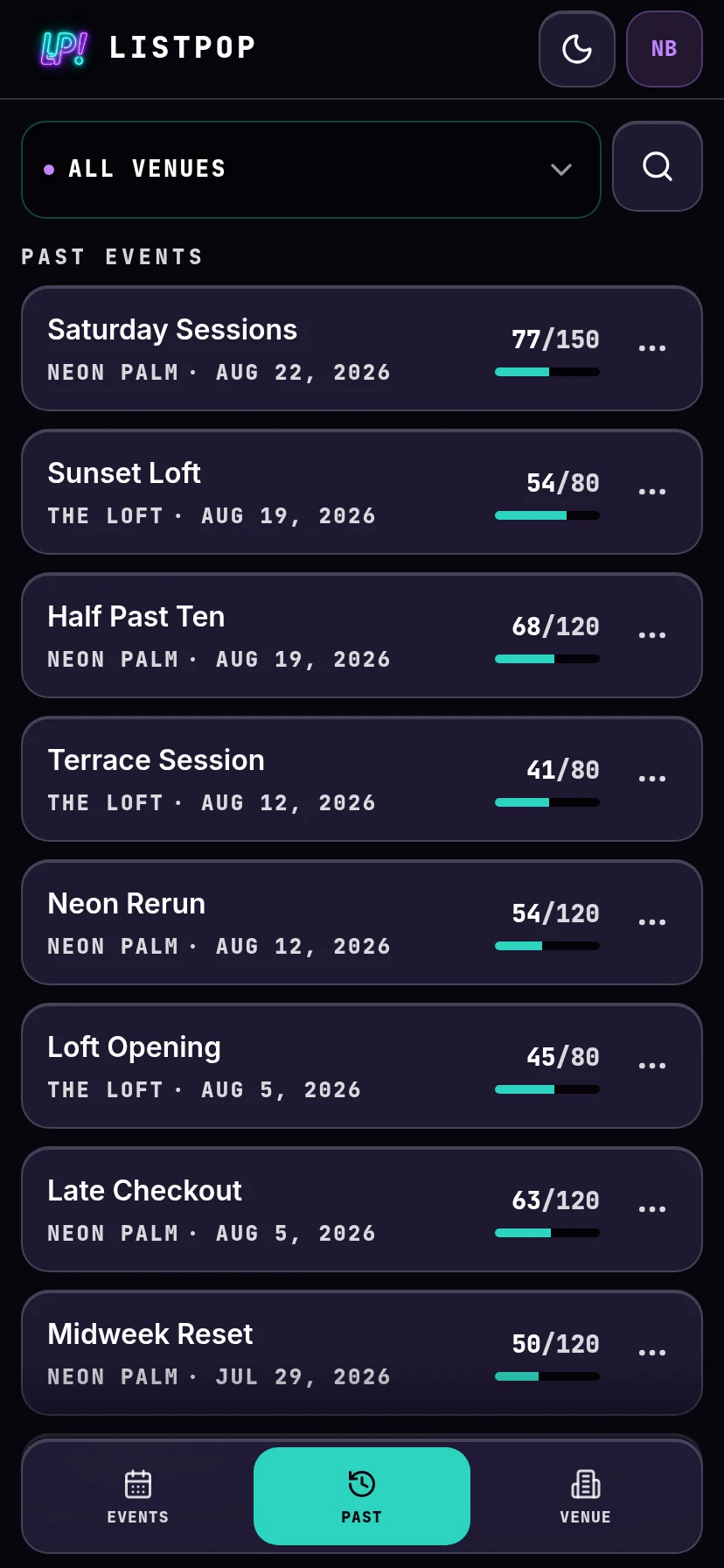
Past in the bottom bar lists every finished night, newest first, with its final headcount: against your capacity if you set one, against a typical night of that weekday if you did not. Filter by venue or search by name. Open any one of them and you get the full guest list and stats exactly as they stood when the night ended.
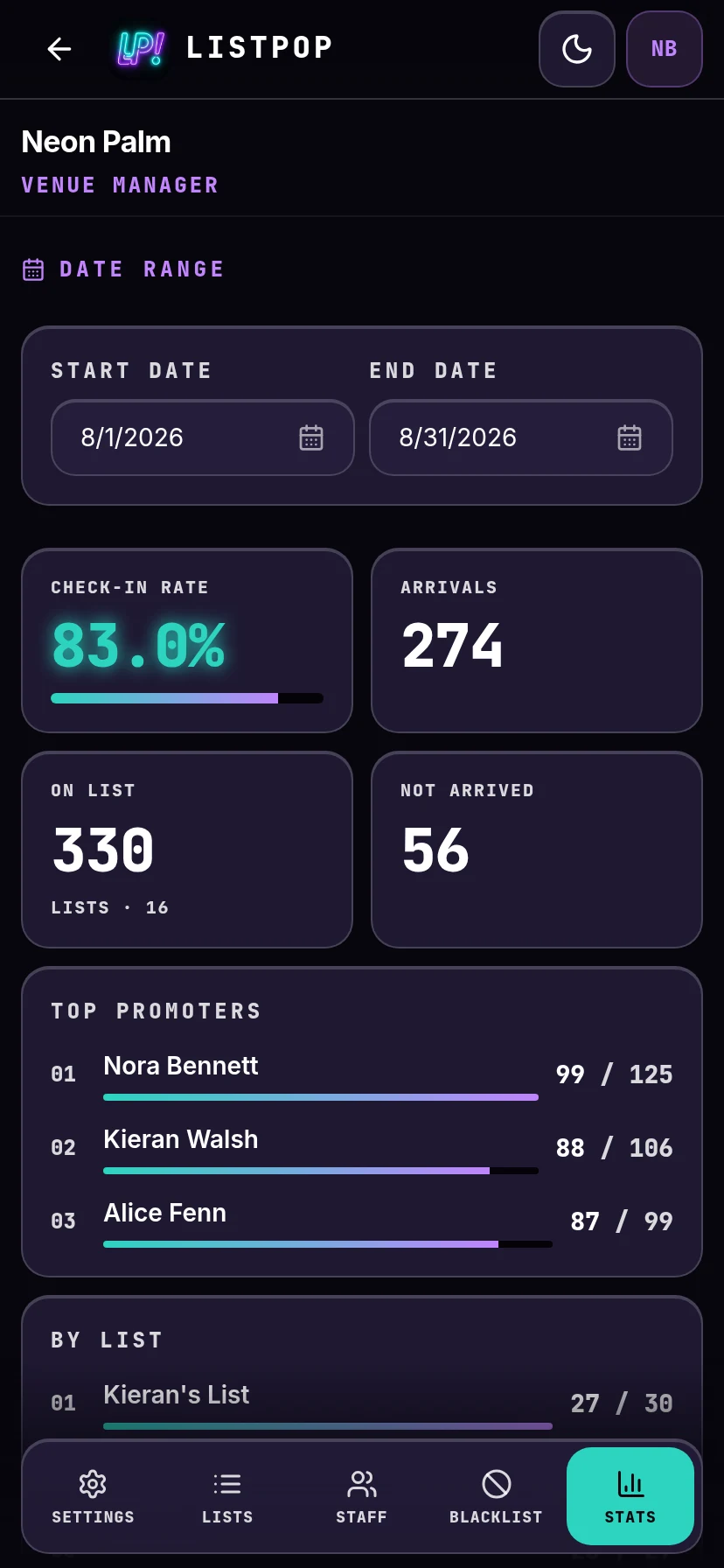
For the wider view, open the venue and use its own Stats tab. That one covers a date range rather than a single night, so you can look at a month or a season and see which promoters and which lists hold up over time. It is only visible to you and your administrators.
English and Turkish
ListPop is fully translated into Turkish. Open Account Settings from the account icon and pick your language. The setting belongs to the person, not the venue, so your door staff can work in Turkish while you read the stats in English on the same night and the same data.
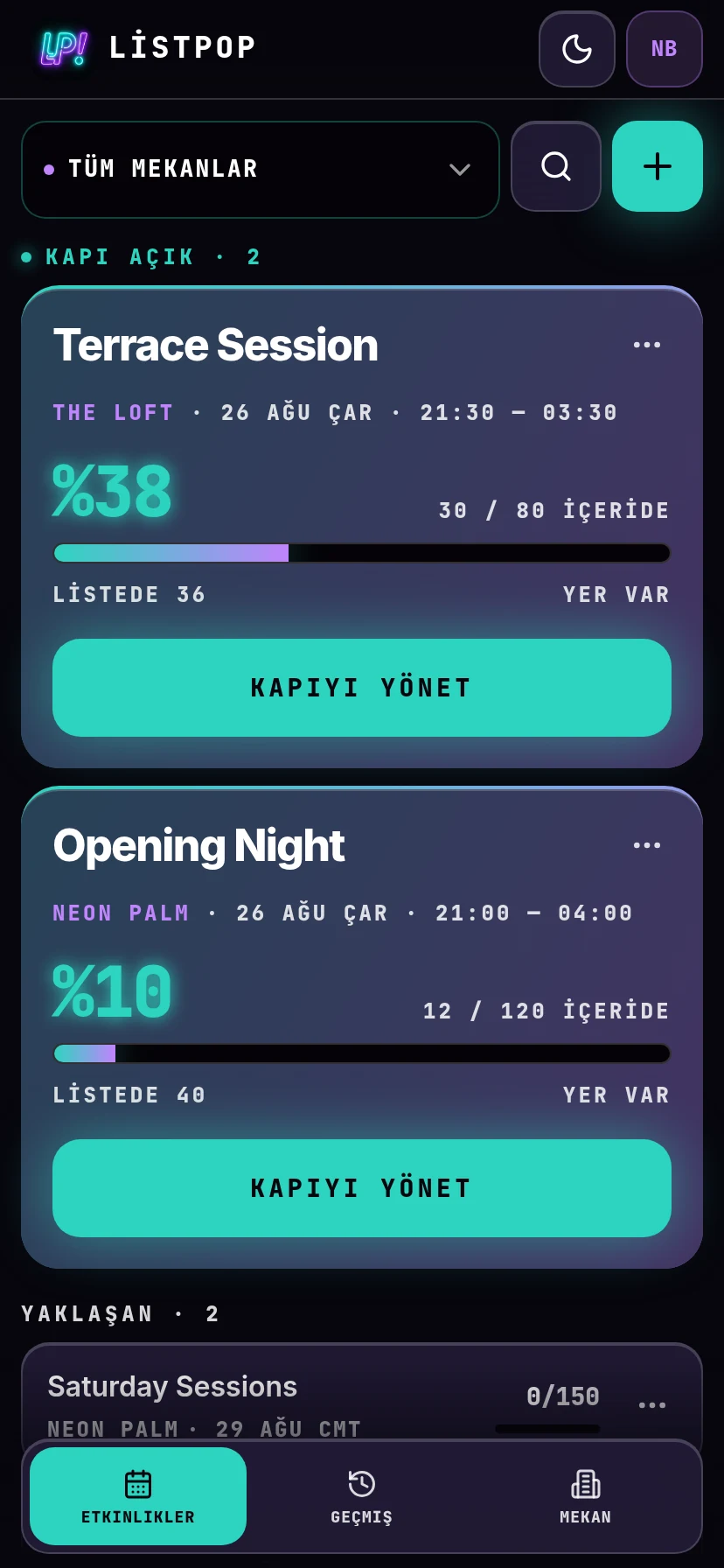
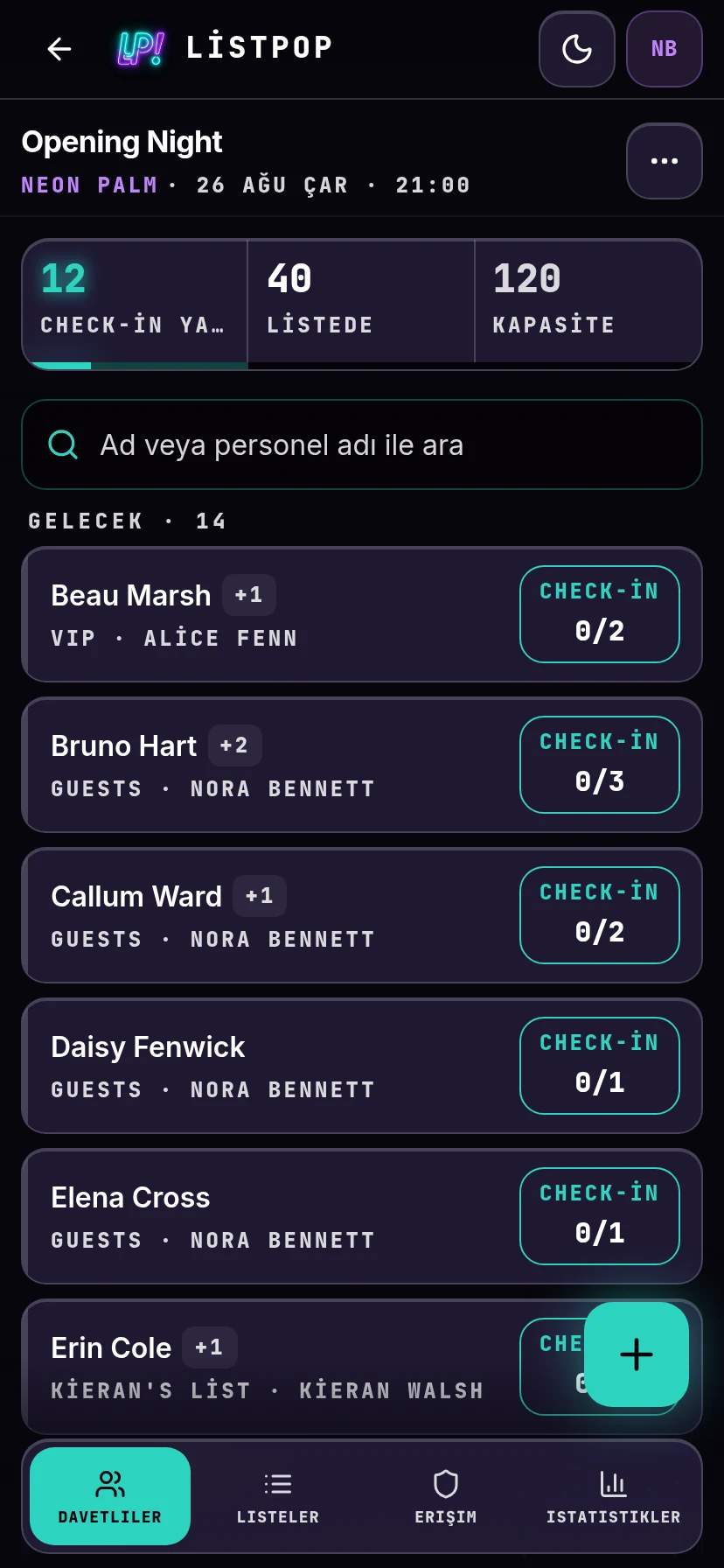
Guest names are never translated or altered. What was typed is what the door sees.
Words we use
| Word | Meaning |
|---|---|
| Venue | A room you run. Holds your events, lists, staff, banned names and stats. |
| Manager | The person who created the venue. One per venue, and the only one who can delete it. |
| Administrator | A staff member with the same access as the manager, apart from deleting the venue. |
| Event | One night at one venue. |
| Guest list | A named list inside an event. Set them up once on the venue and every new event gets a copy. |
| Default list | The list pre-selected when someone adds a name. |
| Guest | One row: a named person and their party. |
| Plus ones | Extra people arriving with a guest. Party size is the guest plus their plus ones. |
| Party | A guest and everyone with them, counted as one row and several people. |
| Partial | Some of a party has arrived and some has not. |
| Promoter | Whoever put a name on a list. Stats group by promoter. |
| Blacklist | Names banned at a venue. Warns the door, never blocks it. |
| Capacity | Optional cap on an event. It drives the percentage full on the home screen, and an add that would take the night past it asks you first. It never blocks the add. |
| Walk-in | Somebody added at the door on the night rather than in advance. |